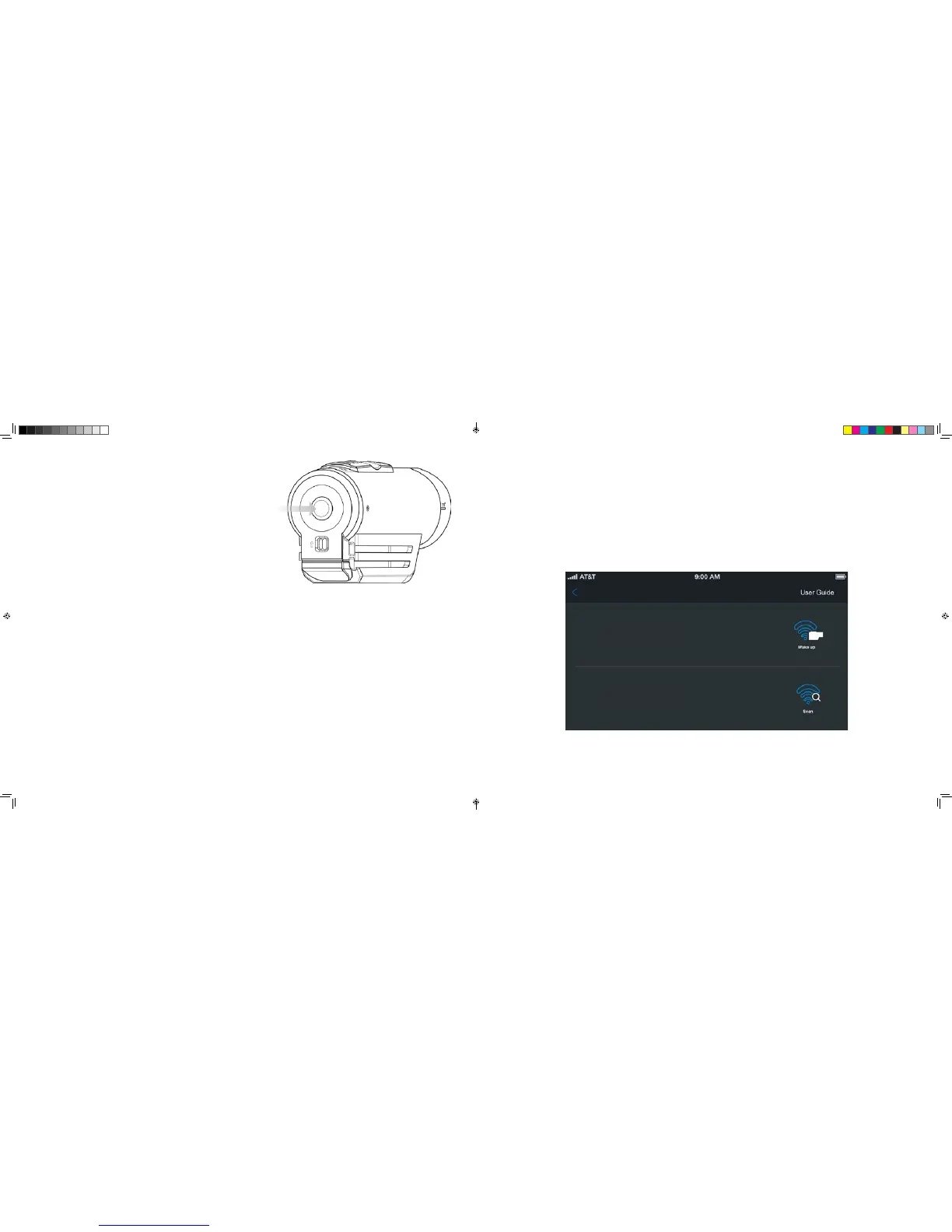
6. CAMERA STATUS
7. ACCESING PHOTOS & VIDEOS
ERROR CONDITIONS
Pressing the Status Button will:
1. Activate the Laser Line for 15 seconds.
2. Display the current battery and memory status.
1. Battery LED flashes red: the battery is almost empty.
2. Memory LED flashes and there are continuous beeps: the microSD Card cannot be accessed because there is no memory card
inserted, a card error, a format error, Memory card is full, incompatible card or a folder cannot be created.
Power on the camera by pressing and holding the status button for 3-5 seconds.
Using the USB cable provided, connect your camera to your PC/MAC.
Via My PC (Windows) or Finder (MAC), you will now be able to view the removable disk drive which contains the photo/video files
to play back through various media players.
MEMORY STATUS LED BATTERY STATUS LED
Green: 51% or more
Yellow: 20 to 50%
Red: 20% or less
Green: 51% or more
Yellow: 20 to 50%
Red: 20% or less
8. USING THE CONTOUR 4K MOBILE APP
In order to get the most out of your camera, it is advised you download the CONTOUR 4K mobile app (available on iOS and Android
devices),
With the CONTOUR 4K app, you can customize the way that your camera functions as well as use the camera remotely with live view.
It is also possible to view/download files directly from the camera to your mobile device.
When initially starting up the app, you will be prompted to pair your CONTOUR 4K with your device through the connection options
menu. Please ensure that your Bluetooth and Wi-Fi connection enabled.
Device Name
COUNTOUR4KBT-00:0A:02:0B:03:0C
Wi-Fi SSID
COUNTOUR4KBT-00:0A:02:0B:03:0C
CONTOUR 4K MANUAL EN.indd 6-7 1/17/18 2:22 PM


 To Next Page