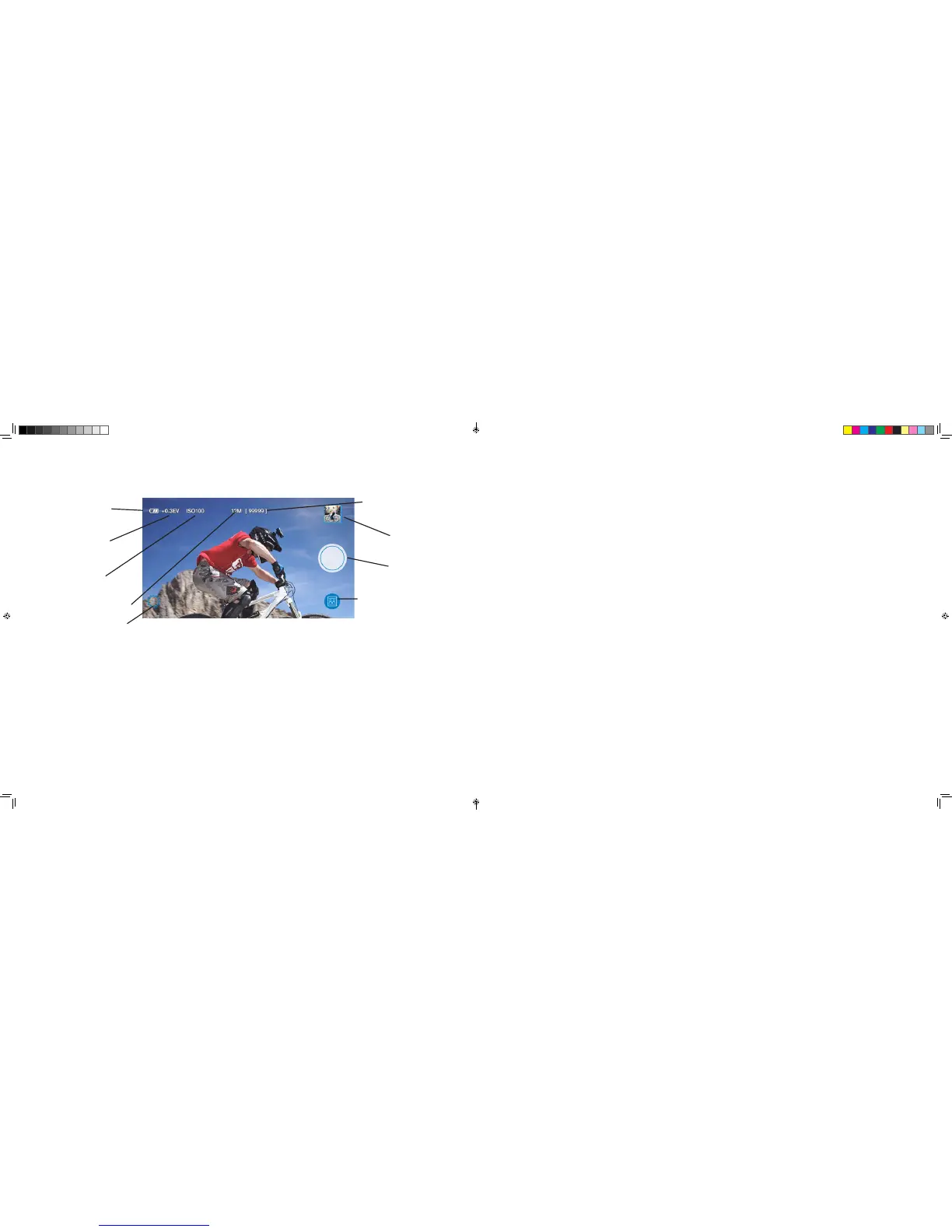
Once these settings have been confirmed and your camera is connected to your device, you will now be able to access Live
View and use your camera remotely.
BATTERY LEVEL
REMAINING PHOTOS /
RECORDING TIME
ACCESS MEDIA
GALLERY
CAPTURE
BUTTON
MODE MENU
-SINGLE
-BURST
-TIME LAPSE VIDEO
EXPOSURE VALUE
IMAGE
SENSITIVITY
PHOTO / VIDEO
RESOLUTION
ENTER CAMERA
SETTINGS
9. CAMERA SETTINGS
To adjust the settings on your camera, download and install the CONTOUR 4K app to your iOS/Android Device
With the camera connected to your mobile device, go to the Live View and enter the Settings menu within the CONTOUR 4K mobile app.
VIDEO
PHOTO
1-2 SWITCH
2160p video at 30/25 frames per second
1080p video at 120/60/30/100/50/25 frames per second
720p video at 120/60/30/100/50/25 frames per second
WVGA (480p) at 240/30/200/25 frames per second
Continuous Photo Mode (with photos taken single shot, burst (2, 5, 10 and 10/2 seconds))
12MP, 8MP, 5MP, 2MP
Burst Shot
Time Lapse Interval
The 1-2 Switch on the back of your camera allows you to preset your CONTOUR 4K with two different configurations that can be
easily changed in the field. The settings for each switch position can be set-up using CONTOUR 4K Mobile App.
Within the Settings menu you can also format your memory card, change network settings and turn off the cameras beeping
functions.
CONTOUR 4K MANUAL EN.indd 8-9 1/17/18 2:22 PM


 To Next Page