Need help?
Do you have a question about the Control 4 C4-TSWMC7-EG-BL and is the answer not in the manual?
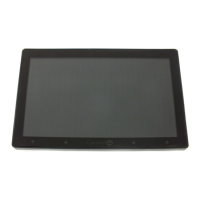
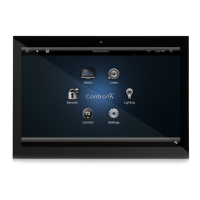
Describes the Control4 7" In-Wall Touch Screen with Camera, its features, and design.
Details available power (AC/PoE) and network (WiFi/Ethernet) connection options.
Lists supported 7" In-Wall Touch Screen models with camera.
Lists associated SKUs for 5" and 7" In-Wall Touch Screens, with and without cameras.
Lists the items included in the box for the 7" In-Wall Touch Screen with Camera.
Details screen resolution, camera specs, and wireless LAN capabilities.
Information about the Control4 PoE Injector (AC-POE1-B) sold separately.
Details available back box kits for new construction and retrofit installations.
Specifies the need for a Home Controller and a pre-installed Control4 7" Touch Screen back box.
Lists requirements for Ethernet connection using PoE power, including injector and cables.
Lists requirements for Ethernet connection with AC power, including network and AC power access.
Lists requirements for WiFi connection with AC power, including network and AC power access.
Identifies the display and shortcut buttons on the front of the Touch Screen.
Describes wire connections and the RJ-45 port for Ethernet on the rear panel.
Provides front, back box, and power box dimensions for the 7" Touch Screen.
Instructions on how to remove the Touch Screen from the wall using a small hole.
Guidance on placing the Touch Screen at eye level for optimal use and camera visibility.
Explains the meaning of the LED on the Touch Screen for camera status and booting.
Important safety warnings before installing, including turning off power.
Ensures a 7" Touch Screen back box is installed as per documentation before proceeding.
Overview of choosing between Ethernet/WiFi and PoE/AC power for installation.
Steps for setting up an Ethernet connection using a PoE Injector for power and network.
Details the Ethernet connection requiring both neutral and hot AC power connections.
Describes setting up a WiFi connection with AC power, requiring a WAP and power source.
Discusses potential WiFi performance degradation with multiple devices or multicast handling.
Step-by-step guide for connecting AC power to the Touch Screen via a terminal block.
Completes the AC power connection by securing wires and sliding the power box into place.
Steps to connect the PoE Injector to AC power, network, and the Touch Screen's power box.
Guides for connecting to a WiFi network via the Touch Screen's settings menu.
Details on enabling WiFi, selecting network name, security, and typing the password.
Optional steps to set a static IP address for the Touch Screen if DHCP is not used.
Instructions on adding and configuring the In-Wall 7" Touch Screen V2 driver in Composer Pro.
Describes the LED behavior and expected wait time during the Touch Screen's boot-up process.
Steps to restore the Touch Screen to factory defaults, including accessing the restore switch.
Instructions on how to remove the Touch Screen to access the factory restore switch.
Details using a paper clip to engage the factory restore switch on the Touch Screen.
Steps to reattach the Touch Screen and what happens after a factory restore (reboot, firmware update).
Covers circuit breaker requirements, heat dissipation, and avoiding water/humidity.
Advises against using sharp objects and highlights potential property damage from improper use.
Important notes on warranty voidance due to misuse and adherence to electrical codes.
Highlights the product's heat generation and the need for adequate room ventilation.
Specifies grounding requirements and that the product is for dry, residential use only.
Warns about strong magnets affecting medical devices and magnetic media; provides safety distances.
Copyright statement for Libertas Firmware used in Touch Screens.
Terms and conditions for copying, distribution, and modification of the Program under GNU GPL.
Directs users to the Control4 website for regulatory information.
Lists patents protecting the product and patents under which it is licensed.
Provides information about the limited 2-year warranty and a link for details.
Details the document part number and revision date.
 General
| Brand | Control 4 |
|---|---|
| Model | C4-TSWMC7-EG-BL |
| Category | Touch Panel |
| Language | English |


 To Next Page