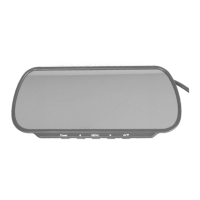
The Convoy Technologies M7204RF is an LCD color monitor designed for various applications, particularly in automotive or vehicle electrical systems. This device serves as a display unit, capable of showing video input from up to four cameras, making it suitable for monitoring rear views or other perspectives around a vehicle.
Function Description
The primary function of the M7204RF monitor is to display video feeds from connected cameras. It is designed to operate within a 12-24VDC automotive battery or vehicle electrical system. The monitor features a single RF receiver, allowing it to display one wireless camera image at a time. It supports up to four camera inputs, which can be cycled through manually or automatically via trigger wires.
A key safety feature of the monitor is its ability to automatically turn on and display a specific camera feed when a corresponding trigger wire is energized, even if the monitor was previously off. This is particularly useful for applications like reverse cameras, where the display needs to activate instantly when the vehicle is put into reverse. When the voltage is removed from the trigger wire, the monitor returns to its previous view.
The monitor also includes a "Pairing Mode" for wirelessly connecting with cameras. This involves holding a specific button on the monitor for a few seconds, after which it will count down and attempt to pair with a camera that is also in pairing mode. Once paired, the monitor will display "SAVE DATA" and then the camera's picture.
Usage Features
The M7204RF monitor offers several user-friendly features for control and customization:
- Control Buttons: The monitor has a set of physical buttons on its front panel:
- - button: Used for adjusting settings downwards or decreasing volume.
- + button: Used for adjusting settings upwards or increasing volume.
- MENU button: Provides access to the main menu, allowing users to select items and change features. It can also toggle ON/OFF status for certain features or select a feature for adjustment.
- CAM button: Switches between the four connected cameras sequentially.
- PAIR button: Held for 3 seconds to enter the pairing mode for wireless cameras.
- POWER button: Turns the monitor ON and OFF.
- Power Indicator Light: A light indicates the power status of the monitor.
- Loudspeaker: The monitor includes a loudspeaker for audio output.
- Menu Navigation: Pressing the MENU button reveals the main menu. Users can navigate through features using the -/+ buttons and select or adjust them with the MENU button.
- Volume Adjustment: The -/+ buttons directly adjust the volume.
- Aspect Ratio Adjustment: The aspect ratio can be changed from 16:9 to 4:3 by selecting "ZOOM" in the "OPTION" menu and using the MENU button to toggle between the options.
- Display Rotation: For installations where the monitor is mounted upside down (e.g., from the ceiling), the display can be rotated. This feature is accessed by selecting "Rotation" in the "OPTION" menu. The MENU button is then used to adjust the orientation (left-up, left-down, right-down, right-up). "RU" represents the normal view, "LU" is the mirror view, and "LD" and "RD" are for upside-down mounting.
- Remote Control: The monitor can also be operated using a remote control. The remote's buttons mirror the functionality of the physical buttons, allowing for menu navigation, volume adjustment, aspect ratio changes, display rotation, and direct selection of camera inputs (Video Select buttons 1-4). The remote requires proper alignment with the monitor's infrared-receiving window and firm button presses.
Maintenance Features
Proper maintenance ensures the longevity and optimal performance of the M7204RF monitor:
- Cleaning: Before cleaning, all cable connections should be removed from the monitor. The unit should be cleaned with a slightly damp, soft cloth and a mild household detergent. Strong solvents like thinner or benzene should be avoided as they can damage the device's finish.
- Storage and Environment: The monitor should not be exposed to excessive heat or cold. It is designed for an operating temperature range of -20°C to 60°C and a storage temperature range of -30°C to 75°C, with humidity up to Rh90%. It should never be used near bathtubs, wash basins, kitchens, damp basements, swimming pools, or similar places, nor in environments with excessive moisture, dust, or smoke.
- Physical Handling: The device should be protected from dropping or striking. Puncturing, scratching, or using abrasive cleaning materials on the device should be avoided. The monitor is not designed to be waterproof.
- Cable Management: All cables must be connected properly, observing polarity, as improper connections can damage the monitor. Cables should be placed where they will not be pinched or stepped on. Power cable connections should be removed when the unit is not in use.
- Installation Considerations: When mounting the monitor, a minimum of 2 inches of space should be allowed between the monitor and surrounding walls, cabinets, or other objects to ensure adequate air circulation. Enclosed spaces or areas with excessive vibration or severe impacts should be avoided.
- Troubleshooting Guidance: The manual provides a troubleshooting section for common issues:
- No picture/sound: Check automobile adapter connection, power supply, and locking cable connection. Ensure sound volume is not too low.
- Dark picture: Verify brightness and contrast settings, and consider environmental temperature.
- No color: Adjust color settings.
- Upside down/lateral inverted picture: Use the remote or MENU-OPTION-ROTATION button for proper orientation.
- No reversing function: Check the trigger wires (black/red/green) for looseness.
- Professional Servicing: The monitor contains high voltage, and the case should only be opened by professionals. Users are explicitly warned not to attempt repairs themselves, as this can lead to damage, void the warranty, and risk electric shock. Any disassembly or modification by unauthorized personnel will void the warranty. In case of problems, the display should be turned off, and the company or an authorized dealer should be notified.
- LCD Screen Characteristics: It is noted that a few highlights or dark spots may occasionally appear on the LCD screen. This is a common phenomenon in active matrix display technology and does not indicate a defect or fault.


 To Next Page
 General