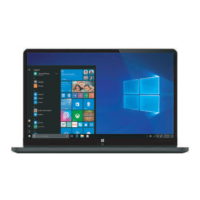
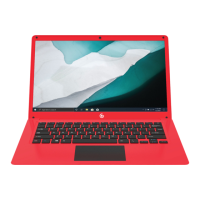
This document describes the CLT146401 User Manual for a 14.1" Laptop with Windows™ 10 S.
Function Description
The CLT146401 is a 14.1-inch laptop designed for general computing tasks, running on Windows™ 10 S. It serves as a portable device for productivity, entertainment, and communication. The laptop is equipped with a front camera for photos and videos, built-in speakers for audio playback, and various ports for connecting external devices. It supports Wi-Fi® for internet connectivity and Bluetooth® for wireless peripheral connections. The Windows™ 10 S operating system emphasizes security and performance by exclusively running apps from the Microsoft™ Store, though there is an option to switch out of S mode for broader app compatibility. The laptop integrates Cortana™ as a virtual assistant to help with reminders, tracking, communication, and general information retrieval. Multitasking features allow users to manage multiple desktops and applications efficiently.
Important Technical Specifications
- Processor: Intel® Celeron® N3350 Processor
- Operating System: Windows™ 10 Home in S Mode
- Storage: 4GB RAM, 64GB Storage
- Display: 14.1" LCD Screen (1366x768)
- Network: Wi-Fi® Enabled: 2.4GHz 802.11b/g/n
- Headphone Output: 3.5mm Headphone Jack
- USB Ports: USB Inputs x 2
- HDMI®: Mini HDMI® Output
- Bluetooth®: Compatible with Bluetooth®
- Camera: 0.3 MP
- Power: Rechargeable Li-Polymer Battery, DC IN 12V, 2A
- Speakers: Built-in 2x1W speakers
- Charging: 12V = 2A
Usage Features
Getting Started:
- Initial Charge: Fully charge the laptop for at least six hours before first use using the included wall charger. The battery indicator will confirm charging status.
- Power On/Off: Press and hold the power key for two seconds to turn the laptop on or off.
- Sleep Mode: Use the power button to set the device to Sleep or wake it from Sleep.
- Wi-Fi® Connection: After loading the screen, connect to a Wi-Fi® network.
- Login: To wake from sleep, press the power key, then the upwards arrow key, and log in if a password is required.
- User Accounts: Create user accounts to manage access and settings.
Interface Introduction (Windows™ 10 S Start Menu):
- Start Menu: Features applications displayed as "magnets" for quick access. A Microsoft™ account is required for full app functionality.
- Search Bar: Located in the Start Menu, used to find documents, files, or search the web.
- Action Center: Provides notifications and quick access to customized settings. Opened by clicking the Windows Key + A.
Windows™ 10 S Mode:
- Security: Runs Microsoft™-verified apps from the Microsoft™ Store, offering protection against phishing and malware.
- Switching Out of S Mode: Users can switch out of S mode to install apps not available in the Microsoft™ Store. This is a one-way process and cannot be reversed unless a software upgrade becomes available. It is recommended to back up files before switching. The process involves logging into the Microsoft™ Store, searching for "Switch out of S Mode," clicking "Get," and then "Install."
Applications Introduction:
- Pin to Start: Right-click an app icon and select "Pin to Start" to add it to the Start Menu.
- Unpin from Start: Right-click an app icon in the Start Menu and select "Unpin from Start" to remove it.
- Downloading Apps: Apps can be downloaded from the Microsoft™ Store. A Microsoft™ account is required to download apps.
Menu Bar:
- PC: Allows setup, locking, and signing out.
- Documents: Opens the Documents folder.
- Pictures: Opens the Pictures folder.
- Settings: Accesses device settings and customization options.
- Power: Provides options for Sleep, Shutdown, or Restart.
Cortana™:
- Virtual Assistant: Helps with reminders, tracking, emails, calendar management, list creation, fact-finding, and opening apps.
- Activation: Type a question in the search box or use the microphone. Can be configured to respond to "Hey Cortana™" in Settings.
Multitasking:
- Multiple Desktops: Use the Task View button (or Alt+Tab) to switch between or view apps.
- Snap Apps: Drag an app window to the side to snap it into place, then choose another app to automatically fill the remaining space.
- New Desktops: Create different desktops for various tasks (e.g., home, work) via Task View > New Desktop.
Basic Operations:
- Power Button: Briefly press to enter Sleep Mode. Clicking it provides options for Sleep, Restart, and Shutdown.
Action Center Settings:
- Bluetooth®: Turn Bluetooth® on or off.
- Network: Connect to Wi-Fi® networks.
- Location: Enable or disable location services.
- Nightlight: Adjust display to reduce blue light for better sleep.
- Settings: Access all device settings.
- Connect: Connect to wireless displays or audio devices.
- Battery Saver: Activate to conserve battery life.
- Airplane Mode: Activate to disable wireless communications.
Battery:
- Status: View battery status on the Lock Screen or Desktop Taskbar.
Connecting to Devices:
- Bluetooth® Device Pairing: Turn on the Bluetooth® device, open Action Center, click and hold "Bluetooth," select "Go To Settings," and follow on-screen instructions.
- Printer/Scanner Setup: Go to "All Settings" > Devices in the Action Center.
- Project to Second Screen: Connect via Mini-HDMI® to a monitor or TV.
- Wireless Display: Open Action Center, click "Connect," and select the desired wireless device.
Personalizing Your Laptop:
- Background and Color: Customize Start Screen colors and background via Action Center > "All Settings" > "Personalization."
- Lock Screen: Configure options via Action Center > "All Settings" > "Personalization" > "Lock screen."
- Desktop: Customize themes, backgrounds, and colors via Action Center > "Personalization."
- Notifications and Actions: Manage notifications via Action Center > "All Settings" > "System" > "Notifications and Actions."
- Lock-Screen Notifications: Edit app notifications on the lock screen via Action Center > "All Settings" > "Personalization" > "Lock Screen."
- Quick Status Apps: Choose apps to show quick status.
- Create Tiles: Pin favorite apps and websites to the Start Screen.
- Customize Tiles: Move, resize, or unpin tiles from the Start Screen.
User Accounts:
- Microsoft™ Account: Used for Windows™ login, app shopping, and OneDrive™ cloud storage.
- Local Account: For local device use only, without cloud connectivity.
- Manage Accounts: Via Action Center > "All Settings" > Accounts.
- Sign-in Options: Create PIN passwords via Action Center > "All Settings" > Accounts > "Sign-in Options."
- Change Password: Via Action Center > "All Settings" > Accounts > "Sign-in Options" > "User Accounts" > "Password" > "Change."
- Lock/Sign Out: Automatically locks when idle; manual lock/sign out via "More Options" icon on the Start Screen.
Laptop Settings:
- Activate Windows: Install the latest Windows™ version with a product key.
- Devices: Manage display, typing, power, sleep, Bluetooth®, and device information.
- Accounts: Manage and create user accounts.
- Privacy: Change privacy, location, webcam, and microphone settings.
- Network: Manage network connections.
- Time and Language: Set date, time, region, and language.
- Ease of Access: Control accessibility settings (narrator, magnifier, high contrast, keyboard options).
- Update and Security: Update Windows™, save settings, recover/reinstall laptop, change security settings.
Restart:
- Refresh Device: Via Action Center > "All Settings" > "Update and Security" > "Recovery."
- Restart Device: Via Action Center > "All Settings" > "Update and Security" > "Recovery" > "Restart Now."
Maintenance Features
- Protection: Protect the device from impacts, bumps, and falls.
- Environmental Conditions: Avoid extended use in extreme temperatures (too cold, too hot), high humidity, or dusty environments. Do not expose to direct sunlight.
- Magnetic/Static Environments: Avoid strong magnetic and static environments.
- Liquid Contact: If the device comes into contact with liquid, power it off immediately and allow it to dry completely before turning it on again.
- Cleaning: Use a dry, soft cloth for cleaning. Avoid chemical cleaning products to prevent corrosion and dampness.
- Data Backup: Regularly back up important data and files to prevent loss.
- Disassembly: Do not disassemble the device yourself, as this will void the warranty.
- Battery Life: Turn off Wi-Fi® and VPN when not in use to extend battery life.
- Software Updates: Keep Windows™ updated for optimal performance and security.
- Troubleshooting: Consult the manual for common issues or contact customer support for assistance.
Warranty Information:
- Limited Warranty: 90 Days (Parts & Labor) and 1 Year (Limited) against defects in material or workmanship. Requires valid proof of purchase.
- Warranty Void Conditions: Damage from improper opening, modification, transport, storage, use, assembly/disassembly, adverse elements, negligence, water damage, barcode tampering, cosmetic damage (screen, display, scratches, dents, broken ports), accidents, abuse, misuse, fire, excessive humidity, liquid contact, earthquake, normal wear and tear, removed/defaced serial numbers, or use with non-compliant third-party devices.
- Repair/Replacement: Product will be repaired or replaced with a new or refurbished product under warranty.
- Liability: Company is not liable for consequential, indirect, incidental, special, or punitive damages; total liability not to exceed retail purchase price.
- 90 Days Parts & Labor: Defects out of packaging under normal conditions will be repaired or replaced without charge if submitted within 90 days. Customer is responsible for transportation and insurance costs, and must provide proof of delivery and registered receipt. Original packaging should be retained.
- 1 Year Limited Parts: If covered under warranty, customer has the option to return for repair or replacement, but will be responsible for labor charges. Does not cover incidental or indirect costs.
Customer Support:
- Email: support@dpaudiovideo.zendesk.com for ticket-based support.
- Phone: 1-833-909-CORE (1-833-909-2673), available Monday-Friday, 9am-5pm PST (excluding major holidays). Emailing inquiry prior to calling is recommended.
- Information Required: Model number and description of inquiry.

 Need help?
 General

 To Next Page