Button and Switch Functions
On/Off Three Position Switch
• OFF Position – The unit will remain OFF if the switch is in this position.
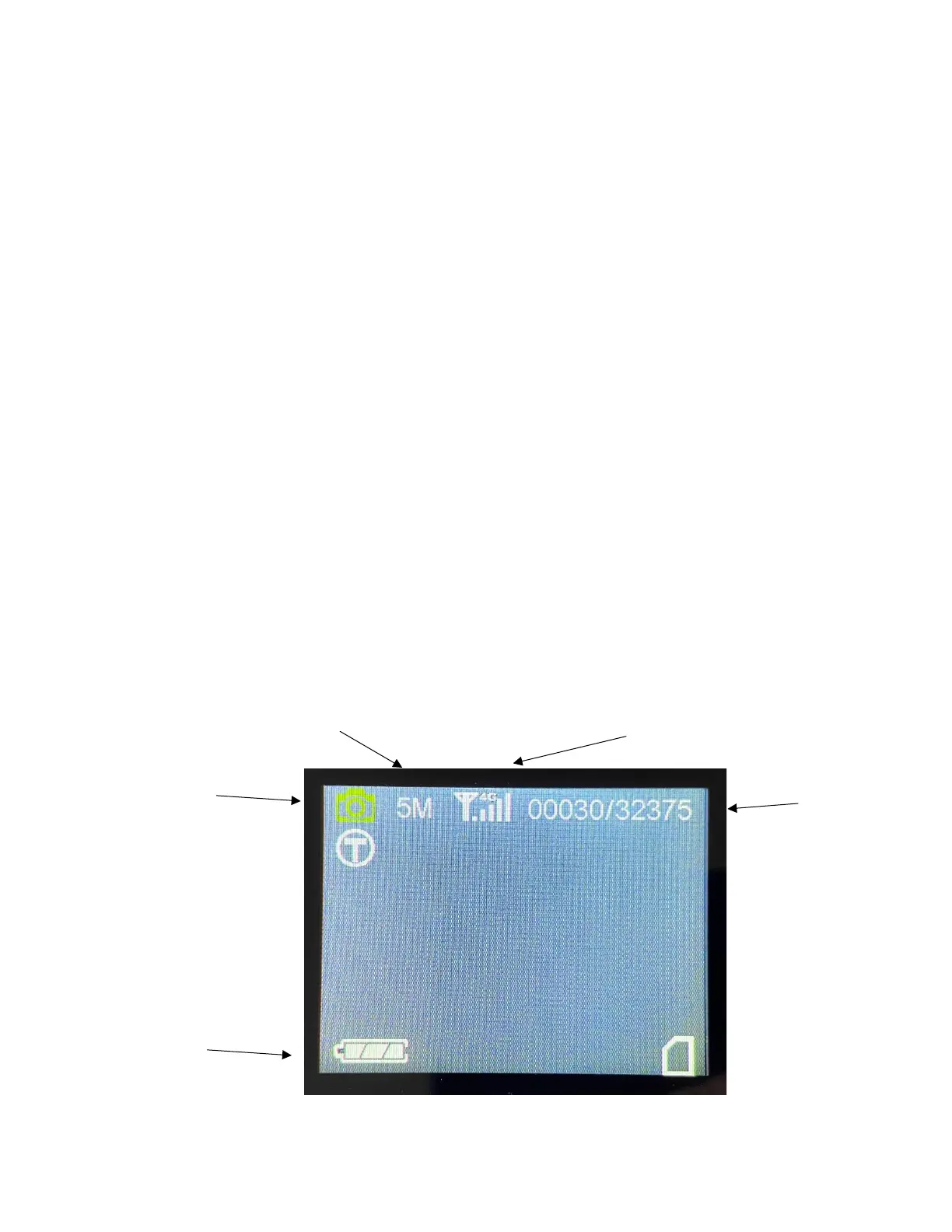
• SETUP Position – When in the setup position, you will be able to view the home screen, view images stored on
the SD card, and change the camera settings. You will need to have the switch in this position to setup your
camera for use. If you leave the unit idle for too long in this position, the screen will go blank, switch the unit off
and back to setup to re-access the main screen.
• ON Position – When the switch is in this position, the camera will be ON and functioning in the settings that you
have chosen.
Button Functions
• Arrow Keys – You will use these keys to navigate the menu screen, as well as take test images.
o Test Image – To take a test image, simply press either the left or right arrow.
o Test Video – To access the video screen press either the up or down arrow. Once there, press either the
left or right arrow to start the test video, and the press them again to end it.
• OK Button – You will use this button to select your settings and view images/videos stored on your SD card.
o To View – When at the main screen, click OK, and you will be taken to the images and videos stored on
your SD card.
o To Delete – When you are viewing an image/video that you would like to delete, click OK, and follow the
prompts.
• Menu (M) Button – Press the menu (M) button to access the settings for your camera. To go back to the main
screen, press (M) again.
Understanding Main Screen Information


 To Next Page