107
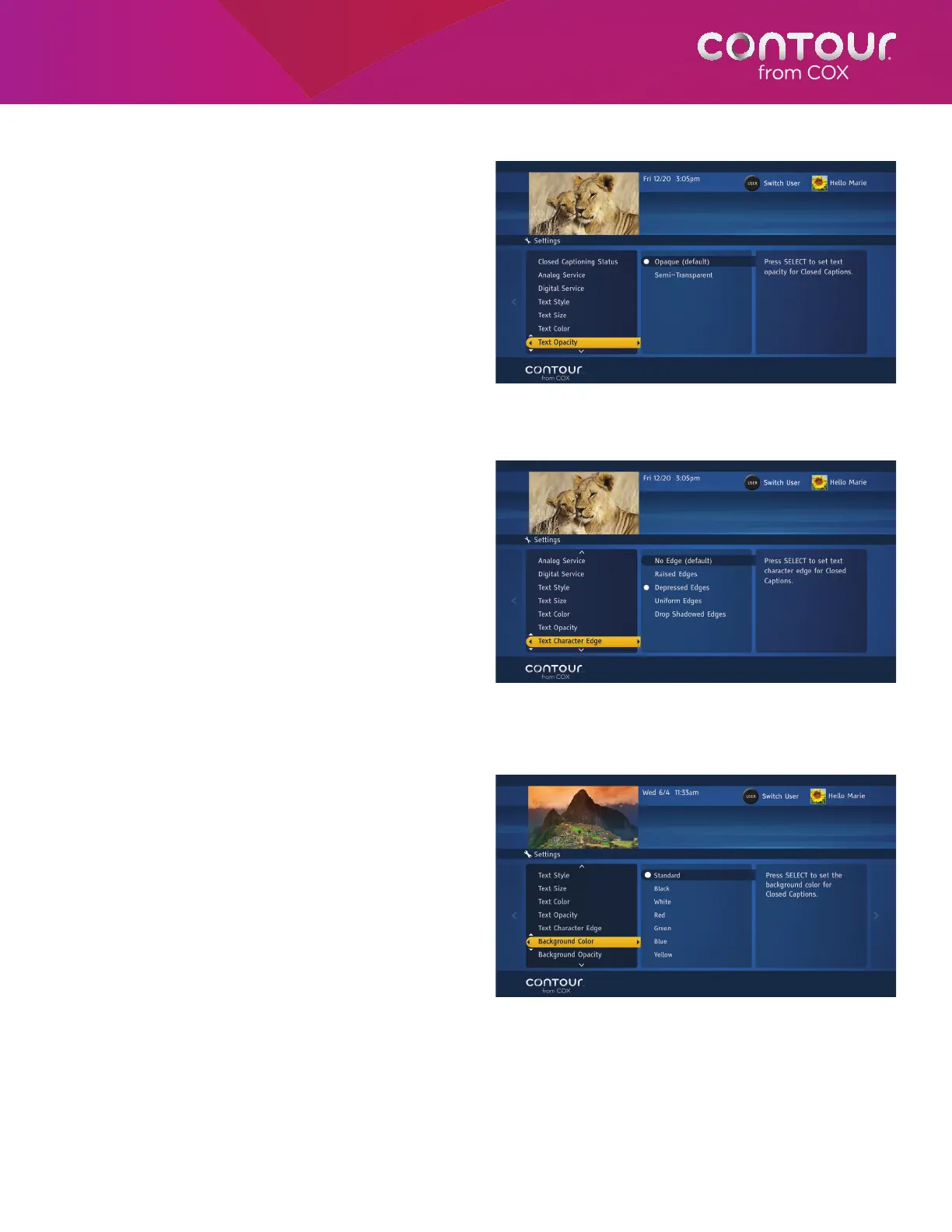
Set Text Opacity
To change the opacity of the Closed Captioning
text for digital programming, begin at the Closed
Captioning Menu:
1. Use the DOWN arrow to highlight Text
Opacity. Press the RIGHT arrow or SELECT
button to move to the options in the center
card.
2. Use the UP or DOWN arrow to highlight
the appropriate option. Press SELECT to
confirm your choice.
3. Press the LEFT arrow to return to the Closed
Captioning Menu or press EXIT to return
to live television.
Set Text Character Edge
To change the character edge attributes such as
no edge attribute, raised edges, depressed edges,
uniform edges, and drop shadowed edges of the
Closed Captioning text for digital programming,
begin at the Closed Captioning Menu:
1. Use the DOWN arrow to highlight Text
Character Edge. Press the RIGHT arrow or
SELECT button to move to the options in
the center card.
2. Use the UP or DOWN arrow to highlight
the appropriate option. Press SELECT to
confirm your choice.
3. Press the LEFT arrow to return to the
Closed Captioning Menu or press EXIT to
return to live television.
Set Background Color
To change the color of the Closed Captioning
background for digital programming, begin at the
Closed Captioning Menu:
1. Use the DOWN arrow to highlight
Background Color. Press the RIGHT arrow
or SELECT button to move to the options in
the center card.
2. Use the UP or DOWN arrow to highlight
the appropriate option. Press SELECT to
confirm your choice.
3. Press the LEFT arrow to return to the
Closed Captioning Menu or press EXIT
to return to live television.
Use the UP or DOWN arrow to highlight Background
Color and then press SELECT to move the highlight
bar to the options list.
Use the UP or DOWN arrow to highlight Text
Character Edge and then press SELECT to move
the highlight bar to the options list.
Use the UP or DOWN arrow to highlight Text
Opacity and then press SELECT to move the
highlight bar to the options list.



 To Next Page