SYSTEM SETUP
Tv Shape ps
Angle Mark On
Osd Lang Eng
Screen Saver On
Last Memory On
- - General Setup Page - -
egaP puteS lareneG oT oG
Captions Off
Setting Menus:
◄, ►, ▲, ▼
need to set or reset.
Press
the
ENTER
Button to enter or confirmed
the
selection. After setting, press the SET UP
Button to
save
the settings and exit.
In General Setup Page:
the multi-angle logo will appear on the screen.
shows on the screen automatically.
or the image is paused for approximately five minutes.
On or Off. If set to On, when
multi-angles are available in the playing DVD,
Direction and ENTER Buttons to set
the
OSD language as desire.
or Off. If set to On,
when captions
available on the playing DVD, it will
Off. If set to On,
the
screen
saver will come on when the unit stops
it On or
6. If Last Memory is selected, using the Direction and ENTER Buttons to set it On or Off. If set to On, the unit
will start playback from the position where the disc was stopped last time.
In Audio Setup Page:
menu will appear.
to LT/RT; Stereo.
connected external audio amplifier (with digital decoder) through the
Coaxial Digital Audio Output jack.
to Spdif Off, Raw or Pcm to
match
the decoding system of the
2.
In Dolby Setup Page:
channel on all speakers) or Mix-Mono
plays on all speakers) as desire. (Functions depend on the recording of
the disc).
to Stereo, L-Mono (Play Left
channel on
all speakers), R-Mono (Play Right
(Mixed Right and
Left channel then
-16-
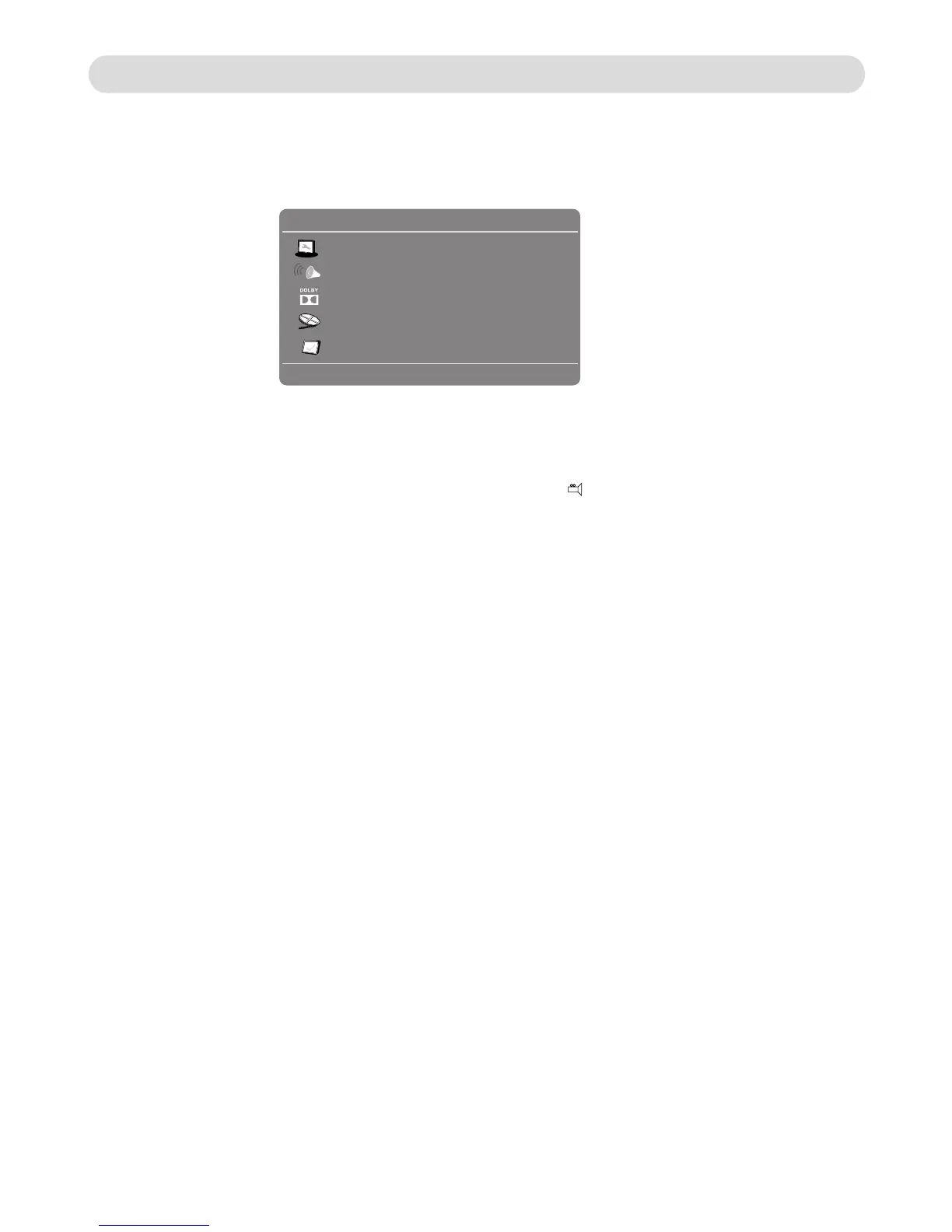
In stop playback mode, press the SETUP Button the setting menu will appear on the screen as below. Using the
Direction Buttons to select and highlight the function you
1. If TV Shape is selected, using the direction and ENTER Button to set the aspect ratio to match the
playing movie.
2. If Angle Mark is selected, using the Direction and ENTER buttons to set it
Osd Lang (On Screen Display Language) is selected, using the3. If
4. If Caption is selected, using the Directionand ENTER Buttons to set it On
5. If Screen Saver is selected, using the Directionand ENTER Buttons to set
If Speaker Setup is selected, press the ENTER Button, the sub-setting
1.
If Downmix is selected, using the Direction and ENTER Buttons set it
~ If set to Lt/Rt, the rear left or rear right channels will plays on both Left and Right Speakers.
~ If set to Stereo, the rear left channel will plays on Left Speaker; the rear right channel will plays on Right
Speaker
If is selected, using the Directionand ENTER Buttons to set it
1. If Dual Mono is selected, using the Di
Digital Out
rection and ENTER Buttons to set it
2. If Dynamic is selected, using the Direction and ENTER Buttons to set teh dynamic level as desire or turn
it off.



 To Next Page
 Loading...