7
ENGLISH
GETTING STARTED
ERROR ICONS ON THE SCALE
• Make sure your mobile device is running iOS 8 or higher or Android 4.1x or higher.
• Make sure you are connecting to a 2.4GHz Wi-Fi network (it can’t connect to 5Ghz net-
works).
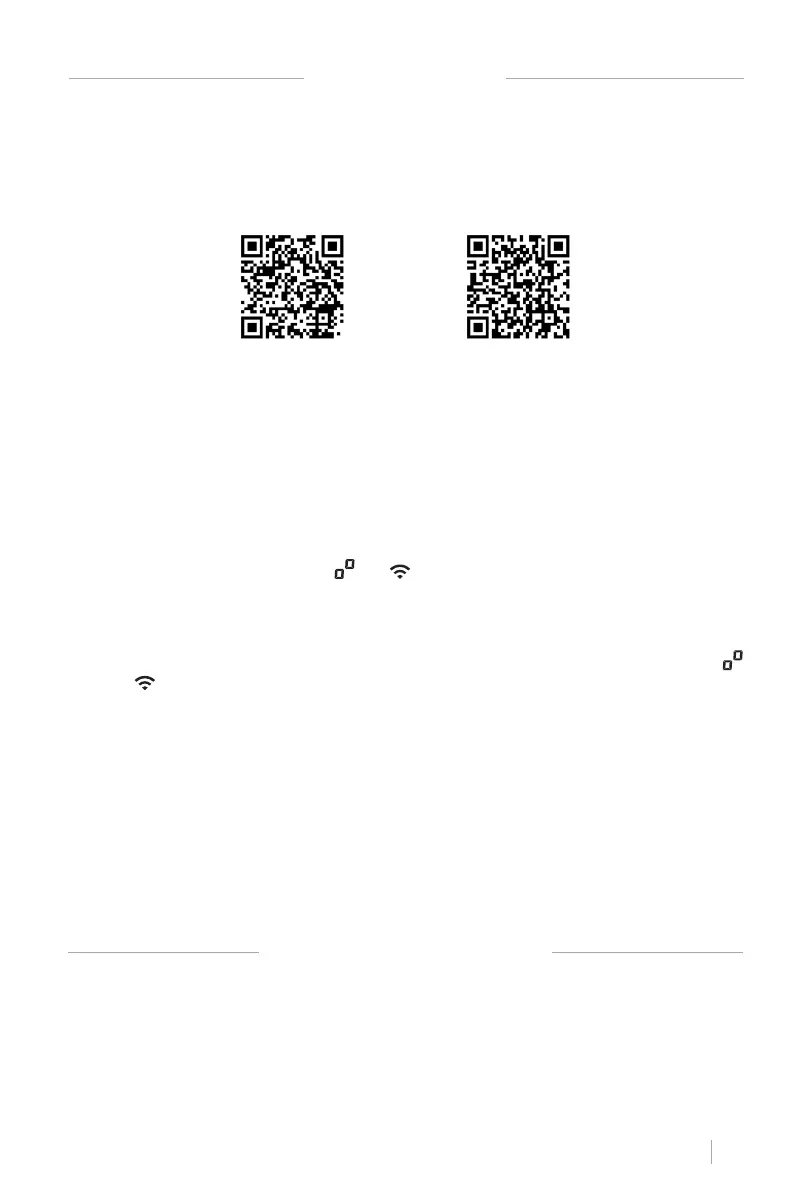
1. Download CREATE Home app from App Store or Google Play.
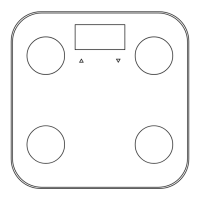
1. Overload or error in measurement: The display will indicate “Err” when the scale is over max
capacity. Please remove the weight to avoid any damage.
2. Low battery: The display will indicate “Lo”. Open the battery cover and replace them.
3. Faulty measurement: The display will show “Err1” for these 2 reasons:
• Body fat percentage is less than 5% or over 50%.
• Unsuccsessful test.
2. Register an account on your CREATE Home app.
• Enter your mobile phone number or email address.
• Enter the verication code and create a password.
3. Add your devide.
• Open CREATE Home app, click “+” , then click on “Add new device”. Choose the scale cate-
gory. Then you will need to select your Wi-Fi network and enter your password.
• At this moment, please power on your scale and then long press the button (inside of
the battery cover), until the the and icons ash, it means the scale is in WiFi con-
guration mode.
• Next, select the indicator light status, you can choose “Fast ashing” if your light is ash-
ing every 0.5 seconds or “Slow ashing” if your light is ashing every 3 seconds.
• Wait until the display shows 100%. Keep the scale always on while the screen shows
and . If the scale powers off, please power on again and long press the unit button
again until the display shows 0.0 and the Wi-Fi icon stops ashing. This means the scale
is successfully connected to the app. If the Wi-Fi icon is still ashing it means the scale
is no connected to the app.
4. Once your device is successfully connected, the app is ready to be used to measure your
weight. After the measuring is done, you can claim your weight on the “See” button. You
can have more than one user registered on the app, check which user is on before using
the scale.
5. There are 2 way s to change units:
• On the app: Click “set up”, “unit switching” to select weight unit between: kg / lb / st
• On the scale: Short press the unit button on the back side of the scale.
iPhone OS Android OS


 To Next Page