THE SOUND BLASTER ROAR 2 PRODUCT GUIDE 15
PLUS A WHOLE ARRAY OF MIND-SHATTERING FEATURES!
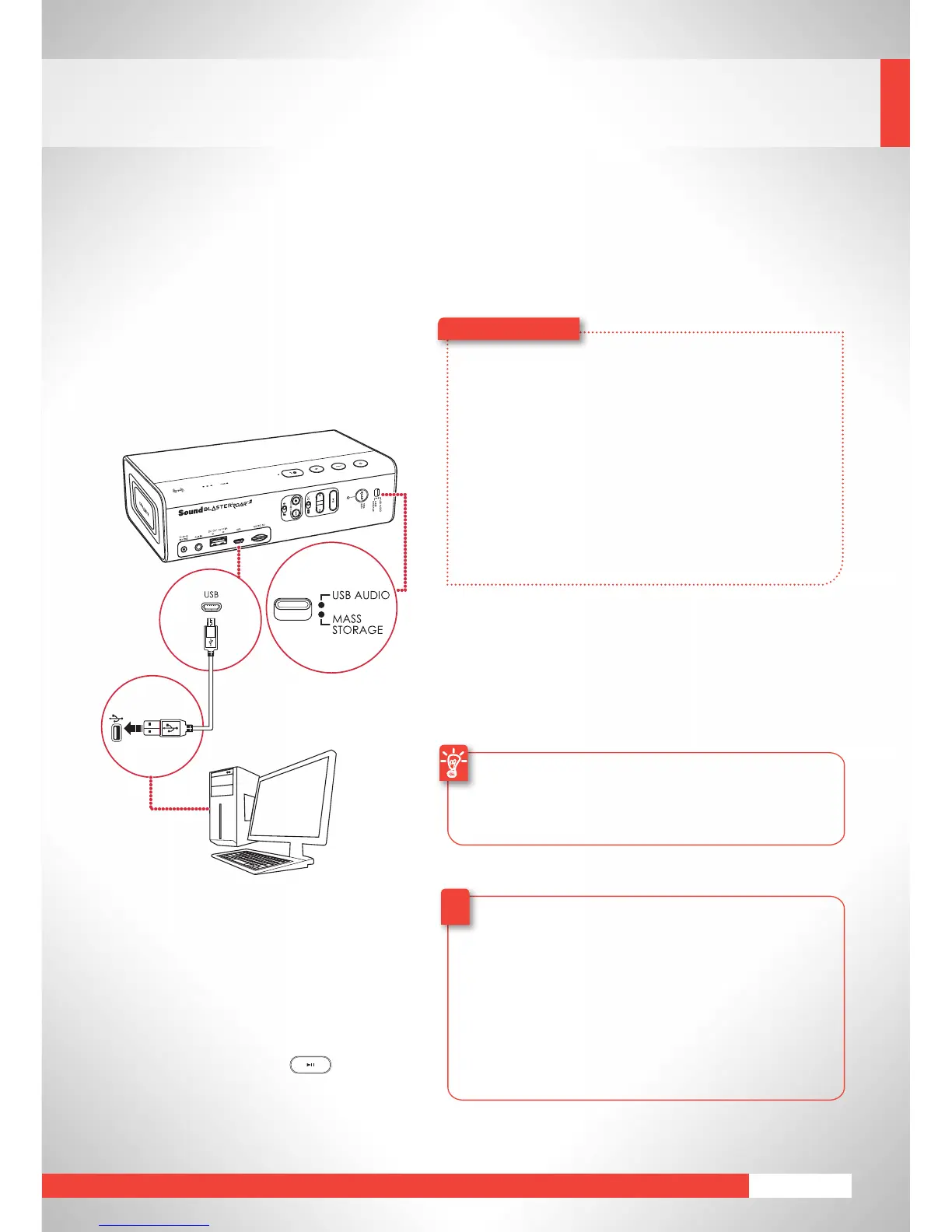
USB Digital Audio
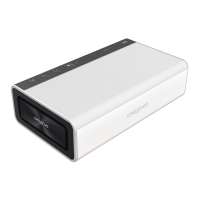
Enhance music playback from your PC/
Mac with the powerful Sound Blaster
RoarbyconnectingitwiththeUSBcable
supplied.
If no audio is heard
For Windows:
ClickVolumeControlandselectSoundBlaster
Roar 2 as your output device.
For Mac:
1.GotoSystemPreferencesandclickSound.
2.ClicktheOutputtabandselect
Sound Blaster Roar 2.
?
Enhance your audio
To enhance your digital music further, you can use the
SoundBlasterControlPanelsoftware.Seepage21.
Note: If the Sound Blaster Roar 2 is not detected by
the computer after your computer recovers from
sleep/hibernate/restart,pleasePowerOFFand
ONtheSoundBlasterRoar2tore-establishtheUSB
audio connection. You may also need to restart your
computer’s media player.
●
USBaudiowilldisconnectifbutton is
pressedduringUSBaudiomode.
Here’showyoudoit!
1 SlidethesliderswitchtoUSBAudiotoconnect
USBAudiomode.
2 ConnecttheSoundBlasterRoar2toaPC/
Mac.AtoneisheardindicatingUSBaudiois
connected. *
3 PlayyourmusiconthePC/Mac.
* If no tone is heard, disconnect the cable from the
computer,andstartfromStep1again.




 To Next Page