Live! Cam Computer Software
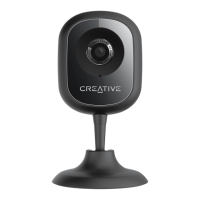
To take full advantage of your Live! Cam IP SmartHD, you can also install the Live! Cam software on your
computer.
The Live! Cam software lets you:
l Set up your Live! Cam IP SmartHD
l Stream live videos 24/7, in clear 720p HD
l Listen and talk with 2-way audio
l Record videos and review footage so you don't miss a thing
l View 4 cameras at once and control them remotely.
l Automatically backup videos to the cloud.
l Receive future updates and features.
Installing Application
For Windows OS
1. Using a standard web browser, visit support.creative.com/ipsmarthd.
2. Locate Live! Cam IP SmartHD and the software package for your Windows operating system.
3. Download this package into your local hard disk.
4. Locate and launch the software package.
5. Follow the on-screen instructions to complete the installation.
6. When prompted, restart your computer.
7. Launch the application by locating and clicking Live! Cam.
For Mac OS
1. Using a standard web browser, visit support.creative.com/ipsmarthd.
2. Locate Live! Cam IP SmartHD and the software package for your Mac OS.
3. Download this package into your local hard disk.
4. Double-click the downloaded file to uncompress it.
5. Double-click the Live! Cam icon and follow the subsequent on-screen instructions to complete the
installation.
6. Launch Live! Cam from the Applications > Creative folder.
Live! Cam IP SmartHD (VF0820) – Live! Cam Computer Software 30


 To Next Page