3
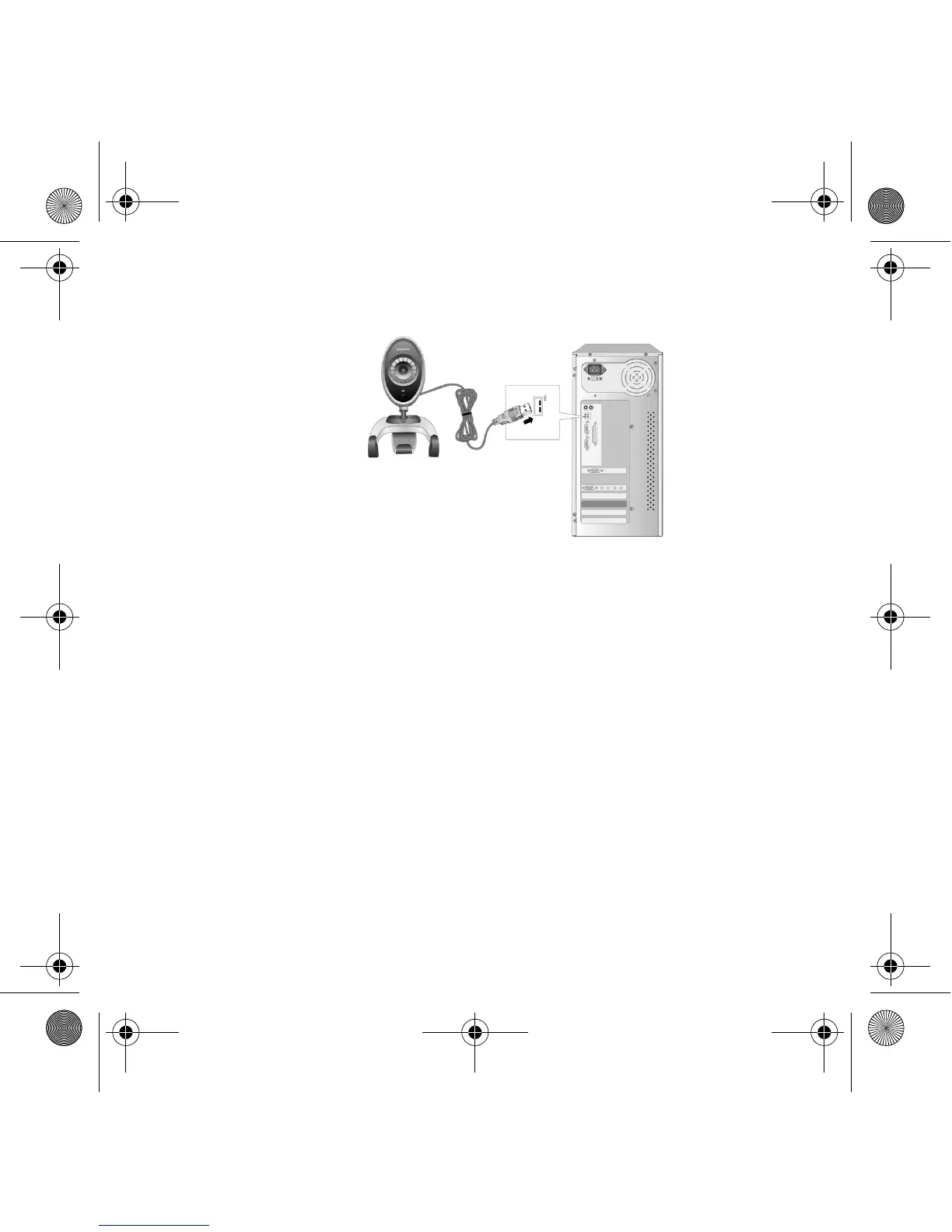
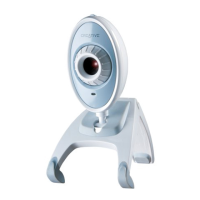
6. Connect your Creative WebCam Instant's USB cable to an available USB port on your
computer (see Figure 3). Windows automatically detects the device.
In Windows
®
XP only:
i. When the Found New Hardware Wizard dialog box appears, select Install the software
automatically (Recommended), and then click the Next button.
ii. When a Hardware Installation dialog box appears, click the Continue Anyway button.
In Windows 2000 only:
When a Digital Signature Not Found dialog box appears, telling you that Creative WebCam
Instant has been detected, click the Ye s button.
In Windows Me and Windows 98 SE only:
i. If you are prompted to insert the Windows 98 SE or Windows Me CD, replace the Installation
and Applications CD with the appropriate CD.
ii. In the Insert Disk dialog box, click the OK button.
7. Follow the instructions on screen to complete the installation.
8. Restart your computer if you are prompted to do so.
Figure 3
CLA WC Instant.fm Page 3 Wednesday, August 24, 2005 5:28 PM




 To Next Page