8
Adding Video
Your Zen comes with an Organic Light Emitting Diode (OLED) Screen that is able to display
video. This can be anything from commercials, music videos, maybe even full length movies (if
you can compress them enough)!
ALL VIDEO MUST BE CONVERTED BEFORE YOU PUT IT ON YOUR ZEN!
Yes, all of your video must be converted into a proprietary format just for the Zen before you
can actually watch it on the Zen. It seems to work best with Windows Media files (WMVs). If
you’re lucky you might get an AVI to work out for you. I could never get Quicktime MOVs to
convert properly.
That being said, the process of conversion is extremely simple! Hit the Convert Video for Zen V
Plus button in the Media Explorer and then simply add the file. After that hit Next and you’re in
business.
Create/Manage Playlists
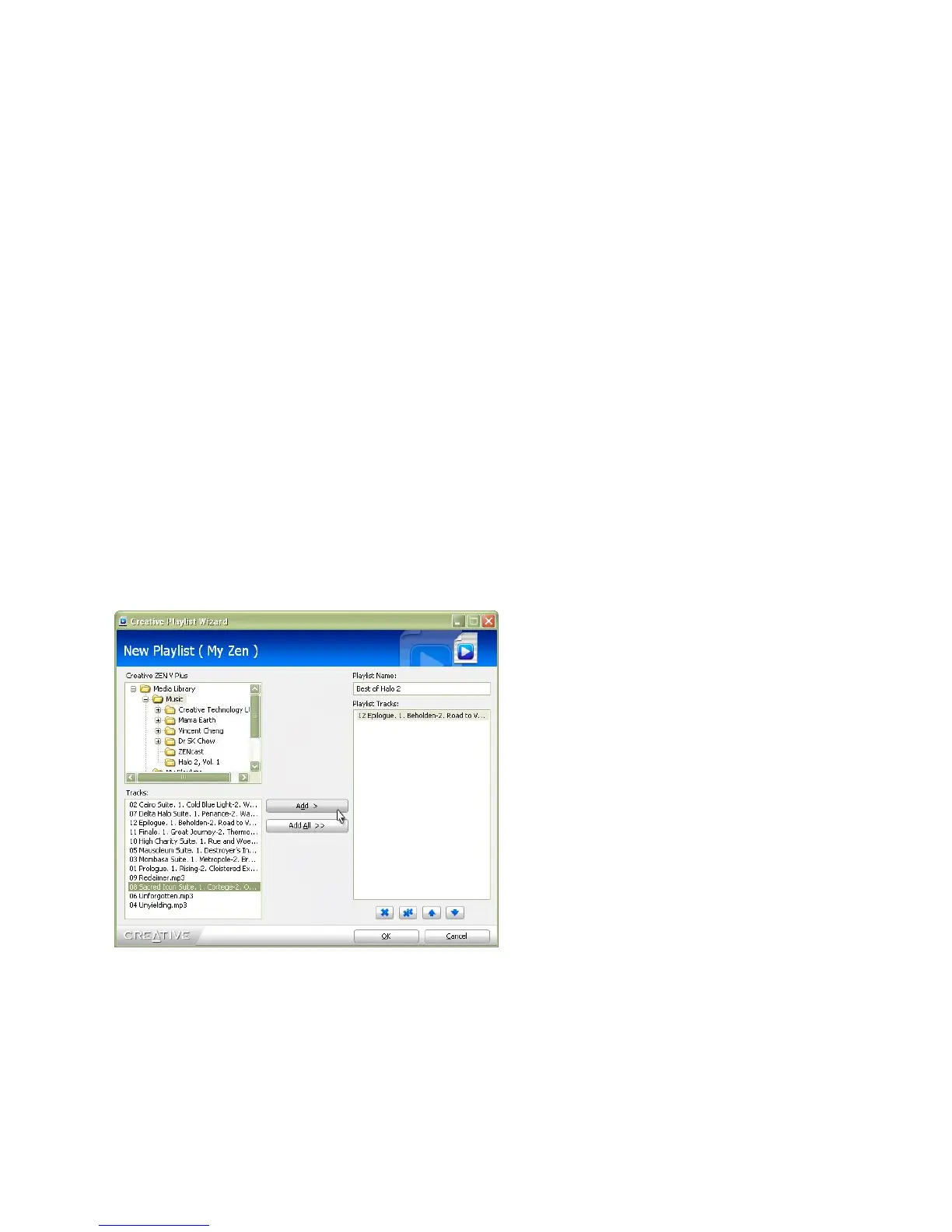
After you’ve sync’d some music to your
Zen, you can go back and create
customized playlists. Only like six songs
out of the albums you sync’d? Make a
playlist and you can listen to them without
having to navigate through the albums.
To make one, hit the Create Playlists
button in the Media Explorer. Then add
your music.
Hit OK when you’re done!
Manage Playlists lets you edit a list you
have already made. NOTE: You have to
create a list before you can manage one!



 To Next Page