-7-
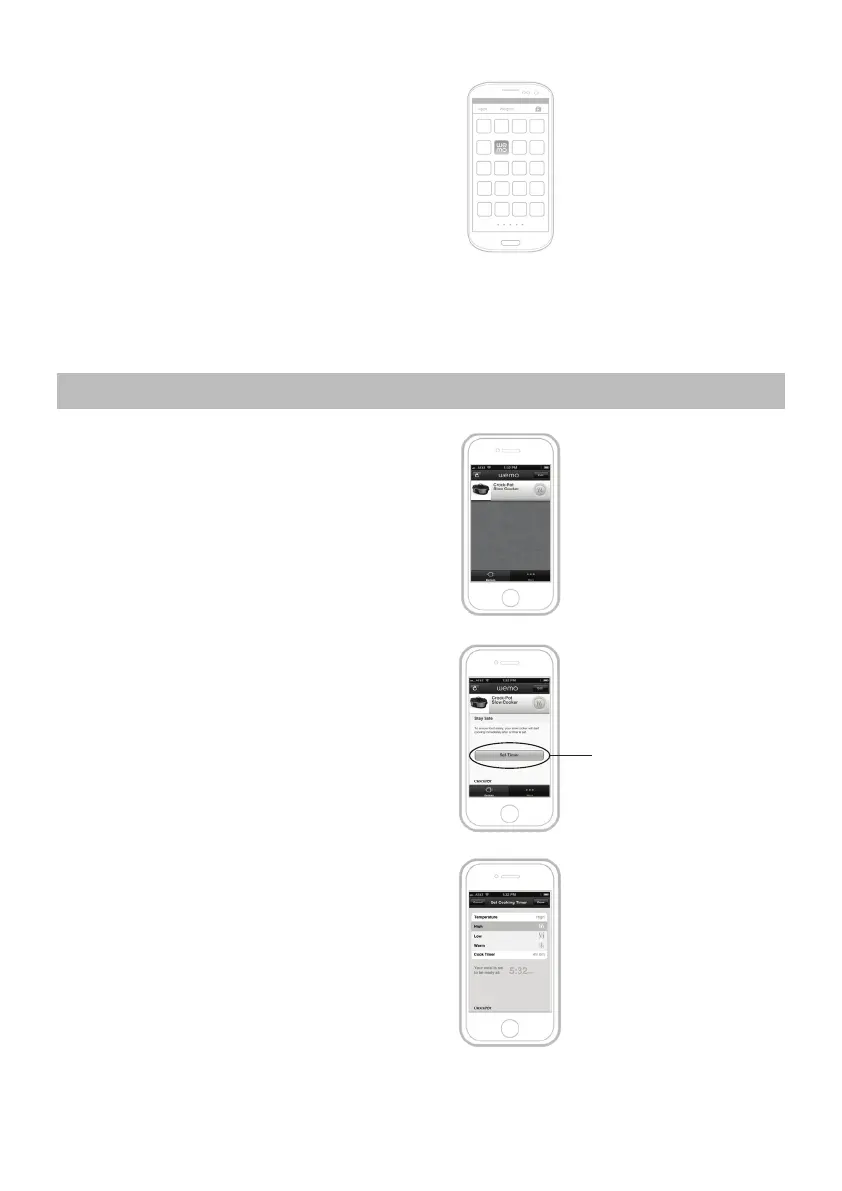
7. Open the WeMo
™
App. The App will look for your
connected appliance. When prompted, choose your home
network, and enter the network password. Your slow
cooker will now display in the App’s main menu. WeMo
™
Remote Control is now enabled. You do not need to
complete these set-up steps again for your slow cooker.
Notes: To disable WeMo
™
Remote Control, unplug the slow cooker from the mains supply. WeMo
™
Remote Control will
automatically be re-enabled when the slow cooker is plugged back into the mains supply.
The appliance can still be operated directly from the control panel in case of a router outage. Any pre-programmed
schedules will still function in case of a router outage.
HOW TO COOK WITH THE WeMo
™
APP
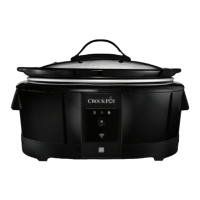
When set up, all your connected appliances will display on
the Home screen. Here you can monitor what each of your
appliances is programmed to do.
1. Click on the bar containing the required slow cooker. The
Stay Safe panel is then displayed. Click on Set Timer.
Set Timer
2. Click on Temperature to open a drop-down menu of
temperature options: High, Low, and Warm. Select the
required option. The control panel of the slow cooker will
register the temperature change.




 To Next Page