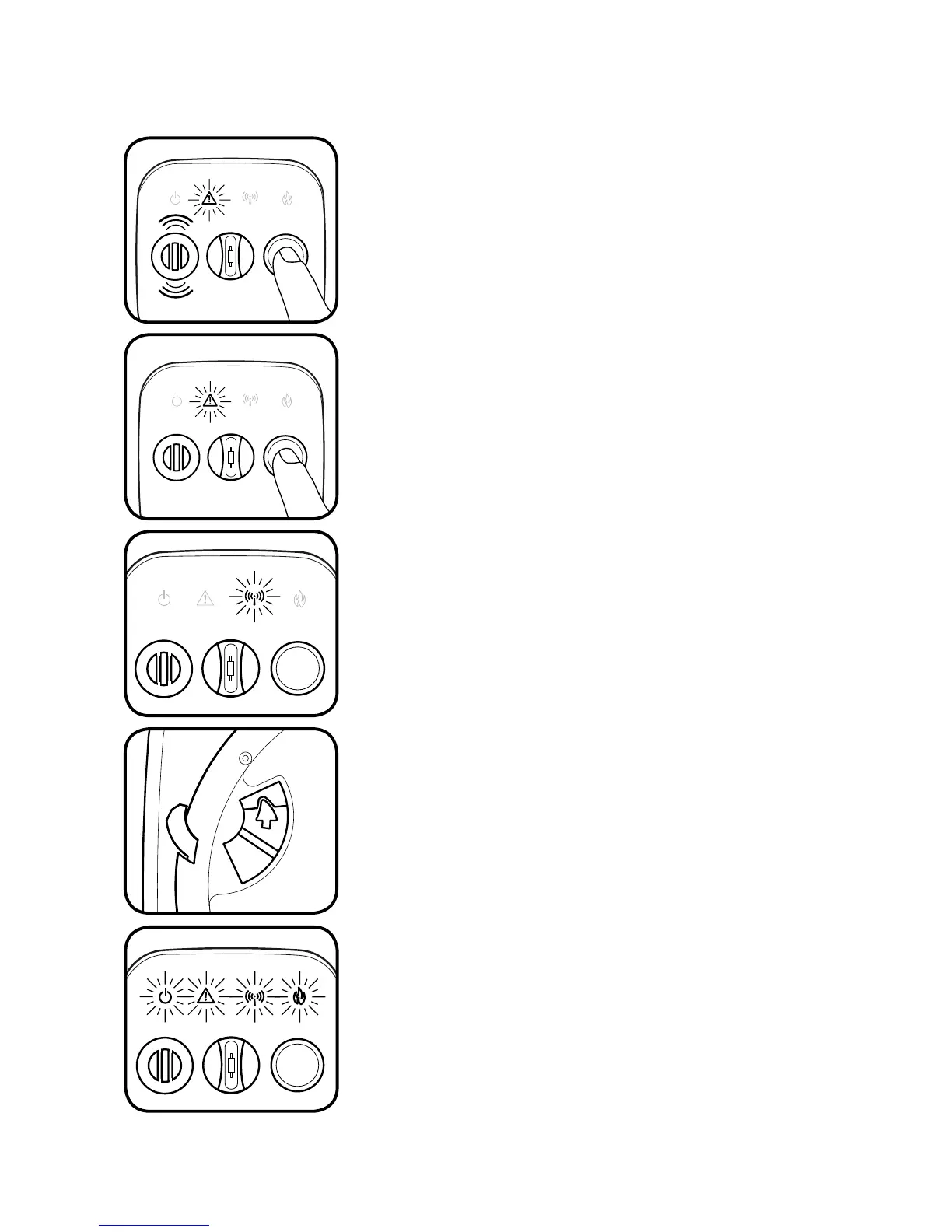
To add an alarm(s) to your existing home network, perform the following steps.
Select any alarm on the existing network.
Press
and hold
the button on the front cover of the
alarm. The red WARNING light (FIRE if alarm is a
smoke alarm)will flash rapidly and the alarm will
sound three or four tones.
Next, the yellow WARNING light will flash slowly.
Count to
5 flashes of the yellow WARNING light
and release the button.
If done correctly, the blue WIRELESS light will now
slowly pulse, indicating the network is again ready
to receive additional alarms.
The alarm has been successfully added to
your network!
To add a new alarm, simply slide the switch
located on the back side of the new alarm in
the direction indicated by the white arrow. It
will lock into place when fully positioned.
The blue WIRELESS light will flash briefly, then the
alarm will chirp twice and all four of the lighted
icons will strobe on in succession.
Continue holding the button down.
If not, wait about 15 seconds and carefully repeat
these steps.
If the alarm being added was previously used,
follow the steps on Page 15 to erase its network
data. Then re-open this alarm’s wireless function
using steps 1-2 in this section.
Press the button on the original alarm and the
WIRELESS light will stop flashing, or after one
minute the WIRELESS light will stop flashing
automatically and the network will close.



 To Next Page