4
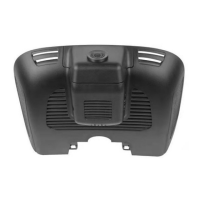
FHD Digital Video Recorder for Mercedes-Benz
Recording - The recording funcon will be automacally acvated when
your car is started or ignion is turned ON.
You can also ON/OFF the video recording by pressing the RECORD buon
in your MetaDrive2 mobile app temporarily. It will resume back in 30
seconds.
The blue light on DVR will ash when recording funcon is turned on.
Cyclic Storage Technology - When the micro SD Card storage is full, the
old le will be overwrien by the new one.
Emergency Recording - With the G-sensor built-in, any changes in
acceleraon (e.g. collision, braking, etc.) can be detected by the unit
when abnormal acceleraon has occurred and the emergency recording
funcon will be turned on. The emergency video will be saved in the
video le.
The emergency video will not be overlapped by normal video les.
However, too many les will reduce the space of the SD Card.
It is advisable to clean the SD Card regularly through Mobile App Seng
“Format SD Card”
Segment Storage of Video Files - All video les will be stored in the SD
Card Album folder. The unit uses a short video le storage method to
minimize any damages caused by the accident.
Camera Funcon - When recording, short press the Camera buon to
take picture. The picture will be named as the me when the picture is
taken.
Audio Recording - When recording, you can set to record audio. Turn on
the audio recording funcon in the seng menu of your mobile app.
Video Playback - Stored video les can be played back through the
mobile app or playback aer downloading it.
Funcons
Download “MetaDrive2” mobile app from the App Store or Google Play Store.
The DVR comes with Wi-Fi module bulit-in. The Wi-Fi will be automacally
turned ON when your car is started or ignion is ON.
MetaDrive2 Mobile App
How to connect?
1. Turn ON Wi-Fi funcon on your mobile phone.
2. Search “MetaDrive2-XXXX” in the Wi-Fi list.
3. Enter default password “12345678”.
4. Run MetaDrive2 App and Connect Wi-Fi.
How to change Wi-Fi password?
1. Connect Wi-Fi with your mobile phone.
2. Click to Seng Menu
3. Search and click “Set Wi-Fi Password”.
4. Enter new password and click “OK”.
i
Note
i. DVR Wi-Fi does not provide internet data. Maintain Wi-Fi connecon in order
to connect to the DVR.
ii. The latest smartphones are equiped with Wi-Fi Assist funcon which will
automacally switch to mobile data when your Wi-Fi connecon is Poor or
there is No Internet Data connecon. In this incident you may need to
temporary TURN OFF your Mobile Data to keep the connecvity with DVR Wi.
iii. The Mobile App or DVR device may need to be updated in order to support
newer versions on Android and iOS.
If you are using a newer model smartphone and encounter issues on your MetaDrive2
App, please contact your nearest authorised dealer


 To Next Page
 Loading...