This document serves as a user guide for the F-PRO steering wheel, a device designed for simulation purposes. The manual covers various aspects of the wheel, including its connection methods, battery management, interface, calibration, and installation.
Function Description:
The F-PRO is a simulation steering wheel that offers dual-mode connectivity, allowing users to connect via USB or direct Bluetooth (BLE) to a PC. It features a magnetic Q-CONN connector for quick and easy attachment. The wheel is equipped with a range of buttons, dials, and paddles, all with RGB LEDs that can be customized for color and intensity using the Cubesettings software. It includes analog clutch paddles for realistic launch control and paddle shifters that are auto-calibrating. The device is designed to be recognized by Windows as a single interface, regardless of the connection method, eliminating the need for in-game re-mapping of controls.
Important Technical Specifications:
- Connectivity: Dual-mode (USB and Bluetooth Low Energy - BLE).
- Connector: Q-CONN magnetic connector.
- Battery Life: Approximately 50-60 hours with LEDs off, and approximately 10 hours with all LEDs on at high brightness.
- Charging Time: 2-4 hours for a full charge. USB 3.0 ports or powered hubs are recommended for faster charging.
- Bluetooth Range: Approximately 10 meters, reduced by obstructions.
- Wheel Hub Compatibility: Universal hub on the back of the wheel body, supporting various adapters. Features M5x0.8 metric holes (highlighted in blue) and 5.5mm through holes (in gray), available in 70mm or 50.8mm bolt patterns. Through holes are rotated by 180°.
- LEDs: All buttons, dials, and label LEDs are RGB, customizable via Cubesettings software.
Usage Features:
- Dual-Mode Switching: To switch between BLE and USB wired modes, press and hold button 22 while turning on the steering wheel via the dedicated button on the backside. Repeating this procedure toggles between modes. The device always boots to the last used connection method.
- BLE Mode Operation: When in BLE mode, the BLE status LED flashes, indicating discovery or waiting to connect. Users need to open Bluetooth devices on their PC, click "add device," select "Bluetooth," and then select the F-PRO device to pair. The BLE LED flashes quickly during pairing and remains fixed once connected. Once paired, the device automatically connects to the PC when turned on in BLE mode.
- Wired USB Mode Operation: Ensure the BLE status LED (top right) is off. Simply plug the Q-CONN connector into the back of the device. The operating system should immediately recognize the device and play the standard USB connection sound.
- Battery Status Indicator:
- Green: Battery fully charged.
- Red: Battery is charging.
- Flashing Yellow: Battery at 5% capacity or less, requires charging.
- On-the-Fly Charging: Charging is possible while in BLE mode without affecting BLE communication, useful during races when the battery is low.
- Battery Level Monitoring: Battery level in percentage is available in the Windows "Bluetooth and other devices" settings.
- POV/Funky Switches/Joysticks: These controls (up, down, left, right) only activate with a "clicky" sound feedback, preventing accidental activation of the center click button.
- Toggle Switches (24 and 32): When activated, the respective LED turns on. When flipped off, the LED turns off. In the ON status, the button is not continuously pressed but activates for a few milliseconds when flipped on or off. Toggles are suitable for on/off features like headlights, wipers, ABS/TC.
- LED Synchronization: Ensure toggle LEDs are synced correctly; if an option is activated outside the simulator, it may work in reverse once in the simulator.
- Clutch Calibration: Before using analog clutch paddles, they must be calibrated from the Windows game devices section to ensure full travel is utilized. This involves accessing "Game Controllers" in Windows, selecting "F-PRO," going to "Properties," and then clicking "Calibrate" under the "Settings" tab.
- Launch Control Settings: The maximum value of the left clutch paddle can be adjusted via a slider in the Cubesettings app. The right paddle always operates from min to max travel. This system mimics F1 launch control, allowing users to set the clutch bite point.
- Finding Bite Point: In a practice session, set the clutch slider to ~50%, fully depress both clutch paddles, engage first gear, reach optimal engine RPM, release the right clutch paddle. As the car gains speed, release the left clutch paddle and shift. Adjust the left clutch paddle max value (decrease for too much slip, increase for quick RPM drop) and press "SAVE SETTINGS."
- Master Clutch: The right paddle is the default master clutch, unaffected by the slider value and always operating from min to max.
- Clutch Paddle Swap: The master clutch analog paddle can be swapped with the left one in the Cubesettings app.
- Separate Analog Paddles: Analog paddles can be set to operate separately (instead of combined) via Cubesettings, disabling launch control but allowing throttle and brake control directly on the steering wheel, beneficial for users with leg disabilities.
- Wheel Installation: The universal hub on the back allows installation of various adapters or direct connection to an FFB base. Refer to adapter/motor manufacturer for compatibility.
- Paddles Adjustment:
- Shift Paddles: Length can be adjusted by loosening two screws and sliding the carbon paddle. Reach can be adjusted by loosening two screws (and two on the opposite side of the shifter) and rotating the lever body. A T10 drive is needed for adjustments.
- Clutch Paddles: Travel can be adjusted similarly to shifters. Spring resistance is adjusted by turning a screw with the provided small L-shaped key.
Maintenance Features:
- Cleaning: Before applying stickers, ensure the surface is clean.
- Cable Management: Install the USB coiled cable by wrapping it loosely on the FFB motor shaft/adapter to prevent strain during full steering rotations.
- Grounding: Ensure the simulation rig is correctly grounded.
- Long-Term Storage: Disconnect the USB cable from both sides if the product will not be used for a long time.
- Water Resistance: The steering wheel is not waterproof; keep it away from water, rain, moisture, and liquids.
- Warranty: Any modifications, tampering, changes, or unauthorized uses will void the warranty.

 Need help?
 General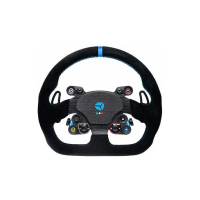

 To Next Page