Guard Duty
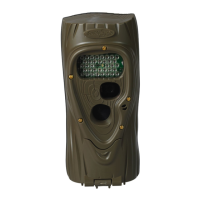
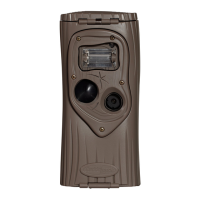
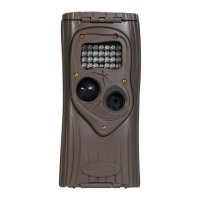
Attack features an innovative time lapse photography mode
we call Guard Duty. When Guard Duty is enabled Attack will
take a picture every 12 seconds and save the images onto the
SD card. Guard Duty allows you to continuously monitor a
field or hunting location and then view everything that happened.
In practice, Guard Duty can compress an entire day of activity
into a ten minute viewing experience.
• ToenableGuardDutyturntherotaryknobtotheGuard
Duty position. Guard Duty will automatically arm after a
45 second countdown.
• GuardDutywillonlytakeimagesduringdaylight;itwill
not record images at night.
•
When Attack is in Guard Duty mode it will not take
images when an animal is detected with the motion-heat sensor.
• GuardDutyimagesare1.3MPandaresavedinthefolder
DCIM\200CUDDY. Images from each day will be saved in
a separate folder.
• GuardDutywillrecord3600imagesevery10hours.Ina
week Guard Duty can record over 10,000 images. This
requires a large SD card. We recommend an 8GB card
or larger.
• TocheckAttackwheninGuardDutymodepressA.
The check process is similar to checking Attack
when in Armed mode, except the number of images on the
card is not displayed. Instead, the free space on the card is
displayed first. Additionally, the test mode is not enabled
either as it is not required in Guard Duty. See Step 7 for
additional information on checking Attack.
• Aday’sworthofGuardDutyimagescantypicallybe
viewed in less than 10 minutes on your PC.
•
Due to the high number of images saved we do not recommend
using
a field viewer to view Guard Duty images. You will
need to use a PC to view Guard Duty images.
9
• Cuddeback’sTrophyRoomsoftwarewillsoonbeable
to rapidly view Guard Duty images. Trophy Room is
available for free download at www.cuddeback.com.
• BatterylifewhileinGuardDutymodewillbelessthan
in other operating modes.
No Card Mode - Using Attack
®
Without an SD Card
When Attack is used without an SD card, images are stored in
Attack’s internal image memory. Attack features an internal memo-
ry of about 60 MB. This will allow storage of up to 60
images. Images can be transferred from internal memory to
an SD card or USB flash device.
Transfer to SD card: If you use Attack without an SD card, fol-
low these steps to transfer the images from the internal memory to
an SD card.
1) If Attack is not armed, turn the rotary knob to any of the
Armed positions.
2) If Attack is armed, press A to display the number of
images in internal memory.
3) Insert your SD card into Attack.
4) Press A. The amount of free space on the SD card
will be displayed.
5) Press A to initiate the transfer. Images saved in
internal memory will be copied to the SD card. As they are
being copied the worm will appear and the number of images
remaining to be transferred will be displayed on the LCD.
6) When the count reaches 0 the transfer is complete and all
images on the internal memory are erased.
7) To stop the transfer before it has finished, press and hold B.
10


 To Next Page
 Loading...