STEP 7 - CHECKING CUDDEBACK
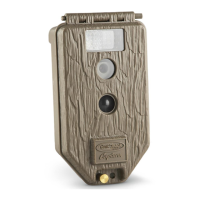
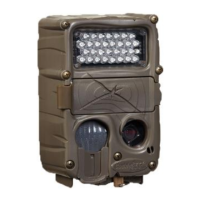
To field-check Cuddeback, remove the cover and
press . A series of messages will be displayed.
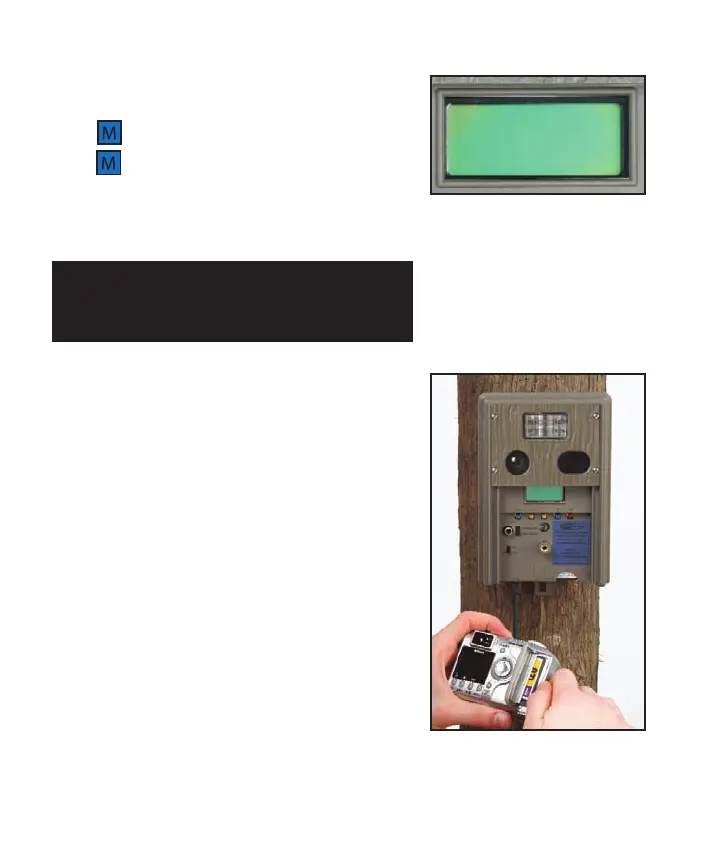
Press until [Images Saved] is displayed
(figure 21).
This is how many images are saved on
the card (or internal memory if you do not have a
card installed).
STEP 8 - VIEWING IMAGES
There are 4 ways to view the images that
Cuddeback has taken.
1) Replace the Compact Flash Card with a different
card. Take the original card home and view the
images on your computer or other device.
2) Attach a computer to Cuddeback's USB port
(described later in this section).
3) You can view images in the field or at home with
a TV attached to Cuddeback (described later in
this section).
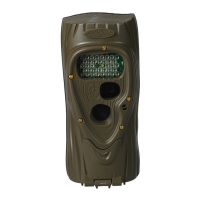
4) You can view images in the field with a portable
field viewer or camera
(figure 22)
.
Cuddeback videos can only be viewed with a
computer. You will need to copy the videos to
your computer to view them.
TIP - When checking Cuddeback the camera may activate
and take a picture of you. You can cancel this image by
pressing (C) when the message [Picture!] is on the display.
Figure 22
14
Saved
26
Figure 21
15
“Thanks Cuddeback for such a high
quality, easy camera to operate.”
Matt Brown – Custer, SD
“The Cuddeback is the best scouting
camera on the market and makes scout-
ing an area 10 times more exciting!”
John Scola – Hammonton, NJ
“I purchased my Cuddeback for myself
as a Christmas present.. I love it!!!
Flawless.”
Brian Thorpe – Columbus, IN
“...I have not seen photo quality like this
with any of the other digital scouting
cameras....”
Mike Zukovsky – Hannibal, NY


 To Next Page