CyberData Corporation
3 Justin Court, Monterey, CA 93940
www.cyberdata.net
P 831.373.2601 | F 831.373.4193
RING CENTRAL CONFIGURATION GUIDE: SIP PAGING ADAPTER (SPA)
Doc. 931050B Page 39
Verify the Paging Extension Is Registered
After the SPA has rebooted and initialized to store changes, refresh the Home page of the web
interface. Your device should show as [Registered with SIP Server] in green text on the bottom
of the Home Page of the web interface as well as at the top of the SIP Configuration page next to
Enable SIP Operation. See Figure 5-17 and Figure 6-10.
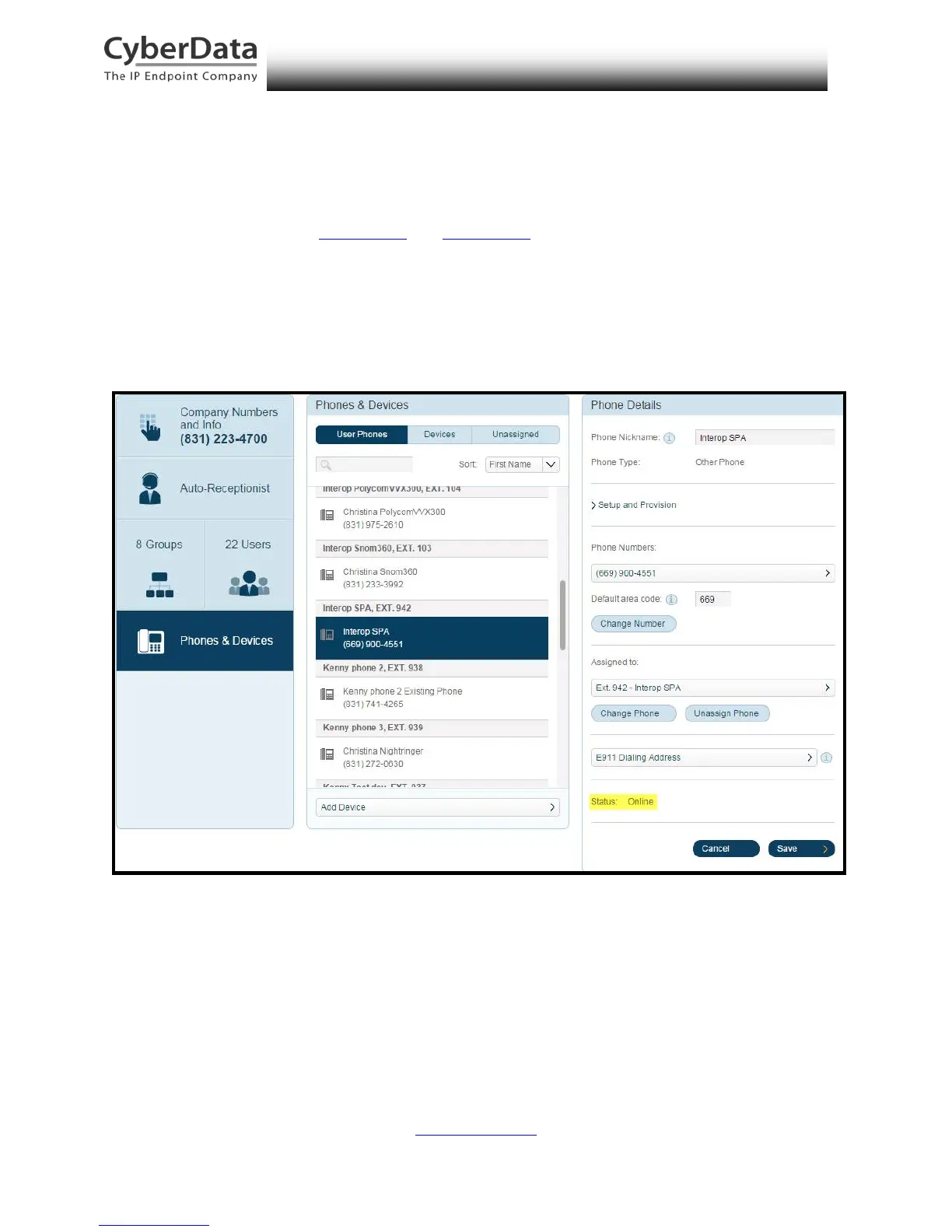
Additionally, you may verify the paging extension is registered with RingCentral through the
Admin Portal. From the Phones & Devices menu, select User Phones and the IP Phone you just
created for the SPA. The status should show as “online” in the Phone Details.
Figure 6-12. Phone Details – Status



 To Next Page