EasyManua.ls Logo

CyberPower SL700U - User Manual

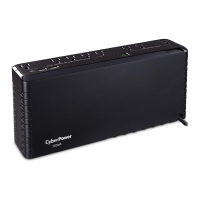
CyberPower SL700U
2 pages
Print Icon
To Next Page IconTo Next Page
Loading...
UNPACKING
Inspect the UPS upon receipt.
The box should contain the following:
(a) UPS unit
(b) User’s manual
(c) USB device cable
DETERMINE THE POWER
REQUIREMENTS OF YOUR EQUIPMENT
1. Ensure that the equipment plugged into
the outlet does not exceed the UPS unit’s
rated capacity (700VA/370W for SL700U,
750VA/375W for SL750U, 900VA/450W
for SL900UC). If the rated capacities of the
unit are exceeded, an overload condition
may occur and cause the UPS unit to shut
down or the circuit breaker to trip.
2. There are many factors that can aect
the amount of power that your electronic
equipment will require. For optimal system
performance keep the load below 80% of
the unit’s rated capacity.
HARDWARE INSTALLATION GUIDE
1. Your new UPS may be used immediately
upon receipt. However, after receiving a
new UPS, to ensure the battery’s maximum
charge capacity, it is recommended that
you charge the battery for at least 8 hours.
Your UPS is equipped with an auto-charge
feature. When the UPS is plugged into an
AC outlet, the battery will automatically
charge whether the UPS is turned on or
turned o.
2. With the UPS unit turned o and unplugged,
connect your equipment requiring
battery backup into the battery power
supplied outlets. Plug the other peripheral
equipment (printer, scanner, speakers) into
the full-time surge protection outlets.
DO NOT plug a laser printer, paper
shredder, copier, space heater, vacuum,
sump pump or other large electrical
device into the “Battery and Surge
Protected Outlets”. The power demands
of these devices will overload and possibly
damage the unit.
3. Plug the UPS into a 2-pole, 3-wire grounded
receptacle (wall outlet). Make sure the
wall branch outlet is protected by a fuse
or circuit breaker and does not service
equipment with large electrical demands
(e.g. air conditioner, refrigerator, copier,
etc…). The warranty prohibits the use of
extension cords, outlet strips, and surge
strips.
4. Press the power switch to turn the unit on.
The Power On indicator light will illuminate
green and the unit will “beep” twice.
5. If an overload is detected, an audible alarm
will sound and the unit will emit one long
beep. To correct this, turn the UPS o and
unplug at least one piece of equipment
from the battery power supplied outlets.
Make sure the circuit breaker is depressed
and then turn the UPS on.
6. To maintain optimal battery charge,
leave the UPS plugged into an AC outlet
at all times.
7. To store the UPS for an extended period
of time, cover it and store with the battery
fully charged. While in storage, recharge
the battery every three months to ensure
optimal battery life.
8. Ensure the wall outlet and UPS are located
near the equipment being attached for
proper accessibility.
9. Lay the UPS horizontally or use the key-
hole mounting slots to ax the UPS to the
wall in the proper orientation.
YOUR ULTIMATE ALLY IN POWER
Cyber Power Systems (USA), Inc.
4241 12th Avenue East, Suite 400 | Shakopee, MN 55379 | CyberPowerSystems.com
SLIM BATTERY BACKUP UPS SERIES
SL700U / SL750U / SL900UC
USER MANUAL
FEATURES
1. Power On Switch
2. Power On Indicator (green)
3. Battery and Surge Protected Outlets
4. Full-Time Surge Protection Outlets
5. USB Charging Ports
6. Circuit Breaker
7. USB Port to PC
8. Wiring Fault Indicator (red)
9. Widely-Spaced Outlets
Thank you for purchasing a CyberPower product. This UPS is designed to provide unsurpassed
power protection, operation, and performance during the lifetime of the product. Please take a
few minutes to register your product at: www.CyberPowerSystems.com/registration.
Registration certifies your product’s warranty, confirms your ownership in the event of a product
loss or theft, and entitles you to free technical support. Register your product now to receive the
benefits of CyberPower ownership.
CAUTION! To prevent the risk of fire or
electric shock, install in a temperature and
humidity controlled indoor area free of
conductive contaminants. (Please see
specifications for acceptable temperature
and humidity range).
CAUTION! To reduce the risk of electric shock,
do not remove the cover. There are no user-
serviceable parts inside.
CAUTION! Hazardous live parts inside can be
energized by the battery even when the AC
input power is disconnected.
CAUTION! The UPS must be connected to an
AC power outlet with fuse or circuit breaker
protection. Do not plug into an outlet that is
not grounded. If you need to de-energize this
equipment, turn o and unplug the unit.
CAUTION! To avoid electric shock, turn o the
unit and unplug it from the AC power source
before installing a computer component.
CAUTION! To reduce the risk of fire, connect
only to a circuit provided with 20 amperes
maximum branch circuit over current
protection in accordance with the National
Electric Code, ANSI/NFPA 70.
CAUTION! Not for use in a computer room as
defined in the Standard for the Protection of
Electronic Computer / Data Processing
Equipment, ANSI/NFPA 75.
CAUTION! Do not dispose of batteries in a fire.
The batteries may explode.
CAUTION! Do not open or mutilate batteries.
Released electrolyte is harmful to the skin and
eyes. It may be toxic.
DO NOT USE FOR MEDICAL
OR LIFE SUPPORT EQUIPMENT!
CyberPower Systems does not sell products
for life support or medical applications.
DO NOT use in any circumstance that would
aect operation and safety of life support
equipment, any medical applications or
patient care.
DO NOT USE WITH OR NEAR AQUARIUMS!
To reduce the risk of fire or electric shock,
do not use with or near an aquarium.
Condensation from the aquarium can cause
the unit to short out.
DO NOT USE THE UPS
ON ANY TRANSPORTATION!
To reduce the risk of fire or electric shock, do
not use the unit on any transportation such
as airplanes or ships. The eect of shock or
vibration caused during transit and the damp
environment can cause the unit to short out.
PRODUCT REGISTRATION
IMPORTANT SAFETY WARNINGS (SAVE THESE INSTRUCTIONS)
This manual contains important safety instructions. Please read and follow all instructions carefully
during installation and operation of the unit. Read this manual thoroughly before attempting to
unpack, install, or operate your UPS.
INSTALLING YOUR UPS SYSTEM BASIC OPERATION
1. Power On Switch
To turn the UPS on, press the power button
for approximately 2 seconds - you will hear
a constant tone (1 second) - and release
after a short beep.
To turn the UPS o, press the power button
for approximately 2 seconds - you will hear
a constant tone (1 second) - and release
after two short beeps.
Alarm setting: The audible alarm can be
turned OFF or ON by quickly pressing the
POWER button twice. The default setting
is for the Alarm On. To turn the Alarm O,
quickly press the power button twice. You
will hear two short beeps when the Alarm
is turned o. To turn the Alarm back ON,
quickly press the power button twice. You
will hear a single short beep when the
Alarm is turned on.
*When the Alarm is turned o, there will
be no audible notification when the UPS
reaches a low battery state.
2. Power On Indicator (green)
This LED is illuminated when the utility
power is normal and the UPS outlets are
providing power, free of surges and spikes.
3. Battery and Surge Protected Outlets
The unit has five battery powered
and surge protected outlets to ensure
temporary uninterrupted operation of your
equipment during a power failure.
(DO NOT plug a laser printer, paper
shredder, copier, space heater, vacuum
cleaner, sump pump, or other large
electrical device into the “Battery and
Surge Protected Outlets.” The power
demands of these devices will overload
and possibly damage the unit.)
4. Full-Time Surge Protection Outlets
The unit has three surge suppression outlets.
5. USB Charging Ports
SL750U/SL700U: Two USB-A ports,
5V 2.4A power output
SL900UC: One USB-A port (5V 2.4A),
one USB-C port (5V 18W)
6. Circuit Breaker
Located on the side of the UPS, the circuit
breaker serves to provide overload and
fault protection.
7. USB Port to PC
The port allows connection and
communication between the USB port on
the computer and the UPS unit. The UPS
communicates its status to the PowerPanel®
Personal software.
8. Wiring Fault Indicator (red)
This LED indicator will illuminate to
warn the user that a wiring problem exists,
such as bad ground, missing ground or
reversed wiring. If this is illuminated,
disconnect all electrical equipment from
the outlet and have an electrician verify
the outlet is properly wired. The UPS will
not provide surge protection without being
plugged into a grounded and properly
wired wall outlet.
9. Widely-Spaced Outlets
The UPS unit has two widely-spaced
outlets, so AC power adapters can be
plugged into the UPS without overlapping
or blocking adjacent outlets.
2
3 4
9
3
2
4
9
1
5
7
8
6
Question and Answer IconNeed help?

Do you have a question about the CyberPower SL700U and is the answer not in the manual?

Summary

UPS Features Overview

Important Safety Warnings

General Installation and Usage Precautions

Instructions on preventing fire/shock, avoiding user-serviceable parts, and connecting to grounded outlets.

Equipment and Environment Restrictions

Warnings against using the UPS with specific equipment like medical devices, aquariums, or on transportation.

Installing Your UPS System

Unpacking and Equipment Requirements

Inspect UPS upon receipt and determine power requirements, avoiding overload by keeping load below 80%.

Hardware Installation Guide

Steps for connecting equipment, plugging into AC, and initial power-on procedures.

Plugging In and Initial Setup

Connect UPS to grounded outlet, press power button, and address overload conditions or wiring faults.

Basic Operation

Power On;Off and Alarm Settings

How to turn the UPS on/off and adjust audible alarm settings by pressing the power button.

Troubleshooting Common Issues

Full-Time Surge Protection Outlets Not Working

Addresses issues with full-time surge protection outlets stopping power due to a tripped circuit breaker.

UPS Runtime and Power-On Problems

Troubleshooting for unexpected runtime, UPS not turning on, or issues related to battery and connection.

Definitions for Indicators & Alarms

Technical Specifications

CyberPower GreenPower UPS Technology

FCC Compliance Statement

Summary

UPS Features Overview

Important Safety Warnings

General Installation and Usage Precautions

Instructions on preventing fire/shock, avoiding user-serviceable parts, and connecting to grounded outlets.

Equipment and Environment Restrictions

Warnings against using the UPS with specific equipment like medical devices, aquariums, or on transportation.

Installing Your UPS System

Unpacking and Equipment Requirements

Inspect UPS upon receipt and determine power requirements, avoiding overload by keeping load below 80%.

Hardware Installation Guide

Steps for connecting equipment, plugging into AC, and initial power-on procedures.

Plugging In and Initial Setup

Connect UPS to grounded outlet, press power button, and address overload conditions or wiring faults.

Basic Operation

Power On;Off and Alarm Settings

How to turn the UPS on/off and adjust audible alarm settings by pressing the power button.

Troubleshooting Common Issues

Full-Time Surge Protection Outlets Not Working

Addresses issues with full-time surge protection outlets stopping power due to a tripped circuit breaker.

UPS Runtime and Power-On Problems

Troubleshooting for unexpected runtime, UPS not turning on, or issues related to battery and connection.

Definitions for Indicators & Alarms

Technical Specifications

CyberPower GreenPower UPS Technology

FCC Compliance Statement

Overview

This document describes the CyberPower Slim Battery Backup UPS Series, including models SL700U, SL750U, and SL900UC, a device designed to provide uninterruptible power supply (UPS) and surge protection for electronic equipment. The UPS ensures continuous operation of connected devices during power outages and protects them from harmful power fluctuations.

Function Description

The CyberPower UPS acts as an intermediary between your electronic devices and the AC power source, offering both battery backup and surge protection. In normal operation, it filters incoming utility power, protecting connected equipment from surges and spikes. During a power failure, the UPS automatically switches to battery power, providing temporary, uninterrupted operation for devices plugged into the battery-backed outlets. This allows users to save work and properly shut down their systems without data loss or damage. The device also includes full-time surge protection outlets for less critical peripherals that do not require battery backup but still benefit from surge suppression.

The UPS features a Power On switch to activate or deactivate the unit. A green Power On indicator light confirms that the unit is operational and receiving normal utility power. In the event of an overload or a wiring fault, the unit provides visual and audible alerts to inform the user of the issue. The integrated circuit breaker offers additional protection against overloads and faults, automatically tripping to prevent damage to the UPS and connected equipment.

For enhanced connectivity and control, the UPS includes a USB port for communication with a computer. When connected, the UPS can transmit its status to CyberPower's PowerPanel® Personal software, enabling advanced power management features such as scheduled shutdowns and system monitoring. Additionally, the UPS is equipped with USB charging ports, allowing users to conveniently charge mobile devices.

The CyberPower UPS incorporates GreenPower UPST™ Technology, an advanced energy-saving design that utilizes a high-efficiency charger. This technology significantly improves charging efficiency, conserves energy, and makes the UPS one of the most energy-efficient in its class. The design also adheres to the Restriction on Hazardous Substances (RoHS) directive, making it an environmentally-friendly choice.

Usage Features

To begin using the UPS, it is recommended to charge the battery for at least 8 hours upon receipt to ensure maximum charge capacity, although the unit can be used immediately. The UPS features an auto-charge function, meaning the battery will automatically charge whenever the unit is plugged into an AC outlet, regardless of whether the UPS is turned on or off.

The UPS offers a combination of battery-backed and surge-protected outlets, as well as full-time surge protection outlets. It is crucial to connect equipment requiring continuous power during outages, such as computers and monitors, to the battery-backed outlets. Less critical peripherals like printers, scanners, or speakers should be plugged into the full-time surge protection outlets. A critical warning advises against plugging high-power-demand devices such as laser printers, paper shredders, copiers, space heaters, vacuum cleaners, or sump pumps into the battery-backed outlets, as this can overload and potentially damage the unit.

The unit must be plugged into a 2-pole, 3-wire grounded wall receptacle. It is important to ensure that the wall outlet is protected by a fuse or circuit breaker and does not service other equipment with large electrical demands, such as air conditioners or refrigerators. The use of extension cords, outlet strips, or surge strips with the UPS is prohibited by the warranty.

Turning the UPS on involves pressing the power button for approximately 2 seconds until a constant tone is heard, then releasing it after a short beep. To turn it off, the same procedure is followed, but two short beeps will be heard upon release. The audible alarm, which signals events like utility failure or low battery, can be toggled on or off by quickly pressing the power button twice. When the alarm is off, there will be no audible notification for low battery states.

The UPS includes widely-spaced outlets to accommodate AC power adapters without blocking adjacent outlets, enhancing convenience for users with multiple devices that have bulky power bricks. For optimal performance, it is recommended to keep the connected load below 80% of the unit's rated capacity. If an overload occurs, an audible alarm will sound, and the unit may shut down or trip the circuit breaker. To correct this, the user must turn off the UPS, unplug at least one piece of equipment from the battery-backed outlets, reset the circuit breaker, and then turn the UPS back on.

The UPS can be placed horizontally or mounted to a wall using its key-hole mounting slots, providing flexibility in installation. It is important to ensure that the wall outlet and the UPS are located near the equipment being attached for proper accessibility.

Maintenance Features

To maintain optimal battery charge and prolong battery life, the UPS should be left plugged into an AC outlet at all times. If the UPS is to be stored for an extended period, it should be covered and stored with the battery fully charged. During storage, the battery should be recharged every three months to ensure optimal battery life.

The UPS provides a Wiring Fault Indicator, a red LED that illuminates to warn the user of wiring problems such as a bad ground, missing ground, or reversed wiring in the wall outlet. If this indicator is lit, all electrical equipment should be disconnected from the outlet, and an electrician should verify the outlet's wiring. The UPS will not provide surge protection if it is not plugged into a properly grounded and wired wall outlet.

In cases where the UPS does not perform as expected, a troubleshooting guide is provided in the manual. Common issues include the UPS not turning on, unexpected runtime, or the full-time surge protection outlets ceasing to provide power. Solutions often involve checking the battery charge, resetting the circuit breaker, ensuring proper connection to an AC outlet, or contacting CyberPower Systems for support if the battery is worn out or a mechanical problem is suspected. The PowerPanel® Personal software, if inactive, may require checking the USB cable connection or trying a different USB port. If the unit is not providing battery power, a system reset by turning the UPS off and on again may resolve the issue.

The battery in the UPS is a sealed, maintenance-free lead-acid battery, designed for a typical life of 3 to 6 years, depending on the number of discharge/recharge cycles. Users are encouraged to dispose of and recycle their UPS and batteries in accordance with local regulations, reflecting CyberPower's commitment to environmentally sound practices.

CyberPower SL700U Specifications

General IconGeneral
Nominal Input Voltage120V
Output Frequency60 Hz
WaveformSimulated Sine Wave
Recharge Time8 Hours
Number of Outlets6
Outlet TypeNEMA 5-15R
Surge ProtectionYes
Data Line ProtectionRJ11/RJ45
TypeLine Interactive
Output Power Capacity700 VA
Output Power (Watts)420 Watts
Input Voltage Range90 ~ 140Vac
Output Voltage120 VAC
Transfer Time4ms (Typical)
Battery TypeSealed Lead-Acid
ProtectionOverload, Short Circuit

Related product manuals