Copyright © 2019 Cyber Power Systems, Inc. All rights reserved. K01-0000788-00 K01-C000380-00
VP700/1000/1200/1600E(I)LCD
User’s Manual
IMPORTANT SAFETY INSTRUCTIONS
This manual contains important safety instructions. Please read and follow all instructions carefully during
installation and operation of the unit. Read this manual thoroughly before attempting to unpack, install, or operate
your UPS.
CAUTION! The UPS must be connected to a grounded AC power outlet with fuse or circuit breaker protection.
DO NOT plug the UPS into an outlet that is not grounded. If you need to de-energize this equipment, turn off and
unplug the UPS.
CAUTION! DO NOT USE FOR MEDICAL OR LIFE SUPPORT EQUIPMENT! CyberPower does not sell products
for life support or medical applications. DO NOT use in any circumstance that would affect the operation and safety
of life support equipment, medical applications, or patient care.
CAUTION! Hazardous live parts inside can be energized by the battery even when the AC input power is
disconnected.
CAUTION! To prevent the risk of fire or electric shock, install in a temperature and humidity controlled indoor area,
free of conductive contaminants. (Please see specifications for acceptable temperature and humidity range).
CAUTION! To reduce the risk of electric shock, do not remove the cover. There are no user serviceable parts
inside.
CAUTION! To avoid electrical shock, turn off the unit and unplug it from the AC power source before installing a
computer component.
CAUTION! DO NOT USE WITH OR NEAR AQUARIUMS! To reduce the risk of fire, do not use with or near
aquariums. Condensation from the aquarium can come in contact with metal electrical contacts and cause the
machine to short out.
DO NOT USE THE UPS ON ANY TRANSPORTATION! To reduce the risk of fire or electric shock, do not use the
unit on any transportation such as airplanes or ships. The effect of shock or vibration caused during transit and the
damp environment can cause the unit to short out.
INSTALLING YOUR UPS SYSTEM
UNPACKING
The box should contain the following:
(1) UPS Unit x 1; (2) USB Cable x 1; (3) User Manual x 1; (4) Multi-language Quick Start Guide (For EU) x 1 ;
(5) Power Cord x 1 (Type may differ between models.)
OVERVIEW
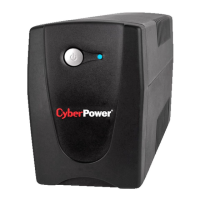
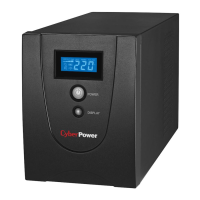
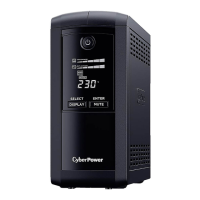
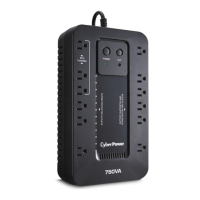
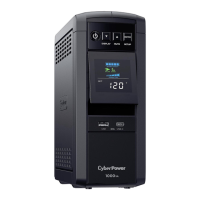
The VP700/1000/1200/1600E(I)LCD provides automatic voltage regulation for inconsistent utility power, and
provides battery backup during power outages. The VP700/1000/1200/1600E(I)LCD ensures consistent power to
your computer system and its included software will automatically save your open files and shut down your
computer system during a utility power loss.
HOW TO DETERMINE THE POWER REQUIREMENTS OF YOUR EQUIPMENT
1. Make sure that the total Volt-Amp (VA) requirements of your computer, monitor, and peripheral equipment does
not exceed the 700VA/1000VA/1200VA/1600VA.
2. Ensure that the equipment plugged into the battery power-supplied outlets does not exceed the UPS unit’s rated
capacity (700VA/390W for VP700E(I)LCD, 1000VA/550W for VP1000E(I)LCD,1200VA/720W for
VP1200E(I)LCD, 1600VA/960W for VP1600E(I)LCD). If rated unit capacities are exceeded, an overload
condition may occur and cause the UPS unit to shut down or the circuit breaker trip.
3. There are many factors that can affect the amount of power that your computer system will require. For optimal
system performance keep the load below 80% of the unit’s rated capacity.
DESCRIPTION
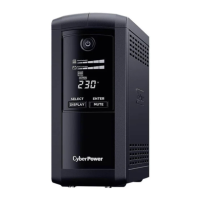
1. Power Switch
Used as the master on/off switch for equipment connected to the battery power supplied outlets.
2. Power On Indicator
This LED is illuminated when the utility power is normal and the UPS outlets are providing power, free of surges
and spikes.
3. LCD Module Display
High resolution and intelligent LCD display shows all the UPS information with icons and messages. For more
information, please refer to the Function Setup Guide
4. Display / Select Button
The button can be used to select the LCD display contents including Input Voltage, Output Voltage, and
Estimated Run Time. For more information, please refer to the Function Setup Guide.
5. Mute / Enter Button
The button can be used to silence the alarm, confirm the settings, and enter into the functions. For more
information, please refer to the Function Setup Guide.
6. Communication Protection Ports
Communication protection ports will protect any standard modem, fax, telephone line, network or Ethernet
connection (RJ11/RJ45).
7. Serial/ USB Port to PC
The Serial and USB port allow connection and communication from DB-9 serial or USB port on the computer to
the UPS unit. The UPS communicates its status to the PowerPanel
®
Personal software.
NOTE: Only one of these two ports can be used as communication and control of the UPS unit at the same
time.
8. Circuit Breaker
Located on the back of the UPS, the circuit breaker serves to provide overload and fault protection
9. AC Input
Connect AC Power cord to a properly wired and grounded outlet.
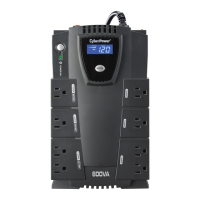
10. Battery Backup and Surge Protected Outlets
The unit has several battery powered/surge suppression outlets for connected equipment to ensure temporary
uninterrupted operation of your equipment during a power failure. Check the type and quantity of outlets for
different models in the following table.
11. Surge Protected Outlets
Provides surge protection for devices that don’t require battery backup.
Battery Backup & Surge
Protected Outlets
HARDWARE INSTALLATION GUIDE
1. Your new UPS may be used immediately upon receipt. However, recharging the battery for at least 8 hours is
recommended to ensure that the battery's maximum charge capacity is achieved. Charge loss may occur during
shipping and storage. To recharge the battery, simply leave the unit plugged into an AC outlet. The unit will
charge in both the on and off position.
Note: This UPS is designed with a safety feature to keep the system from being turned on during shipment. The
first time you turn the UPS on, you will need to have it connected to AC power or it will not power up.
2. With the UPS unit off and unplugged, connect the computer, monitor, and any externally powered data storage
device (Zip drive, Jazz drive, Tape drive, etc.) into the battery power supplied outlets. DO NOT plug a laser
printer, copier, space heater, vacuum, paper shredder or other large electrical device into the battery
power supplied outlets. The power demands of these devices will overload and possibly damage the unit.
3. To protect the network, connect a network cable from the wall jack outlet to the IN jack of the UPS. Then connect
network cable from the OUT jack on the UPS to the computer or network device.
4. Plug the UPS into a 2 pole, 3 wire grounded receptacle (wall outlet). Make sure the wall branch outlet is protected
by a fuse or circuit breaker and does not service equipment with large electrical demands (e.g. air conditioner,
refrigerator, copier, etc. Avoid using extension cords.
5. Depress the power switch to turn the unit on. The power on indicator light will illuminate and the unit will "beep".
6. If an overload is detected, an audible alarm will sound and the unit will emit one long beep. To correct this, turn
the UPS off and unplug at least one piece of equipment from the battery power supplied outlets. Wait 10 seconds.
Make sure the circuit breaker is depressed and then turn the UPS on.
7. Your UPS is equipped with an auto-charge feature. When the UPS is plugged into an AC outlet, the battery will
automatically recharge.
8. To maintain optimal battery charge, leave the UPS plugged into an AC outlet at all times.
9. To store your UPS for an extended period, cover it and store with the battery fully charged. Recharge the battery
every three months to ensure battery life.
50/60Hz +/- 5 Hz (Auto Sensing)
On Battery Output Voltage
On Battery Output Frequency
On Utility: Circuit Breaker, On Battery: Internal Current Limiting
Maximum Dimensions (WxHxD)
Sealed Maintenance Free Lead
Acid Battery
On Battery, Low Battery, Overload
Operating Relative Humidity
PowerPanel
®
Personal Software
Windows 10 / 8 / 7 / Vista / XP / 2000, Server2012 / 2008 / 2003, Linux
Power On:
Press and hold the POWER button. You will hear a constant tone for 1 second,
followed by a short beep. Release the button after the short beep.
Power Off:
Press and hold the POWER button. You will hear a constant tone for 1 second,
followed by two short beeps. Release the button after the two short beeps.
DISPLAY:
Press the button for 3 seconds to change current LCD status between "LCD Sleep in
1 minute (beeps twice)" and "LCD Sleep in 30 minutes (beeps once)".
LCD Sleep in 1 minute: In Line mode, LCD screen will be off automatically
after 1 min of inactivity.
LCD Sleep in 30 minute: In Line mode, LCD screen will be off automatically
after 30 min of inactivity.
In Battery mode, LCD screen will be always on.
SELECT:
Short press the button to view the information about the UPS or scroll down function /
option menu in Setup Mode.
MUTE:
Press the button for 3 seconds to enable the audible alarm (beeps once) or disable
(beeps twice) the audible alarm.
ENTER:
Short press the button to confirm the settings or enter into the functions.
Enter into Setup Mode:
Press both of the “SELECT” and “ENTER” at the same time for approximately 3
seconds to access the setup mode’s 11 functions.
Select Function:
Short press the “SELECT” button to scroll down the function/ option menu.
Short press the "ENTER" button to enter into set up options.
Confirm Option:
When an option is selected, short press the “ENTER” button.
After the setting has been confirmed, the LCD screen will stop flashing.
Questo manuale d’istruzione è fornito da trovaprezzi.it. Scopri tutte le offerte per CyberPower UPS Value
Pro 700 VA o cerca il tuo prodotto tra le migliori offerte di Gruppi di Continuità

 Need help?
 General



 To Next Page