Cyrus AV8 User Instructions
6
GB
GB
The Centre channel width setting varies the perceived width of centre
channel information from 0 (narrowest) to 7 (widest) by progressively
moving centre channel information into the front left and right speaker
channels. The Dimension setting adjusts the soundfield balance from 0
(balance towards the rear) to 6 (balance towards the front). The
Panorama setting, when switched on, additionally provides a ‘wrap-
around’ effect by mixing front channel information into the surround
channels.
The current settings will be memorised until next changed through the
menu system.
NOTE:- Centre width, Dimension and Panorama settings may not be
changed when set to Movie mode, ‘Music only’ will be displayed if these
menu options are selected.
Stereo
If a two-channel signal is detected the AV8 will automatically select Dolby
Pro Logic II decoding. If stereo reproduction is required (for CD music
etc) the STEREO key 3! of the remote control will switch between Pro
Logic II surround and Stereo decoding. An additional Stereo + Sub mode
is available via a second press of the STEREO key 3! which activates
Stereo decoding with bass reinforcement from the subwoofer (when
connected).
Press the STEREO key 3! again to return to surround decoding.
NOTE:- When purchasing program discs or tapes, check the legends on
the sleeve to ensure compatibility with the listed systems.
NOTE:- Some discs (e.g. DVD) may provide a selection of audio
encoding systems or a choice of languages. In this case the correct
system/language is selected from the control menu of the DVD player.
NOTE:- The AV8 employs an ‘auto-mute’ feature for DTS encoded
program material. If the DTS signal is interrupted (e.g. during fast search
or when changing discs) the display will read ‘AUTO-MUTE’ (Fig 4.16)
until the signal is restored. When changing from DTS programs to stereo,
it is necessary to re-set the auto-mute function with the MUTE key 3).
Level Control
The volume level is adjusted by the rotary LEVEL control on the front
panel 2^ or the LEVEL keys on the remote control 3$. When the volume is
adjusted the main display will switch briefly to show the setting in dBs
(Fig.4.15). Additionally, the display bargraph 2# shows the volume level at
all times.
Adjusting channel balance and Subwoofer level
The channel balance settings may be adjusted at any time from the
remote control with the SPEAKER HOT-KEYs 3&. Choose a speaker to
adjust with one of the keys then correct the channel balance with the
ADJUST keys 3^. The bottom row of the display will show the channel
balance setting in the range –10dB to +10dB (Fig. 4.5 shows centre
channel adjusted up by 2dB).
The Subwoofer level can be adjusted in the same way after first selecting
SUB/LFE from the SPEAKER HOT-KEYs 3&.
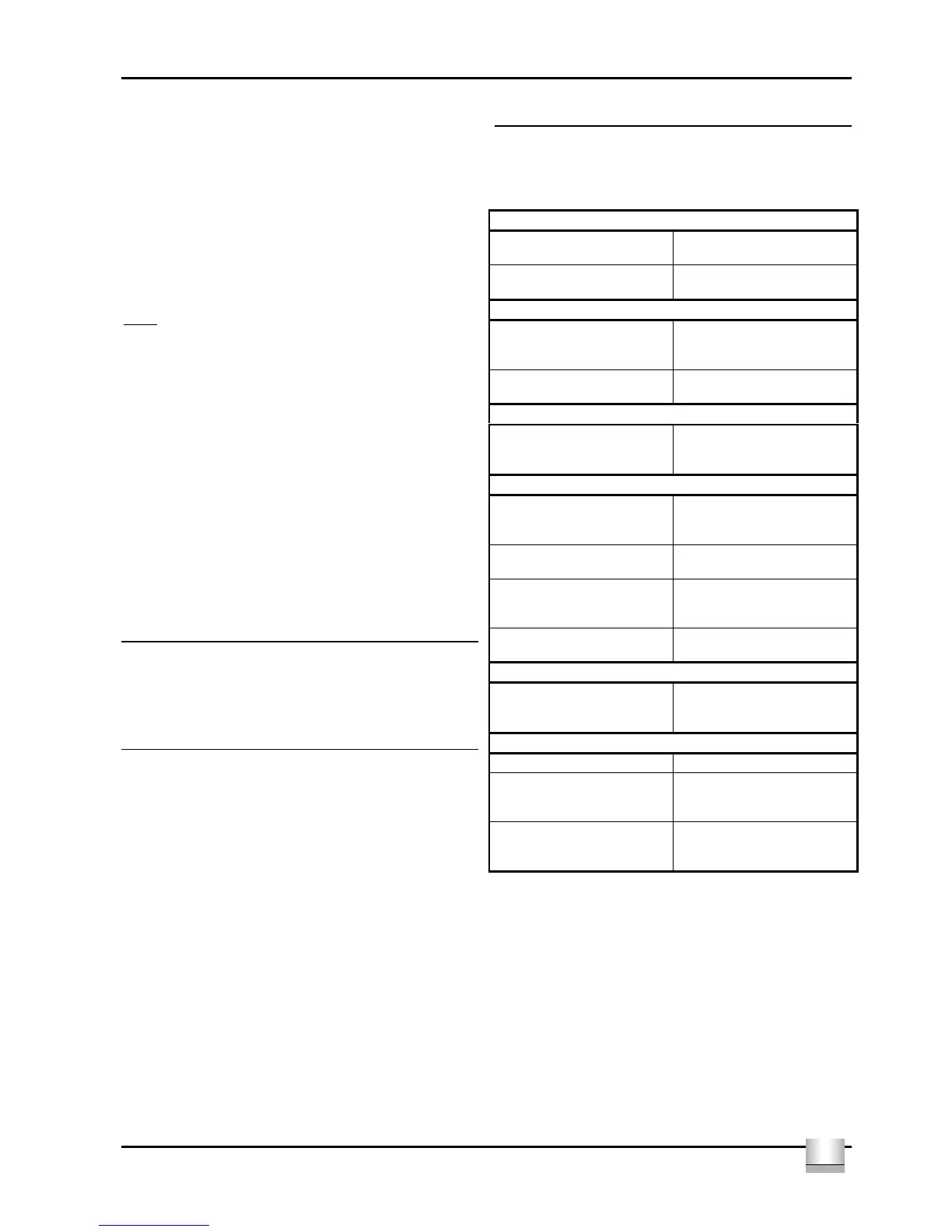
TROUBLESHOOTING GUIDE
If your Cyrus AV8 is not operating properly, disconnect the power and
carefully check all connections and the set-up procedure using the notes
in this handbook. If problems persist, the checklists below may help.
If you are in any doubt, consult your dealer.
No sound from any speaker with any source
Power amplifiers not switched on. Switch on all of the system
amplifiers
Incorrect source selected. Check source selection and input
set-up procedure (page 3).
No sound from any speaker with one of the sources
Incompatible audio format Check the audio format of the
disc/tape to ensure it is compatible
with the AV8.
Input for this source may not be
correctly set up.
Check source selection and input
set-up procedure (page 3).
No sound from some of the speakers
One or more of the speakers may
not be selected.
Check the speaker selection
settings in section ‘Setting speaker
sizes’ (page 3).
No sound from the sub-woofer
Subwoofer may not be selected. Check sub-woofer selection in
section ‘Setting speaker sizes’
(page 3).
Subwoofer level set too low. Check subwoofer level settings at
both the AV8 and the subwoofer.
All speakers are set to ‘large’ and
no LFE channel information is
present.
Check another program which has
LFE channel information.
LFE channel may not be recorded. Check another program which has
LFE channel information.
Loud noises from the speakers with certain sources or discs
Incompatible audio format for
multi-channel sound.
Check the audio format of the
program to ensure that it is
compatible with the AV8.
Automatic set up will not work
Microphone not connected. Connect microphone.
Mic error message on the display Check that the microphone battery
is fitted and does not need
replacing.
Automatic set-up fails during
operation.
One or more of the speakers may
be out of range. Use manual
calibration.


 To Next Page
 Loading...