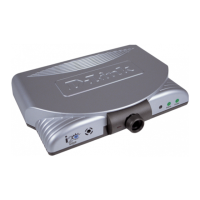
This document outlines the firmware update procedure for the D-Link DWR-720PW T2 3G FLLA Phone. The device appears to be a fixed wireless landline (FLLA) phone that utilizes 3G cellular networks for communication, offering a landline-like experience with the flexibility of wireless connectivity. The "PW" in the model name might indicate "Power" or "Powered Wireless," suggesting it could be a powered device or offer power-related features. The "T2" likely denotes a specific hardware revision or variant of the DWR-720PW model.
Function Description:
The DWR-720PW T2 is primarily a 3G FLLA phone designed to provide voice communication over a cellular network, mimicking the functionality of a traditional landline phone. Its core purpose is to offer reliable voice calls in areas where fixed line infrastructure might be limited or undesirable, leveraging the widespread availability of 3G mobile networks. The firmware update process detailed in the manual is crucial for maintaining optimal performance, introducing new features, fixing bugs, and ensuring compatibility with network changes. The update involves connecting the phone to a computer, loading a specific firmware file, and initiating a download process to the device's internal memory.
Important Technical Specifications (Inferred from the document):
- Connectivity: 3G FLLA (Fixed Wireless Landline) phone. This implies it uses a SIM card and operates on 3G cellular frequencies for voice and potentially data services.
- Firmware File Type: The update uses a
.pac file, which is a common firmware package format for devices based on Spreadtrum (now Unisoc) chipsets. This suggests the phone likely incorporates a Spreadtrum processor.
- Update Tool: The "Research Download" tool (version R19.0.0001) is used for the firmware update. This tool is specifically designed for flashing firmware onto Spreadtrum-based devices.
- USB Interface: The phone connects to a PC/laptop via a micro USB cable for the firmware update. This indicates a standard USB 2.0 interface for data transfer and potentially charging.
- Driver Requirements: The update process requires specific USB drivers, namely "SPRD_NPI_USBDriver_1.4" and "SPRD_USBDriver," which are Spreadtrum-specific drivers to enable communication between the PC and the phone during the flashing process.
- Firmware Versioning: The firmware files are named with dates (e.g.,
DWR-720PW-T2_003_20191205.pac), indicating a clear versioning scheme based on release dates. The file sizes (e.g., 342MB, 317MB, 375MB) suggest comprehensive firmware packages including the operating system, applications, and drivers for the phone.
- Internal Storage: The size of the firmware files implies a significant amount of internal storage on the device to accommodate the operating system and applications.
- Power Source: The phone is battery-powered and also uses a power adapter, as both need to be removed before the update and reconnected afterward.
Usage Features (Inferred from the device and update process):
- Landline Replacement: The primary usage is as a wireless alternative to a traditional landline, offering voice communication.
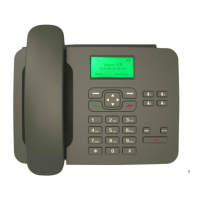
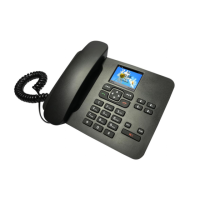
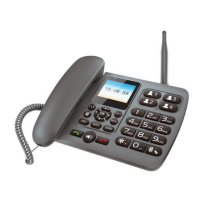
- Keypad and Display: The image of the phone shows a standard numeric keypad, function keys, and a display screen, typical of a feature phone or basic landline phone. The display shows "18:08:59," indicating a clock function.
- Menu Navigation: The presence of "Option Key" (referred to as "Right Option Key") suggests a menu-driven interface for accessing phone features.
- USB Connectivity: Beyond firmware updates, the USB port likely supports other functions such as "USB storage" (mass storage mode), "USB tethering" (sharing the phone's internet connection), and "Media device (MTP)" for transferring media files, as indicated by the post-update screen. This expands its utility beyond just voice calls.
- SMS Functionality: The presence of an "SMS" button on the keypad suggests it supports text messaging.
- Wi-Fi Functionality: A "WIFI" button on the keypad indicates the phone might have Wi-Fi capabilities, potentially for local network access or even Wi-Fi calling, though its primary function is 3G FLLA.
- Battery Operation: The device is designed to operate on battery power, offering portability within its wireless coverage area, even if it's primarily intended for a fixed location.
- User Interface: The update process involves user interaction with the phone's physical buttons (e.g., holding down the Right Option Key) to enter a specific mode for flashing.
Maintenance Features:
- Firmware Upgradability: The detailed firmware update guide is a key maintenance feature. It allows users or technicians to update the device's software, which is essential for:
- Bug Fixes: Addressing software glitches and improving stability.
- Performance Enhancements: Optimizing the phone's speed and responsiveness.
- Security Updates: Patching vulnerabilities to protect the device and user data.
- Feature Additions: Introducing new functionalities or improving existing ones.
- Network Compatibility: Ensuring the phone remains compatible with evolving 3G network standards or specific carrier requirements.
- Driver Installation: The need to install specific USB drivers (SPRD_NPI_USBDriver, SPRD_USBDriver) on the PC is part of the maintenance setup, ensuring proper communication for updates and diagnostics. The guide provides clear instructions for installing these drivers for both 32-bit and 64-bit Windows systems.
- Troubleshooting: The guide implicitly provides troubleshooting steps by detailing the exact sequence of actions and expected outcomes (e.g., "Downloading..." status, "Ready" status, phone booting up automatically).
- Reset Functionality: The update process includes a "RESET" step, which likely refers to a software reset or reboot of the device during the flashing procedure, a common maintenance action.
- Power Cycle Requirement: The instruction to remove the battery and power adapter before the update, and then reinsert them, is a standard power cycling procedure often used in device maintenance to ensure a clean state for software operations.
- Diagnostic Mode: Holding down the "Right Option Key" while connecting the USB cable puts the phone into a specific download or diagnostic mode, which is a crucial maintenance feature for flashing firmware.
- Software Tool (Research Download): The dedicated "Research Download" tool is a powerful maintenance utility, allowing precise control over the flashing process and providing feedback on progress and status.

 Need help?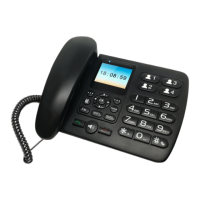

 To Next Page
 General