31
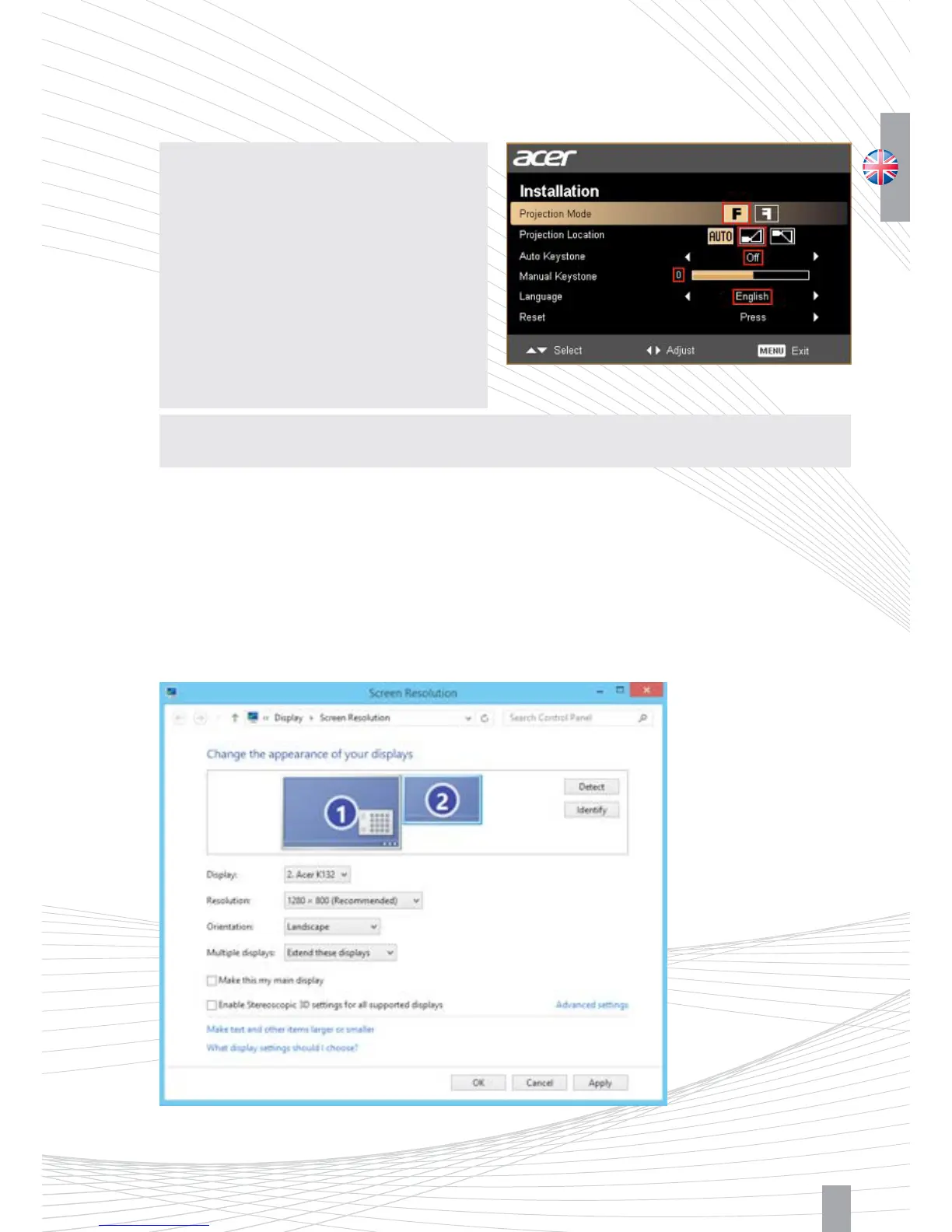
Figure 2.5: In this window you can separately configure your two ”Displays“, the monitor and the projector. (Image may vary)
Figure 2.4: Projector settings
2.5. Setting up the Projector
The projector is already delivered with optimal settings, we recommend not to change anything in the menu.
Note: You can restore the recommended
settings in the projector‘s menu at any time
as follows (See Figure 2.4.)
1 Select ”Reset“
2 Turn the ”Auto Keystone ” off, and set the
manual value ”Manual Keystone“ to 0
3 As ”Projection Location“, select the icon
for desktop use, not ”AUTO“
Note: You can activate the ”Eco-Mode“ if you do not need the maximum intensity of light.
For details, please read the manual of the projector.
2.6. Setting up the Projector as Extended Desktop in Windows
Click the right mouse button on a blank area of your Windows desktop, select “Screen resolution“ or
”Properties“ (depending on your Windows version).


 To Next Page