Mini PC User Guide
Note: Once the Wi-Fi is connected you will see the signal icon in the bottom right Status bar. This icon will be
white if the Date and Time is not set correctly. Once Date and Time is set it will turn blue, which indicates
proper internet connection.
Set Date and Time
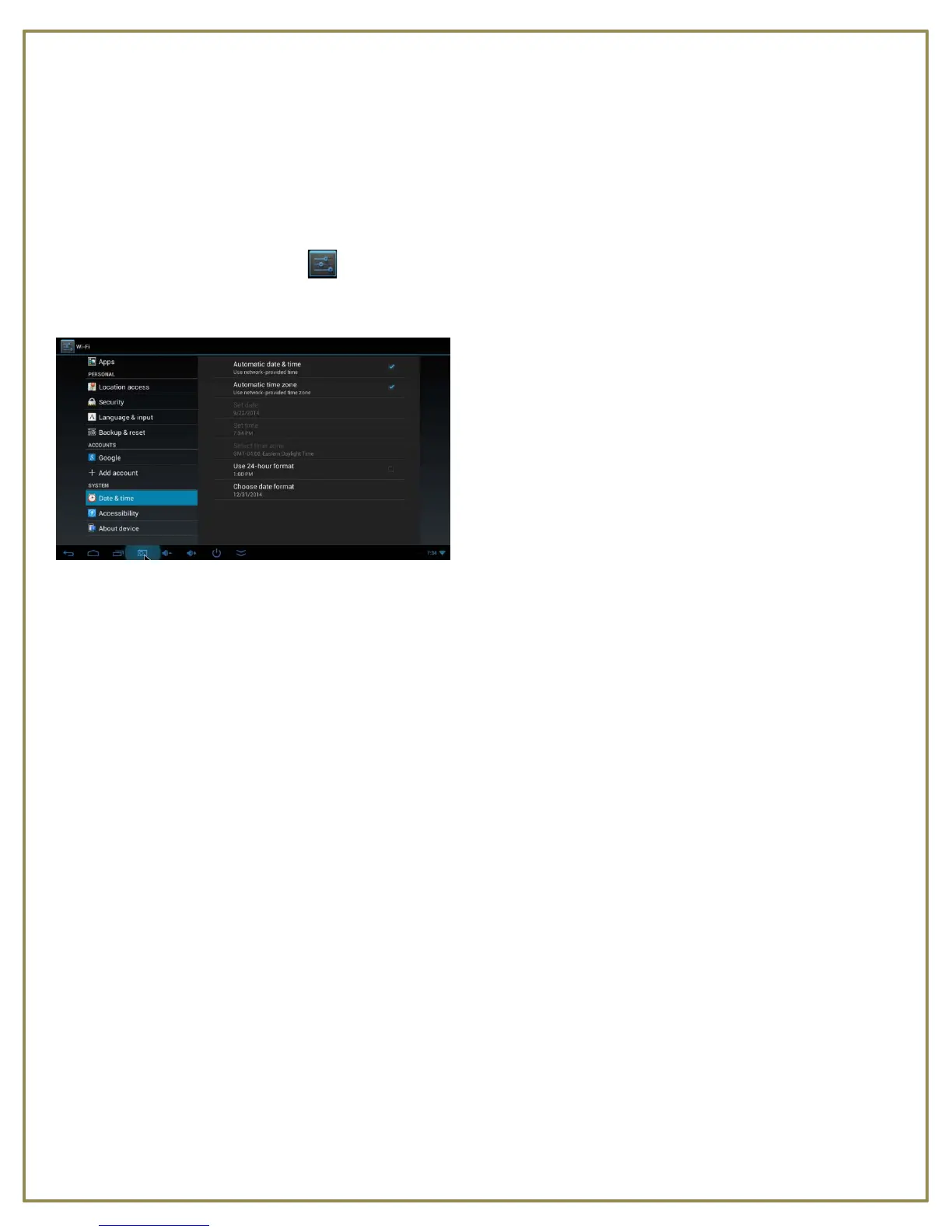
• Locate and open Settings from one of the home screens.
• Scroll through list on left and click Date & Time.
• Remove any checks from Automatic date & time, Automatic time zone.
• Click Select time zone, then locate your time zone in the list and select it.
• Press Done to return to the Date & Time window.
• Click Set date, click the month that is showing in the middle on the left, type the first 3 letters of the
month you want on the keyboard that appears at the bottom. Click Next to go to day and year. When
finished click Done.
• Put a check in the box beside Use 24-hour format to change the time to 24-hour format.
• Click Choose date format to set how the date format is shown.
• Click Set time, set the correct time. Click Done when finished.
• Once all date and time settings are correct, put the checks back in the Automatic date & time &
Automatic time zone boxes at the top.
Add Google Account
Adding a Google Gmail account allows you to access content within 1Channel and the Google Play Store.
• Open Settings from the home screen.
• Scroll down the left to locate Accounts.
• Click +Add Account.



 To Next Page