6
New Operations
Activity search
It is possible to search an area of the screen for activity or text at specified times. To search
for activity or text:
1. Enter playback mode by tapping either
,, or pressing and holding the GOTO key.
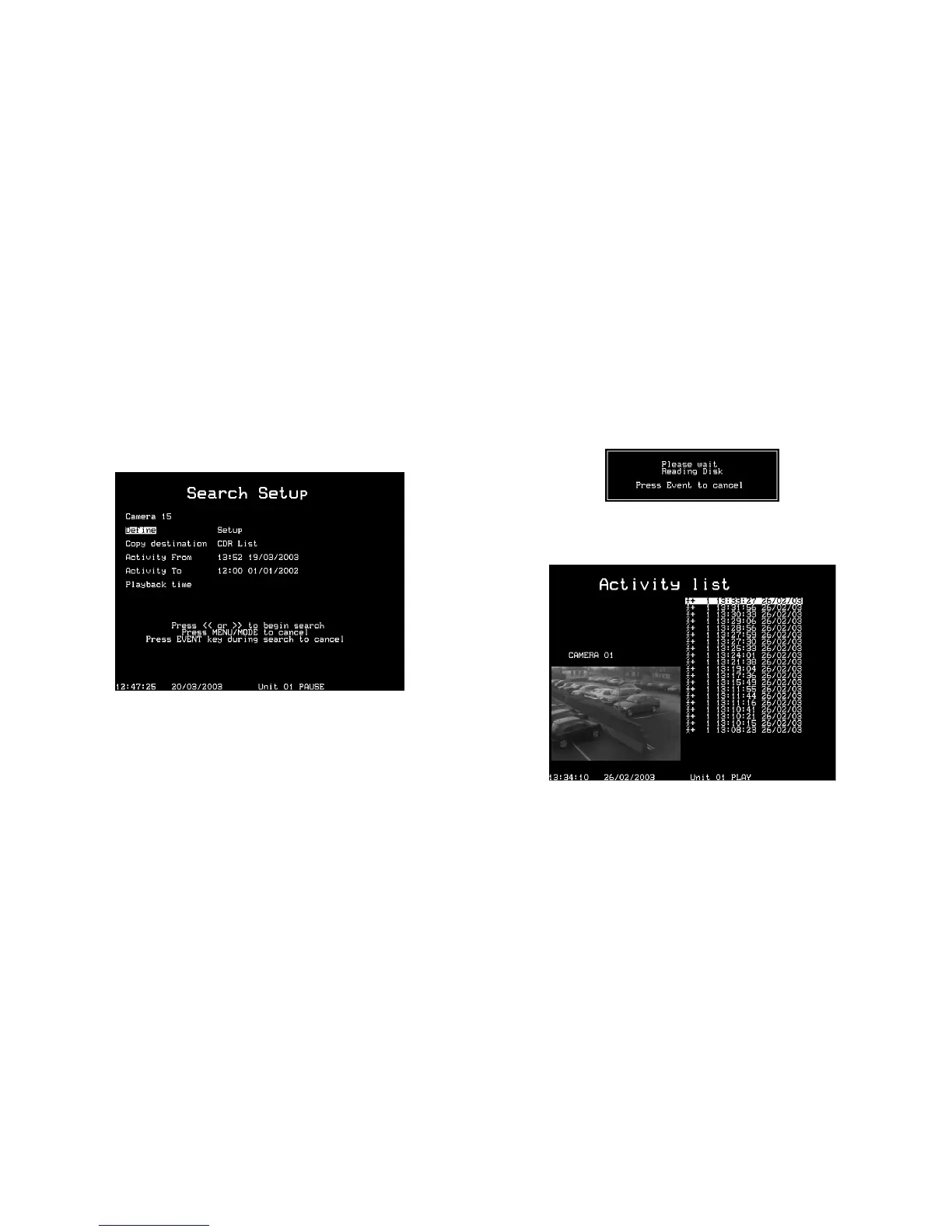
2. Press and hold the ‘Event’ key to display the Search Setup menu:
Camera
This is the camera number you will be performing the search on, press a
camera key to change to the relevant camera number.
Define
This option defines the area of the screen you need to search. Follow the on-screen
instructions to select an area of the screen to search for activity.
Copy destination
This is the device you wish to copy selected images to, (select External to copy
to Zip/Jaz, or CDR List to copy to the CDR Archive page).
Activity from
Enter the time and date you wish to search from. The default is the earliest
recorded time on the disk.
Activity to
Enter the time and date you wish to search to.
Playback time
Select this option to automatically enter the last playback time and date the
user was viewing into the ‘Activity to’ option.
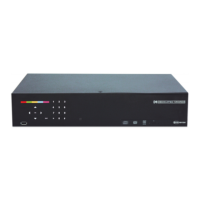
3. Once the Search Setup screen has been completed, press
to begin the search, the
following screen is displayed.
The Digital Sprite 2 will search the hard disk for activity in the selected areas. Once it has
found 20 (for PAL units) or 18 (for NTSC cameras) events the activity list will appear. The
search can be cancelled at any time by tapping the ‘Event’ key; any events found up to that
point will displayed in the activity list. A typical example of an Activity List would be:
Use the Ç È keys to move the highlight up and down the list, the Activity image is
automatically updated as the highlight moves. From this screen you can perform the following:
Play an activity back in full screen
Highlight the required activity event and press
to play it back in full screen. Tap the ‘Event’
key to return to the Activity list.


 To Next Page