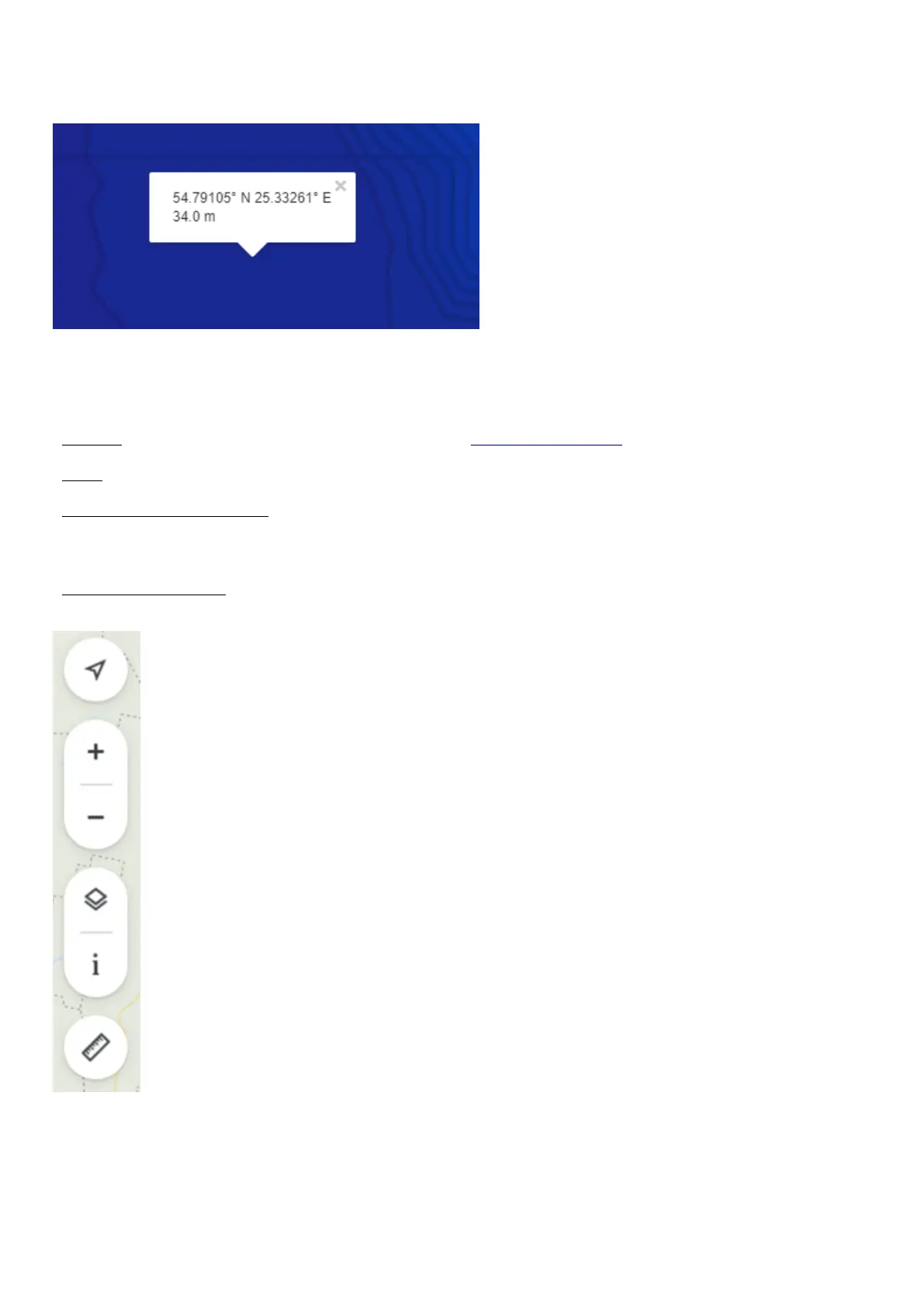
When analyzing your bathymetric maps, simply click on any part of the map you have created. A pop-up box will
appear with the GPS coordinates and depth at that exact spot.
Other useful display tools
-Location: if you are using a GPS-enabled device to access maps.fishdeeper.com, you can see your exact location.
-Zoom: In the top right of the screen there is a plus / minus icon. Use this for zooming in or out.
-Map settings and Map legend: Below the zoom icon is a menu for changing your viewing settings. Click on this
then select either Map (for a simple map display) or Satellite (for a satellite image). You can also configure which
labels and points of interest should be displayed, as well as change the bathymetry color palette.
-Distance measurement: Below the map settings menu there is a ruler icon. Click this and you can now measure
distances – just click one spot and then another, and you will get a distance reading between the two.
Pairing with the mobile device
Deeper sonar turns on automatically when it is in water or connected to a power source. When it’s out of water or


 To Next Page
 Loading...