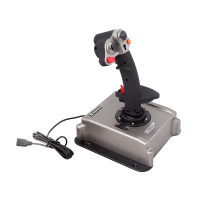
1.
Buttons 5, 6,7, 8, 12, 13, 14, 15, 19, 20,21, 22 (4 physicalbuttonsand 8 virtual, the
selectiondependsontheselectedcontrolmode).
2.
8‐wayD‐pad.
3.
Buttons4,11,18(themeaningdependsontheselectedcontrolmode).
4.
ClusterFire™fold‐backtrig gerforshootingwithsecondaryweapon.
5.
ClusterFire™maintriggerforshootingwithprimaryweapon.
6.
Buttons3,10,17(themeaningdependsontheselectedcontrolmode).
7.
Additional fold‐back trigger (Wheel brake) corresponding to the buttons 9, 16, 23 (the
meaningdependsontheselectedcombatmode).
8.
Tumbler of combat mode selection. The following modes are available: close combat,
distancefightingandmaneuvering.
9.
Rubberizedgrip.
10.
Specialdustcoverofsoftrubber.
11.
Enginethrustcontrolwheelwithsoftmotion.
12.
Metallicbase.
Softwareinstallationanddevicedetection
This joystick was developed by using Plug & Play technology. Thus to install it no additional
softwareisneeded.JustconnectthejoysticktoyourPCthroughUSB2.0port.Thenthesystemwill
automaticallydetectanewgamingdevice.
WARNING!Thedevicedet ectionmaytak eupto1‐2minutesdependingonyourOSconfiguration.
WARNING! Operation through USB hubs is not guaranteed. Check the connection to the port
directlylocatedonthecomputer.
WARNING! Thejoystick maynotbecompatiblewith somemodels oflaptopsorother portable
devices.
Joystickquicktest
•
To runsystemtestinWindowsXPsystem,enterStartmenu, then“Controlpanel”,“Gaming
devices”.SelecttheDefenderCobraM5USBandpress“Properties”button.
•
To run system test in Windows Vista/7 system, enter Start menu, then “Control panel”,


 To Next Page