www.defender-global.com
16
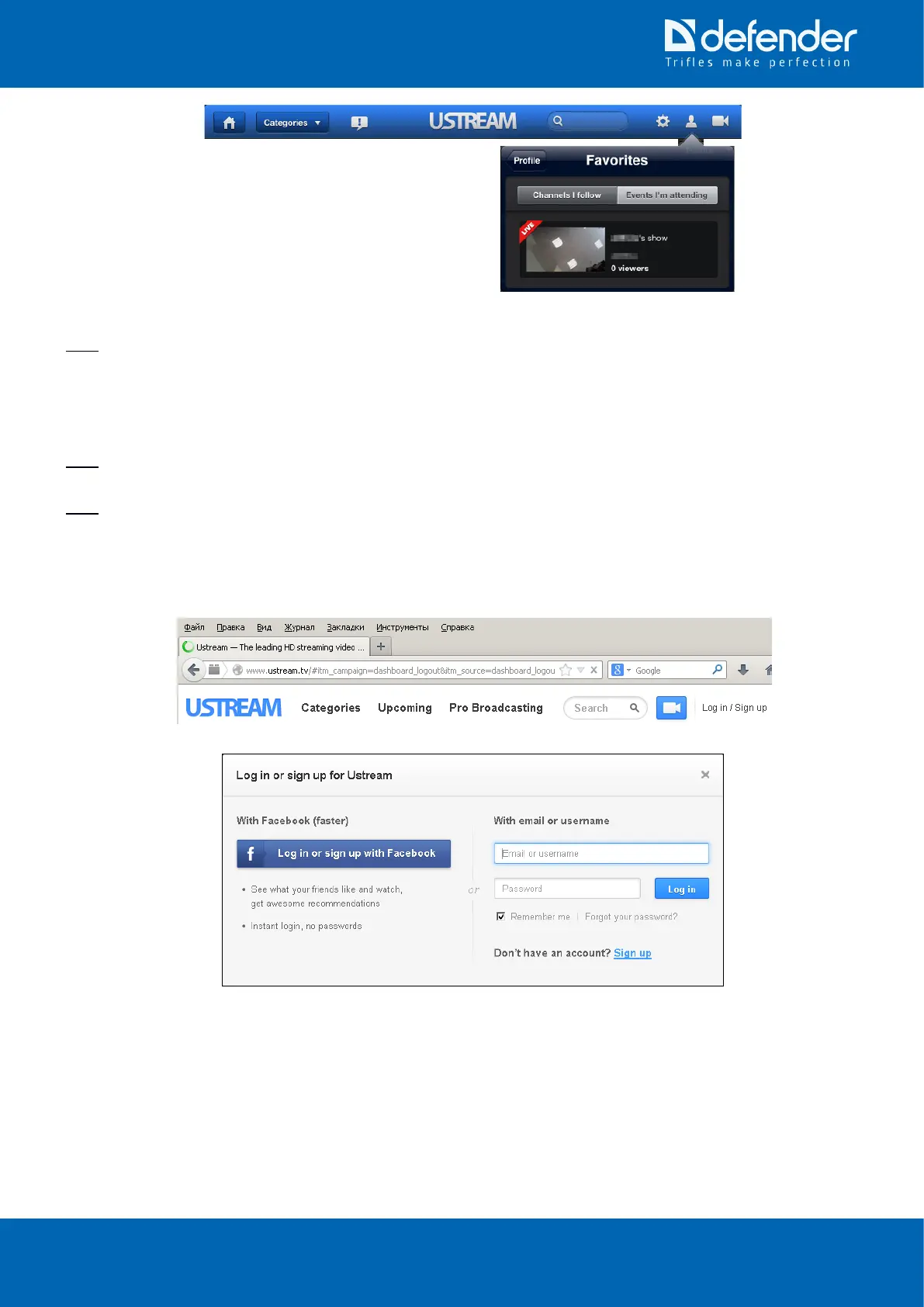
4. Open the
“Channels | follow”
tab in the opened
“Favorites”
tab.
Note. The camera supplier is not responsible for
“Ustream”
application and
“http://www.ustream.tv”
service functioning,
since it belongs to thethirdparties.Ifyouencounteranydifculties,refertocustomersupportandhelpsectionofthis
service. In near future the camera will support other cloud services.
11.5 Viewing video stream from camera through cloud service, using PC, Laptop or mobile device internet-
browser
Note. You will need a web browser that supports Flash technology. Unfortunately, many mobile phones and tablets do
not support Flash technology.
Note. The camera supplier is not responsible for
“Ustream”
application and
“http://www.ustream.tv”
service functioning,
since it belongs to the thirdparties.Ifyouencounteranydifculties,refertocustomersupportandhelpsectionofthis
service. In near future the camera will support other cloud services.
11.5.1 Authentication
1. Open the following page in the internet browser:
“http://www.ustream.tv”
.
2. Click on the
“Log in / Sign up”
eld.
3. Enter account username and password that are used by the camera to access
“USTREAM”
service in the
appeared window (the exact username and password that were used to set up the camera) and press
“Login”
button.


 To Next Page