24/7 Technical Support: 800-966-5520 - Option 3 Merchant Support: 800-966-5520 - Option 4
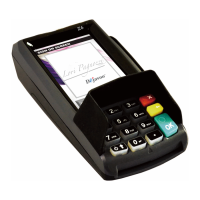
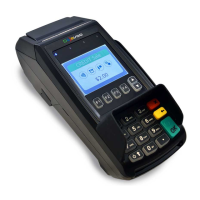
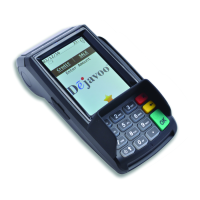
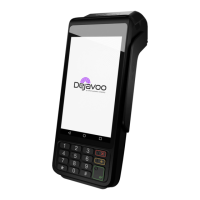
DEJAVOO QD2, QD4 Quick Reference Guide
Credit Card Sale
1. Tap the CREDIT icon.
2. Tap the SALE icon.
3. Key in the sale amount, then press OK.
4. If prompted, key in the tip amount, then press OK.
5. Tap, insert, swipe, or manually enter card number when
prompted.
6. Follow additional prompts for manual entry.
7. Terminal will begin printing the receipt.
Debit Card Sale
1. Tap the DEBIT icon.
2. Tap the SALE icon.
3. Key in the sale amount, then press OK.
4. If prompted, key in the tip amount, then press OK.
5. Tap, insert, or swipe card.
6. Enter PIN # on PIN Pad when prompted, then press OK.
7. Terminal will begin printing the receipt.
EBT Sale
1. Tap EBT FOOD or CASH.
2. Tap the SALE icon.
3. Key in the sale amount, then press OK.
4. Swipe the EBT card.
5. Enter PIN # on the PIN Pad when prompted, then press OK.
6. Terminal will begin printing receipt.
Tip Adjust (from Favorites)
1. Select the STAR icon.
2. Select TRANSACTION #, then press OK.
3. Enter TRANSACTION # of the sale you wish to add a tip,
then press OK.
4. Enter the tip amount, then press OK.
5. The terminal will show the base amount, tip amount, and
new total. Press OK to conrm.
Printing Reports
1. Select the STAR icon.
2. Tap REPORTS.
3. If prompted, key in Manager’s Password, then press OK.
4. Select the desired report type.
5. Terminal will begin printing the report.
Reprinting a Receipt
1. Select the STAR icon.
2. Select REPRINT RECEIPT.
3. When prompted, key in the Manager’s Password.
4. Choose by TRANSACTION #.
5. Enter the TRANSACTION #, then press OK.
6. Verify amount, then press OK.
7. Terminal will reprint the specied receipt.

 Need help?
 General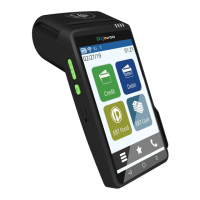

 To Next Page