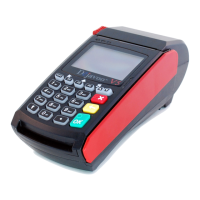
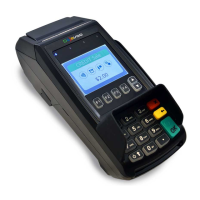
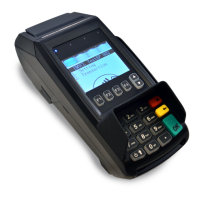
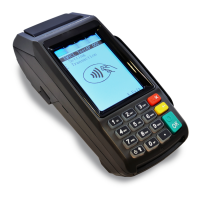
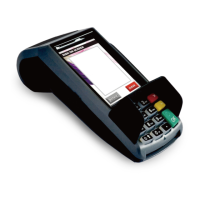
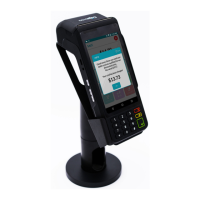
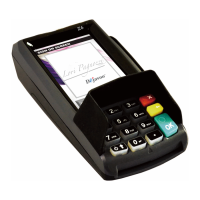
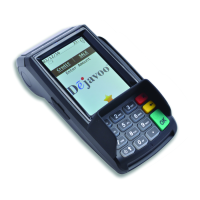
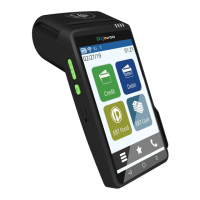
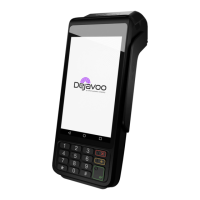
USA Models, V8S, V8S PLUS, V9S, V9S Wi-Fi, V9S PLUS, Z Line
Retail Quick Reference Guide
These steps have been provided as a guide for assistance. Your Dejavoo payment terminal is equipped with Event Driven software; The
terminal will automatically choose the appropriate application based upon the swipe or entry of a card number.
Note: On Z3 or Z8 terminals, the or keys, or touching the Z6, Z9
or Z11 Credit or Sale ideal screen prompts change the payment type and Transaction type options.
SWIPED OR MANUAL
CARD SALE
1. From the CREDIT SALE ENTER
AMOUNT enter sale amount and press OK
2. Tap, Swipe OR Manually Enter Card #
- If AVS prompts, input AVS information
3. Terminal communicates with the Host
4. Receipts Print
1. From the CREDIT SALE ENTER AMOUNT
2. Press the
3. Scroll using the Arrow keys select DEBIT
press OK
4. Input Amount press OK
5. Tap, Swipe OR Manually Enter Card #
- If AVS prompts, input AVS information
6. Input PIN and press OK
7. Terminal communicates with the Host
8. Receipts Print
1. From the CREDIT SALE ENTER AMOUNT
2. Press the yellow arrow key
3. Scroll using the Arrow
key select TICKET
press OK
4. Input Amount press OK
5. Input Password (1234 Default) and press OK
6. Input previously obtained AUTH CODE
7. Tap, Swipe OR Manually Enter Card #
8. Receipts Print
1. From the CREDIT SALE ENTER AMOUNT
2. Press the yellow arrow key
3. Scroll using the Arrow key select VOID
press OK
4. Input VOID Amount and press OK
5. Press F2 to reconfirm void OR F4 to cancel
6. Input Password (1234 Default) and press OK
7. Tap, Swipe OR Manually Enter Card #
8. Receipts Print
1. From the CREDIT SALE ENTER AMOUNT
2. Press the yellow arrow key
3. Scroll using the Arrow key select RETURN
press OK
4. Input RETURN Amount and press OK
5. Press F2 to reconfirm return OR F4 to cancel
6. Input Password (1234 Default) and press OK
7. Tap, Swipe, OR Manually Enter Card
8. Receipts Print
1. From the CREDIT SALE ENTER AMOUNT screen press F3
2. Highlight Core Settle Daily Batch
press OK
3. Input Password (1234 Default)
and press OK
4. Terminal communicates with the
Host
5. Reports Print

 Need help?
 General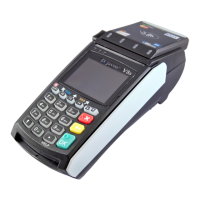

 To Next Page