Dejavoo Systems Instruction Manual V525.15 37
DEBIT CARD RETURN
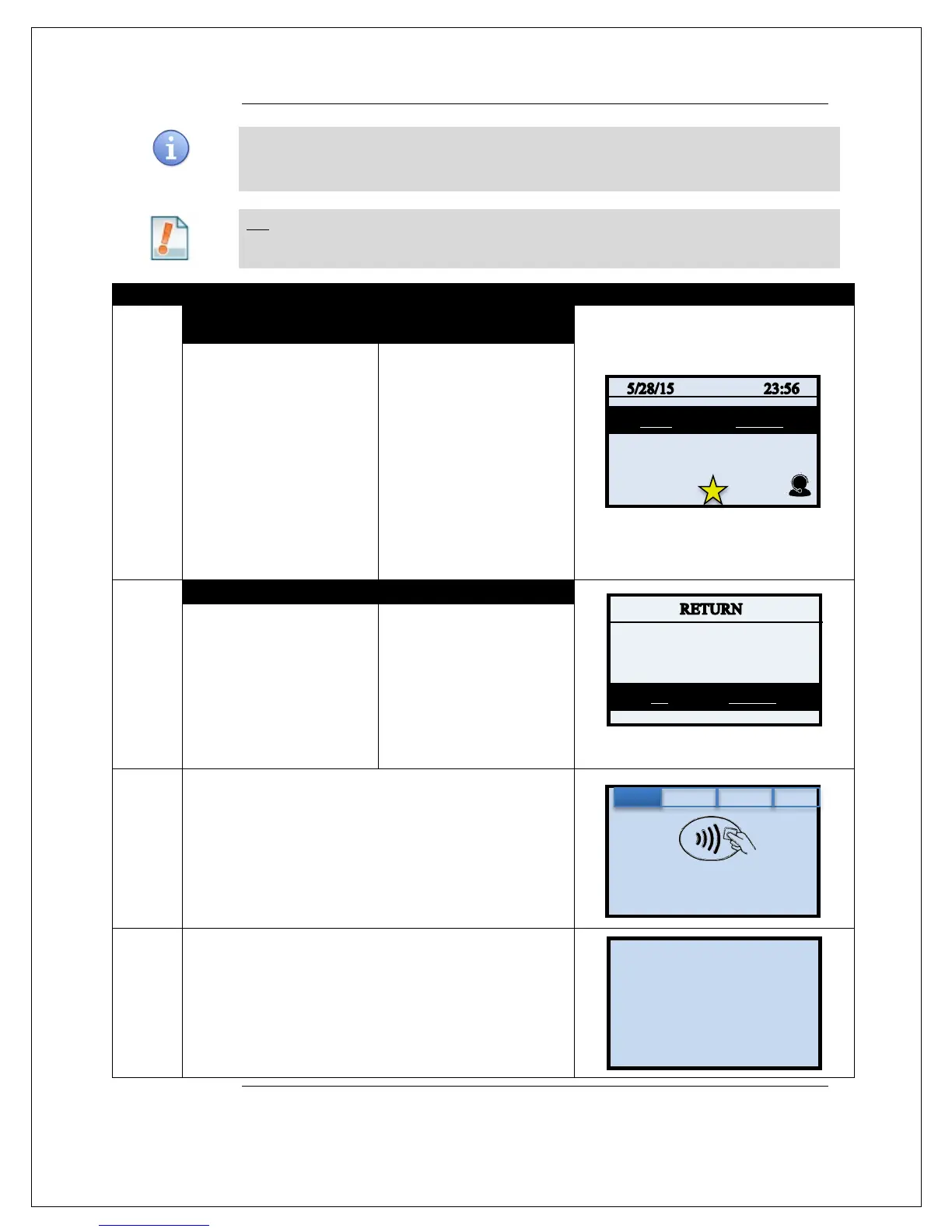
Use the steps below to complete a Debit Card Return. Debit Cards cannot be
manually entered and must be swiped at point of sale. You must be subscribed to a
Debit Host and PED is required.
Tip: A debit card sale cannot be VOIDED; to refund a debit sale transaction you must
process a RETURN to the debit card.
1.
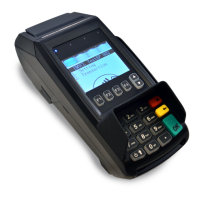
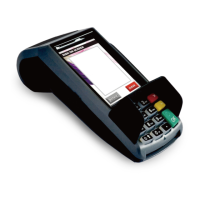
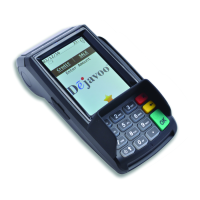
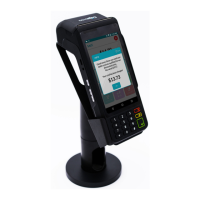
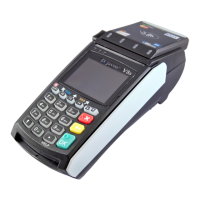
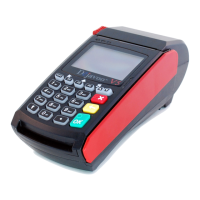
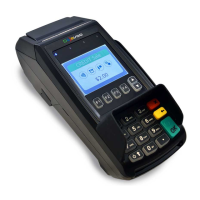
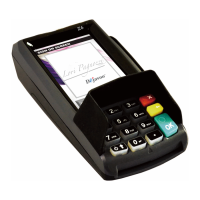
NON TOUCH SCREEN TOUCH SCREEN
Press the down arrow button
to change the payment type
to DEBIT
Press the Yellow backspace
key to change the
transaction type to RETURN
Input the RETURN
AMOUNT and press OK
Use your fingertip to Tap
the word CREDIT then
Tap the word DEBIT in the
menu list.
Use your fingertip to Tap
the word SALE then Tap
the word RETURN
Input RETURN AMOUNT
and press OK
2.
If the amount shown is
correct press the F2 Key
to confirm
if it is not correct press the
F4 Key and re-enter the
amount.
* If prompted input password,
If the amount shown is
correct use your fingertip
to tap OK to confirm,
if it is not correct use your
fingertip to tap CANCEL
and re-enter the amount
* If prompted input password,
3.
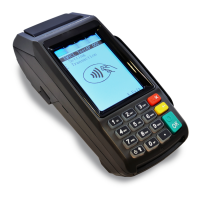
Swipe or insert Debit Card
4.
Customer Inputs PIN on Encrypted terminal PIN Pad or
Encrypted External PIN Pad and presses OK.
Continued on next page
Amount: $-5.00
ENTER PIN
Enter Card #
Sale: $5.00


 To Next Page