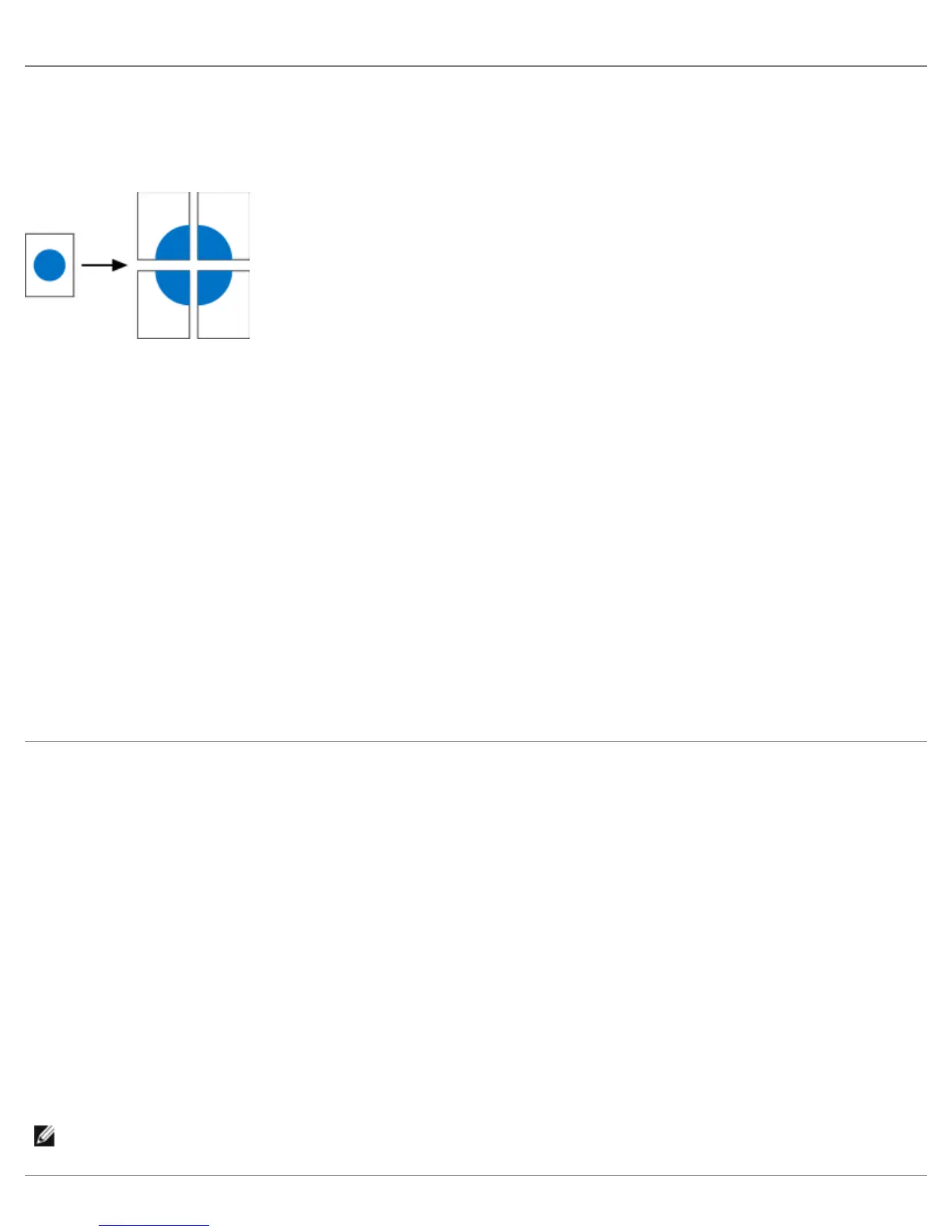
Printing a Poster
The Poster setting lets you print a single image across several pages. Once printed, you can combine the pages to create one
large image.
1. With your document open, click File® Print.
2. Click Properties (or Options, Printer, or Setup, depending on the application or operating system).
The Printing Preferences dialog box opens.
3. Click More Page Layout Options.
4. Click Poster.
5. Select the poster size you want by choosing the number of pages to use in the poster.
6. To print crop marks on the page, select Print crop marks.
7. Select the amount of overlap you want each page to have.
8. Click OK twice.
9. Click OK on the Print window to send the job to print.
Printing on Transparencies
1. Load transparencies.
2. With a document open, click File ® Print.
3. Click Properties (or Options, Printer, or Setup, depending on the application or operating system).
The Printing Preferences dialog box appears.
4. Click the Paper tab.
5. Select Transparency from the Paper Type drop-down list.
6. Click OK twice.
7. Click OK on the Print window to send the job to print.
NOTE: To prevent smudging, remove each transparency as it exits, and let it dry before stacking. Transparencies may
require up to 15 minutes to dry.











 To Next Page