See "Power On/Off the Projector."
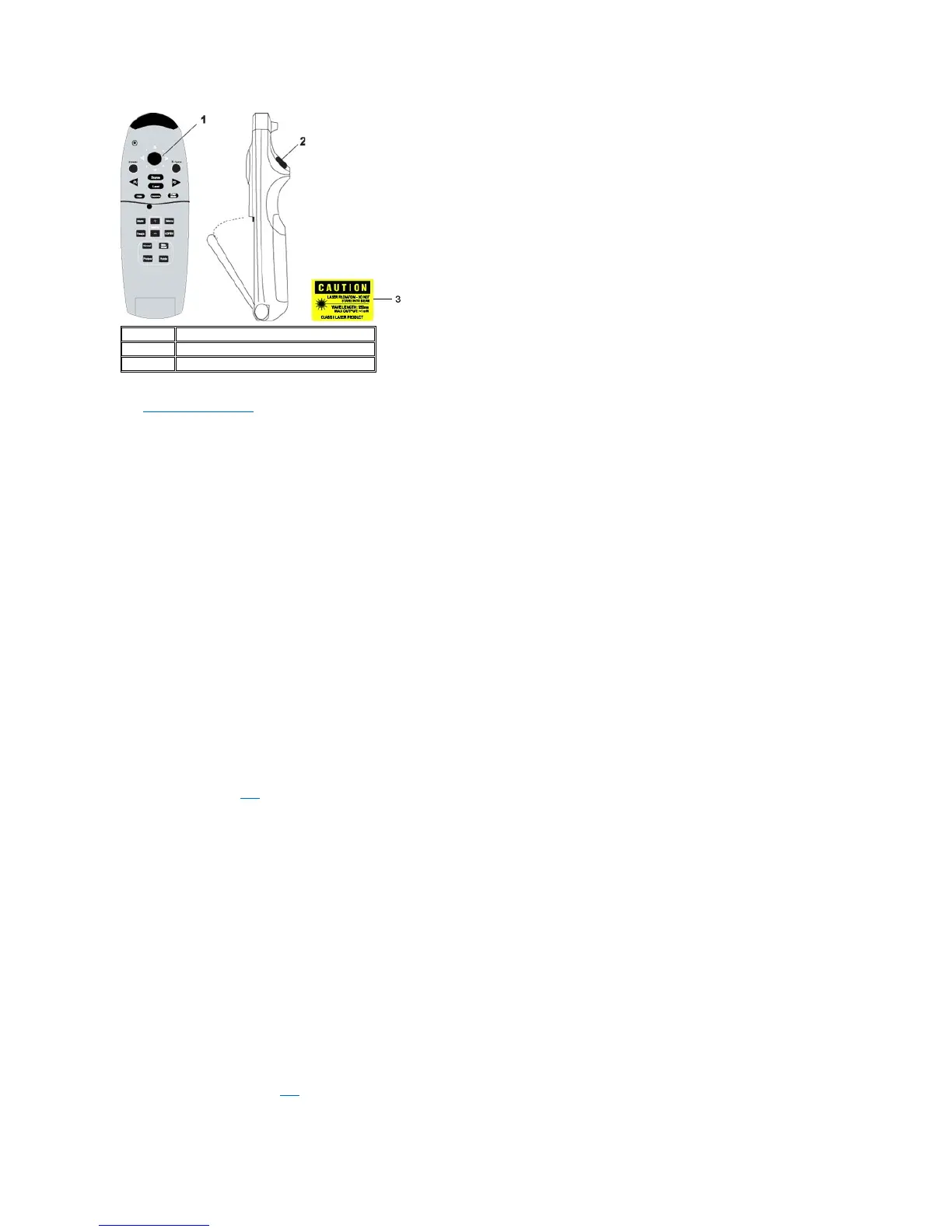
Press the Source button to switch between Analog RGB, Digital RGB, Composite, Component-i, S-video, Analog YPbPr sources, and the card reader
(Optional accessory).
Press the Freeze button to temporarily stop motion video. Press the button again to resume.
Press the Mute button to mute or un-mute the projector speaker.
Slide Show (Enabled only when projection with the photo images from the optional card reader)
Press the Slide Show button to display all the photo images in the memory card one by one.
Pre-view (Enabled only when projecting photo images from the optional card reader)
Press the Pre-view button to browse thumbnails of all the photo image files.
Normal (Enabled only when projecting photo images from the optional card reader)
Press the Normal button to display the photo images one by one manually controlled by PU or PD button.
Rotate (Enabled only when projecting photo images from the optional card reader)
Press the Rotate button to rotate the image on the screen.
Press R-sync to synchronize the projector to the input source.
R-sync will not operate if the OSD (On-Screen Display) is displayed.
The directional pad can be used to control mouse movement when the remote control cover is closed. The mouse function is enabled using the USB
connector on the M1-A to combination VGA and USB cable between your computer and the projector. The directional pad will control the OSD (On-Screen
Display) when the cover is open.
Press Hide button to hide the image, press again to resume display of the image.
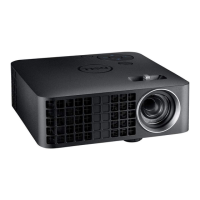
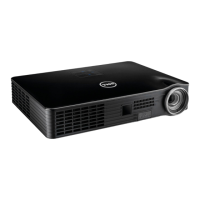
The Dell 3300MP Micro-projector has preset configurations that are optimized for displaying data (PC Graphics) or video (movies, games, etc.). Press Color
Mode button to toggle between PC mode, Movie mode, Game Mode, sRGB, or User mode (for user to setup and save preferred settings). Pressing the
Color Mode button once will show the current display mode. Pressing the Color Mode button again will switch between modes.
Press the PU button to step to previous page.
Press the PD button to step to next page.
Press the Menu button to activate the OSD. Use the directional keys and Menu button to navigate through the OSD.


 To Next Page
 Loading...