
 Need help?
Do you have a question about the Dell Alienware x14 and is the answer not in the manual?
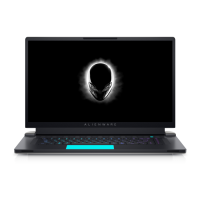
Details components such as microphones, infrared emitter, camera, and status light on the front panel.
Describes top-view elements including speakers, left/right click buttons, touchpad, and power button.
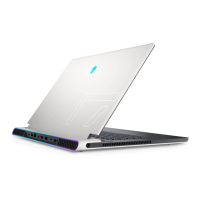
Lists and describes ports on the back of the laptop, including USB-C, headset, HDMI, and Thunderbolt 4.
Identifies components on the bottom of the laptop, primarily the Service Tag label.
Provides physical measurements (height, width, depth) and weight of the Alienware x14.
Lists processor type, wattage, core count, thread count, speed, cache, and graphics.
Details the chipset, including DRAM bus width, Flash EPROM, and PCIe bus.
Lists the operating systems compatible with the Alienware x14, such as Windows 11.
Specifies memory slots, type (LPDDR5), speed, maximum configuration, and supported modules.
Details all external ports, including USB, audio, video, media-card reader, and security-cable slot.
Describes internal slots available for components like WiFi/Bluetooth cards and SSDs.
Lists specifications for the wireless modules, including transfer rates, frequency bands, encryption, and Bluetooth version.
Provides information on the audio controller, stereo conversion, speakers, and microphone.
Outlines the available storage configurations, specifying SSD types, interface, and capacity.
Specifies the types of media cards supported by the Alienware x14's reader.
Details the keyboard type, layout, number of keys, size, and shortcut functionality.
Lists specifications for the built-in cameras, including resolution and sensor type.
Provides technical details on the touchpad's resolution and physical dimensions.
Lists specifications for the power adapter, including type, dimensions, input voltage, and temperature ranges.
Details the battery type, voltage, weight, dimensions, temperature ranges, and operating time.
Lists display panel type, technology, dimensions, resolution, luminance, and refresh rate.
Details the specifications of the integrated Graphics Processing Unit (GPU).
Lists specifications for the discrete Graphics Processing Units (GPUs) supported.
Specifies the computer's operating and storage temperature, humidity, vibration, and altitude limits.
Lists various online resources for obtaining information and support for Alienware products.
Provides instructions and links for contacting Alienware for sales, technical support, or service.
The Alienware x14 is a high-performance laptop designed for gaming and demanding tasks, offering a blend of powerful hardware and user-centric features. This setup and specifications guide provides essential information for users to get started with their new device, understand its various components, and utilize its functionalities effectively.
The Alienware x14 serves as a portable computing solution, primarily aimed at gamers and power users who require robust performance in a compact form factor. It is equipped with advanced processors, graphics cards, and memory configurations to handle resource-intensive applications, including modern video games, content creation software, and complex simulations. The laptop integrates a high-resolution display with a fast refresh rate, ensuring a smooth and immersive visual experience. Its audio system is designed to deliver clear and powerful sound, enhancing the overall multimedia experience. Connectivity options are comprehensive, supporting various external devices and network connections for versatile usage. The Alienware x14 also incorporates a sophisticated cooling system to maintain optimal performance during extended use.
Setting up the Alienware x14 is straightforward. Users begin by connecting the power adapter to the laptop and a power outlet, then pressing the power button to turn on the device. For wired network connectivity, an optional USB Type-C Ethernet dongle can be connected to a Thunderbolt 4 port.
The laptop's design includes several key components for interaction and functionality. The front of the Alienware x14 features a camera assembly with a left microphone, infrared emitter, camera, camera-status light, infrared camera, and right microphone. These components facilitate video chat, photo capture, video recording, and enhanced security through Windows Hello face authentication. The camera-status light indicates when the camera is active, providing privacy awareness.
The top view of the laptop highlights the keyboard, touchpad, and speakers. The keyboard is a 1-zone RGB backlit keyboard with a QWERTY layout, offering a comfortable typing experience. It includes dedicated function keys (F1-F12) that can be used for multimedia control or secondary functions, depending on the user's preference, which can be configured in the BIOS setup program. The touchpad allows for precise cursor control, supporting left-click, right-click, and various gestures for intuitive navigation within the operating system. Left and right speakers provide audio output, enhancing the immersive experience. The power button, located on the keyboard deck, not only turns the computer on and off but also manages sleep and hibernate states. Users can customize the power-button behavior through Windows settings.
The back of the Alienware x14 houses a range of ports for external connectivity. These include a USB 3.2 Gen 2 Type-C port with DisplayPort 1.4 and Power Delivery, a headset port for audio peripherals, an HDMI 2.1 port for external displays, a USB 3.2 Gen 1 port with PowerShare for charging devices even when the computer is off, and two Thunderbolt 4.0 ports with Power Delivery and DisplayPort. A microSD-card slot is also present for reading and writing to various microSD card types. These ports enable users to connect a wide array of peripherals, external monitors, and storage devices, expanding the laptop's capabilities.
The Alienware x14 supports AlienFX, a customizable lighting system that allows users to choose from an array of colors and transition effects across multiple zones, including the keyboard and power button. This feature, managed through the Alienware Command Center, enhances the aesthetic appeal and personalization of the device.
The Alienware Command Center (AWCC) is a central hub for customizing and enhancing the gaming experience. It provides a single interface to manage game-specific profiles, themes, lighting, macros, and audio settings. AWCC allows users to create and assign game-specific lighting maps, adjust power management, sound management, and thermal management features. It also enables the management of peripheral settings and associates them with profiles, macros, AlienFX, and the game library. AWCC supports monitoring of CPU, GPU, and Memory (RAM) performance, providing users with comprehensive control over their system.
The Alienware x14 is designed with user convenience in mind, though specific maintenance instructions are typically found in a separate service manual. However, general maintenance practices are crucial for prolonging the device's lifespan and ensuring optimal performance.
The laptop's internal components, such as the M.2 slots for WiFi and Bluetooth combo cards and solid-state drives, are designed for accessibility by authorized service technicians for upgrades or repairs. Users are advised to consult Dell's knowledge base articles for information on different M.2 card types and other technical details.
The battery is a 6-cell "smart" lithium-ion unit, and its charging time and duration can be managed using the Dell Power Manager application. Regular charging is recommended for optimal power consumption. If the battery is completely depleted, connecting the power adapter and restarting the computer is advised to reduce power consumption. Users should be aware of the operating and storage temperature ranges for the battery and other components, as exceeding these ranges can impact performance and longevity.
The display on the Alienware x14 features low blue light technology, which is enabled at the factory to minimize eye strain and fatigue. To further reduce the risk of eye strain, users are encouraged to position the display at a comfortable viewing distance, blink frequently, and take regular breaks to look away from the screen.
For any issues or questions, Alienware provides extensive self-help resources. The official Alienware website offers information on products and services. The My Dell app provides additional support. For operating system help, users can visit www.dell.com/support/windows. Dell's support website also allows users to access relevant resources by entering their Service Tag or Express Service Code, which uniquely identifies their computer. Videos providing step-by-step instructions for servicing the computer are available on www.youtube.com/alienwareservices. For sales, technical support, or customer service issues, users can contact Alienware directly through their website. It is important to note that availability of services may vary by country or region. If an active internet connection is unavailable, contact information can be found on purchase invoices, packing slips, bills, or Dell product catalogs.
 General
| Display Size | 14 inches |
|---|---|
| Processor | 12th Gen Intel Core i7-12700H |
| Graphics | NVIDIA GeForce RTX 3060 |
| Operating System | Windows 11 Home |
| Battery | 80WHr |
| RAM | 16GB LPDDR5 |
| Storage | 1TB PCIe NVMe SSD |
| Display Resolution | 1920 x 1080 |
| Weight | 1.84 kg (4.06 lbs) |
| Display Features | 144Hz, ComfortView Plus |
| Ports | 1 x HDMI 2.1 |
| Wireless | Bluetooth 5.2 |



 To Next Page