16 Chapter 5
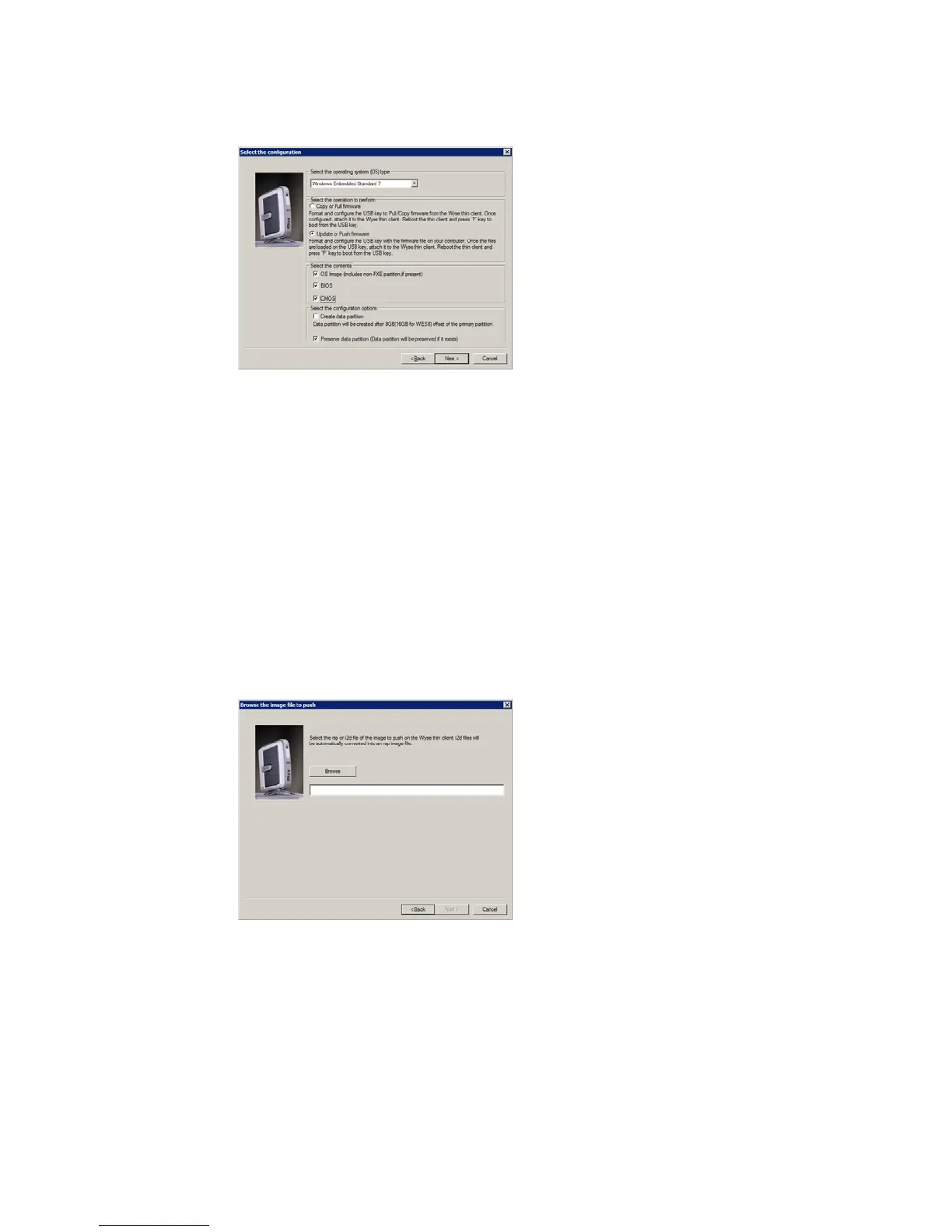
Figure 15 Update firmware options - Windows Embedded Standard 7 example
4. Depending on the operating system of the firmware (from "Step 1: Download and
Ready the Firmware You Require") that you will be pushing onto the target devices
(containing your upgraded flash), select one of the following OS type options:
• D90DW, X90mw, Z90DW, and Z90SW Only - Windows Embedded Standard
• D90D7, X90m7, Z90D7, Z90S7, and Z90DE7 Only - Windows Embedded Standard
7
5. Select the Update or Push Firmware operation to perform option. Be sure that all
three contents options are selected (OS Image, BIOS, and CMOS).
6. Clear/uncheck the Preserve data partition check box.
7. Click Next to open the browse dialog box.
Figure 16 Browse to select image file
8. Click Browse.






 To Next Page