Ï
] & [MENU] at the same time,
and then press [POWER] for DC power
on. Press the
Ï
key to enter factory
menu
Brightness&
Contrast
●
To show the Brightness&
Contrast menu
AUTO
ADJUST
● Execute the AUTO ADJUST function
Power Switch with power LED
indicator
Power: On/Off, includes power indicator and Power ICON
Blue- Active On
Amber- DPMS
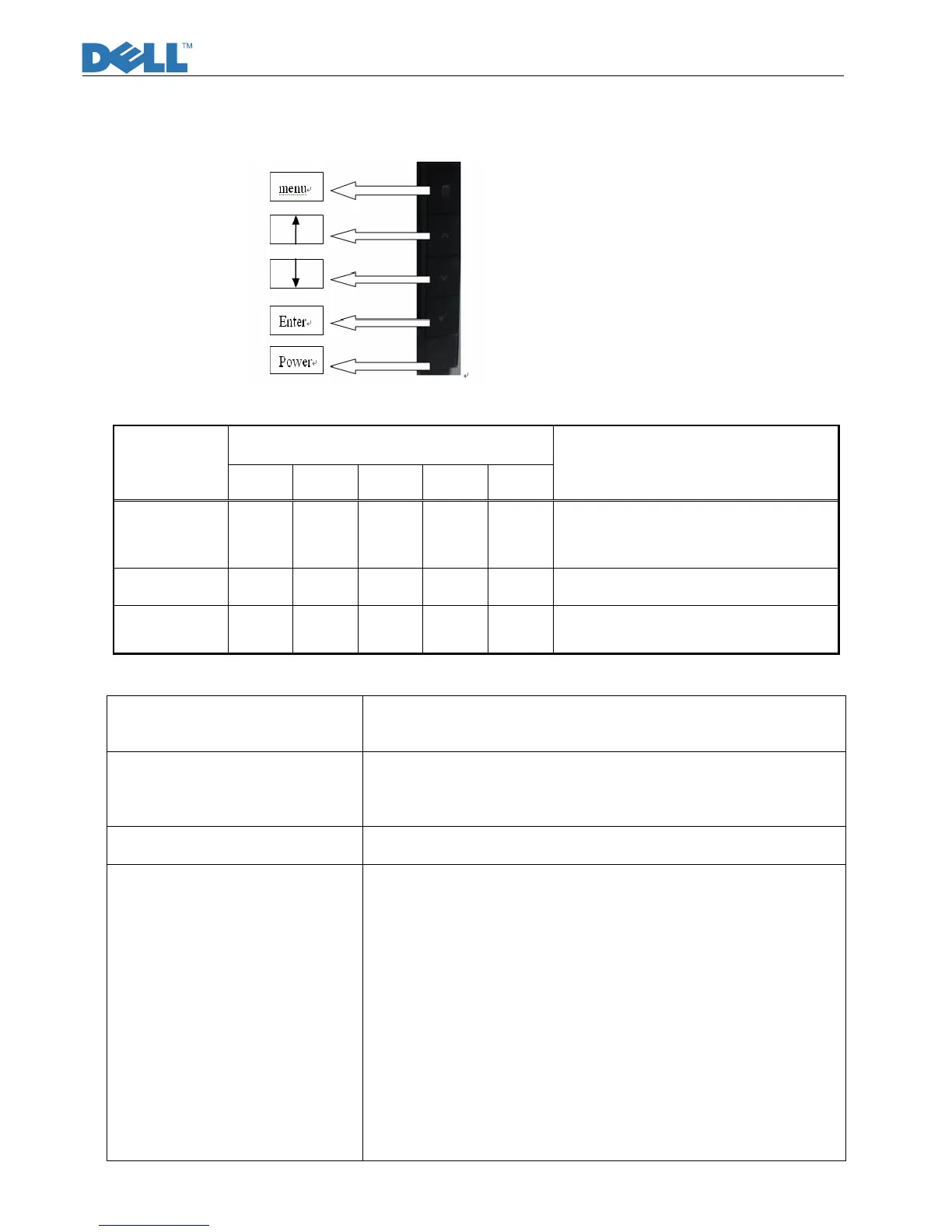
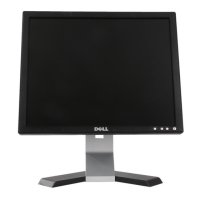
Front Panel Controls 1.Menu: Call out OSD Menu and choose
2. (Ï): symbol molded into button, calls out brightness/Contrast,
move down the highlight bar.
3.( Ð)symbol molded into button, move up the highlight bar
Hot Key Function Automatic adjust: Directly press “Д
Brightness/Contrast Icon: Directly press “Ï”
Factory Modes Keys Function Auto Color Balance
Purpose: Automatically calibrate chip ADC parameter by using
chip internal DAC.
Process: If we want to do “Auto Color Balance” again, please
confirm the following steps.
1) Connect the VGA cable with the standard video pattern
generator and display the pattern with blackest and whitest
colors.
2) Press “Power Key”, to power off the monitor.
3) Press “Menu Key” and “Ï” simultaneously, and then press
“Power Key” to power on the monitor.
4) Press “Ï” to enter factory menu
5) Execute Auto Color item.
6) After the “Auto Color Balance” process finished, go back to
Main Menu, and Enter Factory Reset Menu, Then press
“Factory Reset” to exit Factory Menu.


 To Next Page