Service Manual
28
Item Content Equipment
Test OSD
function
1.Signal is set as 1440×900@60Hz under General-1
2. LCM button are from left to right, checking whether each
single function key and compound function key can be
worked.
Chroma
Signal Generator
Contrast Check 1. Set input mode to 1440×900@60Hz
2. Set to 32gray scale pattern
3. Set contrast to the maximum. At most 6 bars cannot be
distinguished.
Chroma
Signal Generator
Color
Temperature
1. Do “Auto color Balance” at 1440×900@60Hz,
32gray scale pattern
2. Measure color temperature, check if it complies with
the following temperature :
Warm x=0.328 +/- 0.03, y=0.344+/-0.03
Desktop x= 0.313 +/- 0.03, y=0.329+/-0.03
Cool x= 0.283 +/- 0.03, y=0.298+/-0.03
Chroma Signal
Generator and
color analyzer
Modes
switching check
1. Use Chroma Pattern Generator to make sequence.
VESA (640x480 800x600 1024x768 1152x864
1280x1024 1440×900@60Hz), the detail supported
modes (see table 1) and power saving signal.
2. Confirm the above timing modes must be full screen
and the picture must be normal.
3. LED is amber at power saving mode.
Chroma
Signal Generator
VGA cable
detector
When select VGA model and VGA cable is not plugged
out, self-test OSD will be floated.
Visual check
Y measurement
at default
setting
1. Set brightness and contrast to default value 75 at
6500K
2. With full white pattern, Y shall be 200
20 cd/m
2
Chroma Signal
Generator and
Color Analyzer
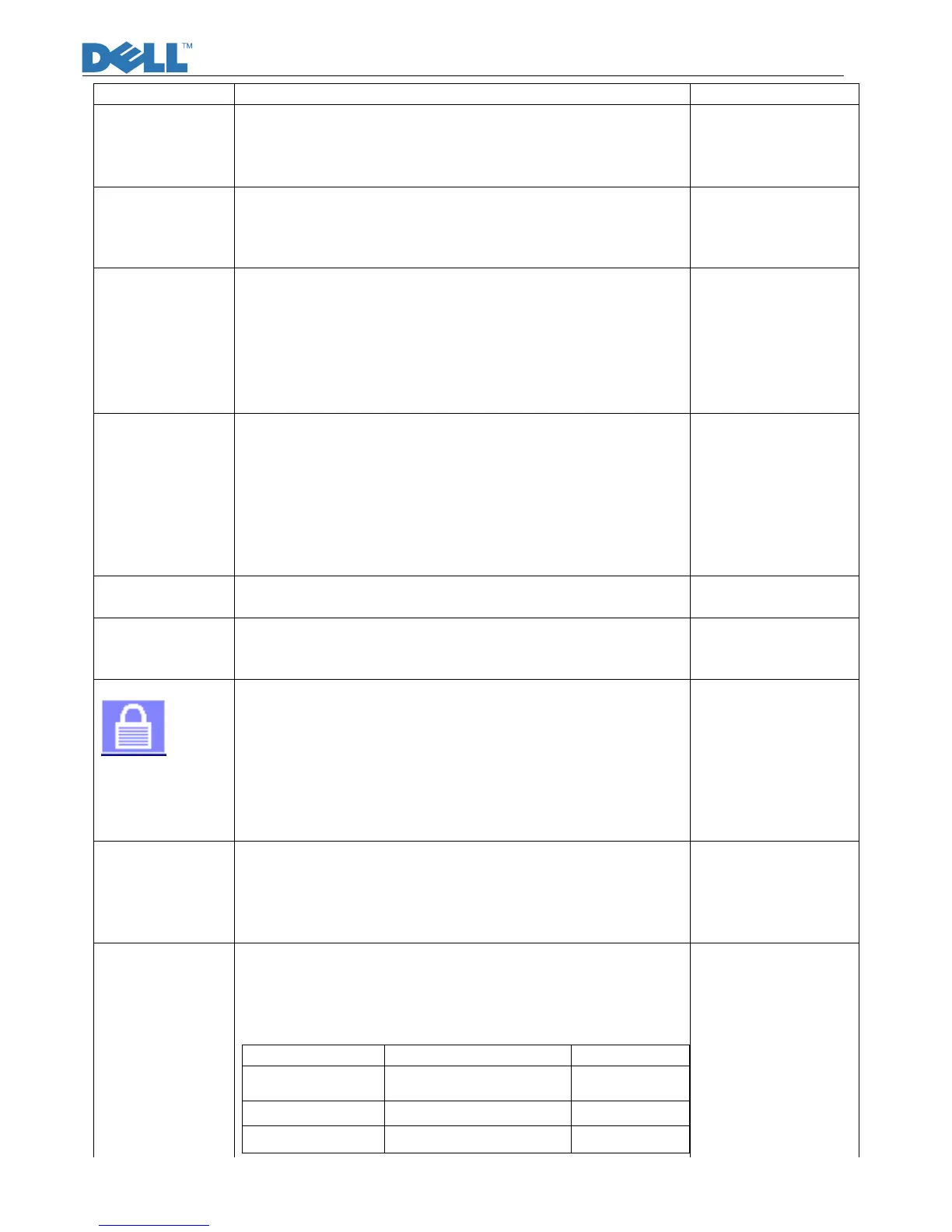
OSD Lock Test
Soft Lock: When OSD is locked, this icon should appear for
only 2 seconds with all buttons pressed, except for the
“Menu” and “Power” ones.
Hard Lock: Press “Menu” button for 15 seconds enables
the “locked” icon to be displayed, which will lock All
buttons expect for the “Power”. Press “Menu” button for
another 15 seconds enables the “unlock” icon to be
shown.
Visual Inspection
Panel Flicker
check
1. Mode:1440×900@60Hz
2. Set Brightness& Contrast to default value (75%)
3. Do “Auto Adjustment”
4. Shut down PC to check whether there’s flicker on the
center of the picture.
Equipment::
Chroma Signal
Generator & PC
Power saving 1. Mode:1440×900@60Hz
2. Pattern: full Black
3. Brightness: Max.
4. Contrast: Default
5. Check power consumption at each modes
State Power Consumption LED color
Normal <25W Blue
Stand By
<2W
Amber
Power Key Off
<1W
No display
Chroma signal
generator and
Power meter
AC
input:230V/50Hz


 To Next Page