Back to Contents Page
Operating the Monitor
Dell™E170S/E190SFlatPanelMonitorUser'sGuide
Using the Front Panel Controls
Using the On-Screen Display (OSD) Menu
Setting the Maximum Resolution
Using the Dell Soundbar (Optional)
Using the Tilt
Using the Front Panel
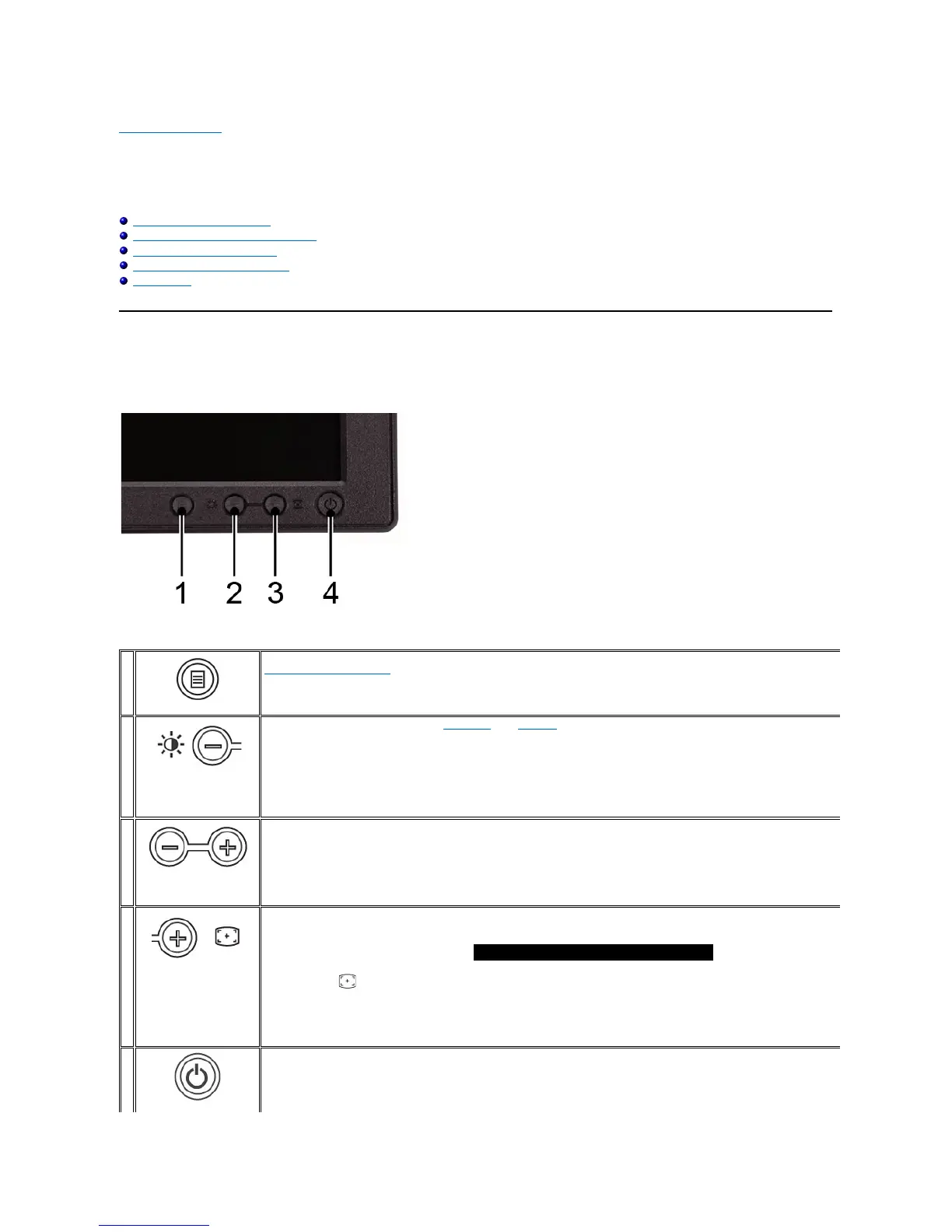
Use the control buttons on the front of the monitor to adjust the characteristics of the image being displayed. As you use these buttons to adjust the controls,
an OSD shows the numeric values of the characteristics as they change.
The following table describes the front panel buttons:
The 'MENU' button is used to open the on-screen display (OSD), select function icons, exit from menus and sub-
menus, and to exit the OSD. See
Accessing the Menu System.
Brightness/Contrast Hot
Key
Use this button for direct access to the 'Brightness' and 'Contrast' control menu.
Use these buttons to adjust (decrease/increase ranges) items in the OSD.
NOTE: You can activate automatic scroll feature by pressing and holding either + or - button.
Use this button to activate automatic setup and adjustment. The following dialog will appear on screen as the monitor self-
input:
Auto Adjustment button allows the monitor to self-
adjust to the incoming video signal. After using 'Auto Adjustment', you can further tune your
monitor by using the 'Pixel Clock' and 'Phase' controls in the OSD.
Auto Adjustment in Progress...
NOTE: Auto Adjust will not occur if you press the button while there are no active video input signals, or attached cables.
ThegreenLEDindicatesthemonitorisonandfullyfunctional.AnamberLEDindicatesDPMSpowersavemode.
The Power button turns the monitor on and off.


 To Next Page