26 Operating the Monitor
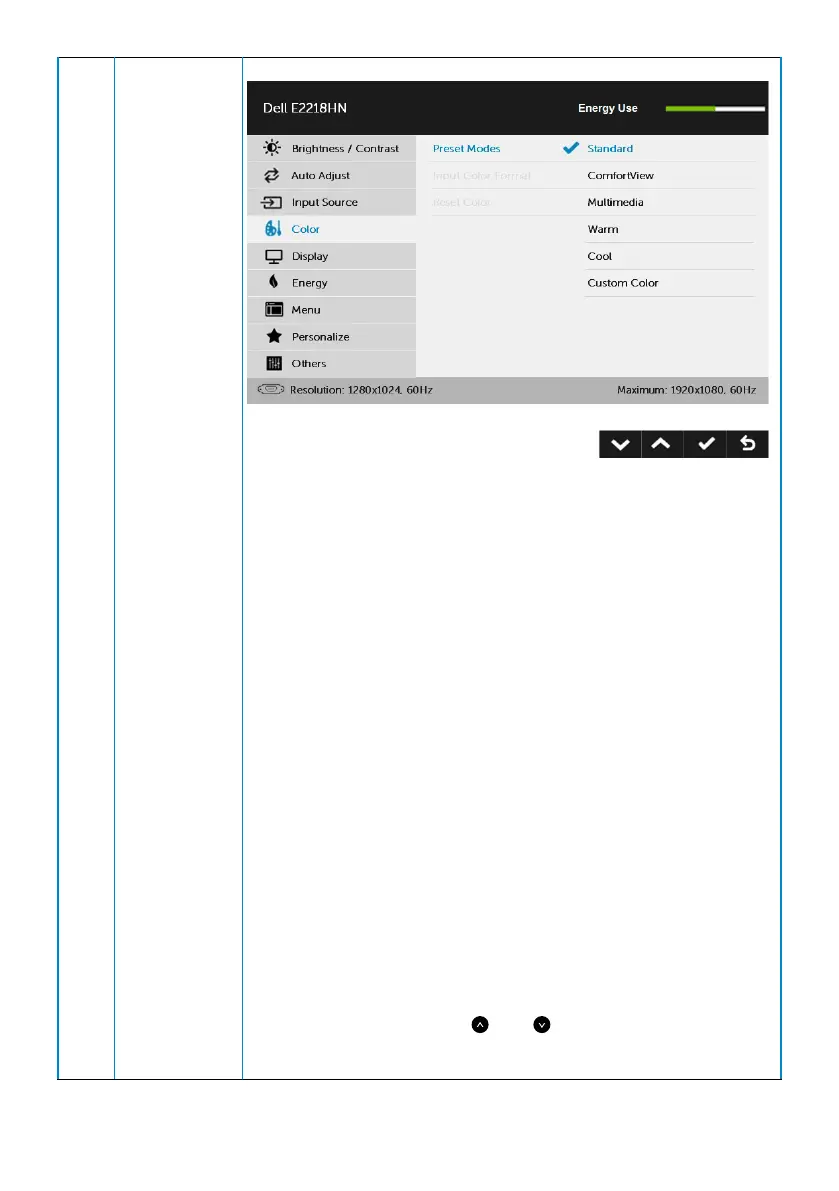
Preset Modes
Allows you to choose from a list of preset color modes.
• Standard: Loads the monitor's default color settings.
This is the default preset mode.
• ComfortView: Decreases the level of blue light emitted
from the screen to make viewing more comfortable for
your eyes.
NOTE: Use the following safety guidelines to ensure
your personal safety.
• Set the distance of the screen between 20 inches to
28 inches (50cm-70cm) from your eyes.
• Blink frequently to moisten your eyes or wet your
eyes with water after prolonged usage of the monitor.
• Take regular and frequent breaks for 20 minutes every
two hours.
• Look away from your monitor and gaze at a distant
object at 20 feet away for at least 20 seconds during
the breaks.
• Perform stretches to relieve tension in the neck, arm,
back, and shoulders during the breaks.
• Multimedia: Loads color settings ideal for multimedia
applications.
• Warm: Increases the color temperature. The screen
appears warmer with a red/yellow tint.
• Cool: Decreases the color temperature. The screen
appears cooler with a blue tint.
• Custom Color: Allows you to manually adjust the color
settings. Press the
and
keys to adjust the Red,
Green, and Blue values and create your own preset
color mode.


 To Next Page