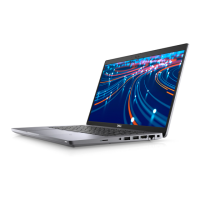
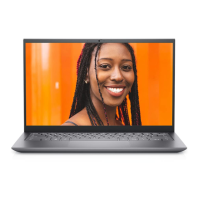
This document provides a comprehensive guide for setting up and understanding the Dell Inspiron 14 5408 laptop, covering its physical layout, various functionalities, and how to access support resources.
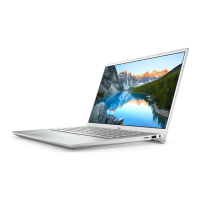
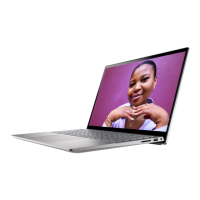
The laptop's design incorporates several external features for connectivity and user interaction. On the right side, you'll find a microSD-card slot, which allows you to read from and write to microSD, mSDHC, and mSDXC card types. Next to it is a USB 3.2 Gen 1 port, offering data transfer speeds of up to 5 Gbps for external devices like storage or printers. A headset port is also present, enabling connection of headphones or a combined headphone and microphone headset. The left side of the laptop features a power-adapter port for charging and powering the device. An adjacent power and battery-status light indicates the computer's power state: solid white for charging and solid amber for low or critical battery. This light may also serve diagnostic purposes on some models. Further along the left side, there's an HDMI port for connecting to external displays or TVs, another USB 3.2 Gen 1 port, and a versatile USB 3.2 Gen 1 Type-C port. The Type-C port supports Power Delivery for two-way power supply and up to 7.5W power output for faster charging, as well as DisplayPort functionality (requiring a separate adapter for DisplayPort devices). A Dell Adapter USB-C to USB-A 3.0 is included to connect legacy USB 3.0 accessories to the Type-C port.
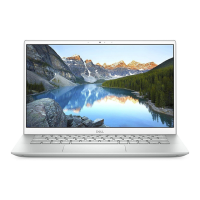
The base of the laptop includes a touchpad for navigation, with a left-click area and a right-click area. A power button, which may optionally include a fingerprint reader for secure login, is also located on the base. Pressing this button turns the computer on from an off, sleep, or hibernate state. A quick press puts the computer into sleep mode, while holding it for four seconds forces a shutdown. If equipped with a fingerprint reader, placing a finger on the button logs you in. The display assembly houses a left microphone and a right microphone for digital sound input during audio recording and voice calls. A camera is integrated for video chat, photo capture, and video recording, accompanied by a camera-status light that illuminates when the camera is active.
Setting up the Inspiron 14 5408 involves connecting the power adapter and pressing the power button. The battery might be in a power-saving mode, so connecting the adapter is crucial for initial startup. After powering on, you'll proceed with the operating system setup. For Ubuntu users, on-screen instructions guide the process, with additional information available in Dell knowledge base articles SLN151664 and SLN151748. For Windows users, Dell recommends connecting to a network for updates, signing in with a Microsoft account (or creating an offline account if no internet), and entering contact details on the Support and Protection screen. If connecting to a secured wireless network, the password will be prompted.
The laptop comes with several pre-installed Dell applications to enhance user experience and provide support. "My Dell" serves as a centralized hub for key Dell applications, help articles, and important computer information, including warranty status, recommended accessories, and software updates. "SupportAssist" proactively checks hardware and software health, and its OS Recovery tool helps troubleshoot operating system issues. Within SupportAssist, you can also renew or upgrade your warranty. "Dell Update" ensures your computer receives critical fixes and the latest device drivers. "Dell Digital Delivery" allows you to download software applications purchased but not pre-installed on your computer.
For maintenance and troubleshooting, the document highlights the importance of Dell's support resources. The Service Tag, a unique alphanumeric identifier, is crucial for Dell service technicians to identify hardware components and access warranty information. Users can find contact information for sales, technical support, or customer service issues on www.dell.com/contactdell. Self-help resources are available on www.dell.com/support, including information about Dell products, online help for operating systems, and access to solutions, diagnostics, drivers, and manuals. The "Knowledge Base" section on the support website allows users to search for articles using keywords, topics, or model numbers. If an active internet connection is unavailable, contact information can be found on the purchase invoice, packing slip, bill, or Dell product catalog.
The keyboard offers various shortcuts for multimedia control and secondary functions. Function keys (F1-F12) at the top row are primarily for multimedia control, indicated by icons. Pressing a function key directly invokes its multimedia task (e.g., F1 mutes audio). However, for specific software applications requiring traditional F-key functionality, multimedia control can be disabled by pressing Fn + Esc. In this mode, multimedia functions are accessed by pressing Fn and the respective function key. The primary behavior of function keys can also be defined in the BIOS setup program under "Function Key Behavior." Some keys have two symbols, allowing for alternate characters (accessed with Shift) or secondary functions (accessed with Fn). Examples of keyboard shortcuts include Fn + F7 for increasing brightness, Fn + F8 for switching to an external display, Fn + F10 for print screen, Fn + F11 for Home, Fn + F12 for End, Fn + B for Pause/Break, Fn + S for Toggle scroll lock, Fn + R for System request, Fn + Ctrl for Open application menu, Fn + Esc for Toggle fn-key lock, Fn + Insert for Turn on/off wireless connection, Fn + T for Turn on/off Ultra performance mode, Fn + Pg Up for Page up, and Fn + Pg Dn for Page down. Non-backlit keyboards will not have the backlight icon on F5 and do not support the toggle keyboard backlight function.


 To Next Page
 General