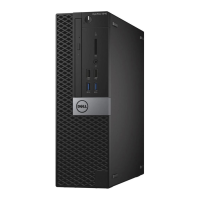
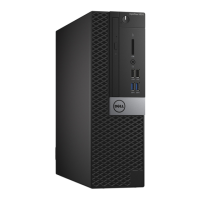
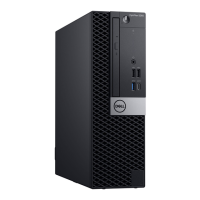
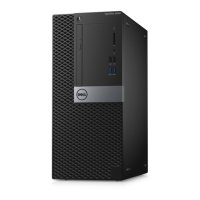
The Dell OptiPlex 5080 Small Form Factor Cable Cover is an accessory designed to enhance the protection and organization of cables connected to the Dell OptiPlex 5080 Small Form Factor system. Its primary function is to safeguard the ports and cables from accidental disconnections, damage, and unauthorized access, contributing to a more secure and tidy workspace. This user guide provides comprehensive instructions for the installation and use of the cable cover, ensuring users can effectively leverage its features.
Function Description
The cable cover serves as a physical barrier that encloses the rear-facing ports and the cables connected to them on the Dell OptiPlex 5080 Small Form Factor system. By routing and securing these cables within the cover, it prevents them from being easily pulled out or tampered with. This is particularly beneficial in environments where the system might be exposed to frequent movement, public access, or situations where cable management is crucial for operational efficiency and safety. The cover's design is specifically tailored to the OptiPlex 5080 SFF chassis, ensuring a snug and secure fit that complements the system's aesthetic. It helps to maintain a clean and professional appearance by bundling cables together, reducing clutter, and making the overall setup look more organized. Furthermore, the cover can deter casual attempts to disconnect peripherals, adding a layer of physical security to the system's connections. For enhanced security, the cover is designed to work in conjunction with the Noble Wedge slot, allowing users to secure the entire system, including the covered cables, with a compatible lock.
Usage Features
The installation process for the Dell OptiPlex 5080 Small Form Factor Cable Cover is straightforward and user-friendly, designed to be completed with minimal effort. The guide outlines a clear, step-by-step procedure to ensure correct installation.
- Cable Routing: The first step involves routing all necessary cables through a designated slot at the bottom of the cable cover. This initial routing is critical for proper cable management and ensures that all cables are contained before the cover is fully attached. The design allows for various types of cables, such as power, display, network, and peripheral cables, to pass through efficiently.
- Cable Drawing and Connection: After routing, the cables are drawn out from the other side of the cover. This step prepares the cables for connection to their respective ports on the Dell OptiPlex 5080 system. Users are instructed to connect each cable to its correct port, ensuring all peripherals and network connections are established.
- Antenna Management (if applicable): For systems equipped with an antenna, the guide specifies an additional step: turning the antenna outwards to pass through a dedicated antenna slot at the top of the cable cover. This ensures that wireless connectivity is not obstructed while the cables are secured, maintaining full functionality of the system's wireless capabilities.
- Alignment and Attachment: The cable cover features retaining hooks that are designed to align precisely with corresponding slots on the Dell OptiPlex Small Form Factor chassis. Users are cautioned to handle these plastic hooks with care during alignment to prevent bending or breaking, which could compromise the cover's secure fit. Once aligned, the cover is gently pressed down until it audibly clicks into place, indicating a secure attachment.
- Locking Mechanism: To further secure the cover and the enclosed cables, a sliding latch mechanism is incorporated. After the cover is clicked into place, the latch is slid to lock the cable cover firmly. This locking action provides an additional layer of security, preventing the cover from being easily removed and ensuring the cables remain protected.
- Enhanced Security with Noble Wedge Slot: For situations requiring maximum security, the guide notes that the Noble Wedge slot can be utilized. This feature allows users to attach a compatible security cable lock, securing the entire system and, by extension, the cable cover and its contents. This is particularly useful in public or shared environments where theft or unauthorized access is a concern.
The design of the cable cover is intuitive, allowing for quick installation and removal when access to the ports is required for maintenance or configuration changes. The clear visual aids provided in the guide, such as numbered images, simplify the process, making it accessible even for users who may not be highly technically inclined. The emphasis on gentle handling of plastic components highlights the importance of careful installation to ensure the longevity of the product.
Maintenance Features
The Dell OptiPlex 5080 Small Form Factor Cable Cover is designed for minimal maintenance, focusing on durability and ease of use.
- Durability: Constructed from robust materials, the cable cover is built to withstand regular use and provide long-term protection for the system's cables. Its sturdy design helps to prevent wear and tear on the cables themselves by reducing strain and exposure to external elements.
- Cleaning: The smooth surfaces of the cable cover can be easily wiped clean with a soft, damp cloth, ensuring that the system maintains a professional appearance. Regular cleaning helps to prevent dust and debris buildup, which could otherwise accumulate around the ports and cables.
- Inspection: Periodically, users should inspect the cable cover for any signs of damage, such as cracks or broken hooks, especially if the system is frequently moved or reconfigured. Ensuring the cover remains intact is crucial for its continued effectiveness in protecting the cables.
- Troubleshooting: In the event of issues, the user guide provides "Notes, Cautions, and Warnings" to help users understand potential problems and how to avoid them. For instance, the caution about not bending or breaking the plastic hooks during installation is a key maintenance tip that prevents damage.
- Support and Resources: Should users encounter any difficulties or require further assistance, Dell provides comprehensive support options. The guide directs users to Dell.com/support, where they can access various online and telephone-based support services. This includes selecting support categories, verifying country/region-specific information, and choosing appropriate service or support links. This ensures that users have access to expert help for any questions related to the cable cover or the OptiPlex system.
Overall, the Dell OptiPlex 5080 Small Form Factor Cable Cover is a practical and effective accessory that enhances the security, organization, and longevity of the Dell OptiPlex 5080 Small Form Factor system by providing robust protection and management for its cables. Its user-friendly design and clear instructions make it an accessible solution for maintaining a secure and tidy computing environment.



 To Next Page


 General
 Weight and Dimensions