EasyManua.ls Logo

Dell P172G - User Manual

Dell P172G
92 pages
Print Icon
To Next Page IconTo Next Page
Loading...
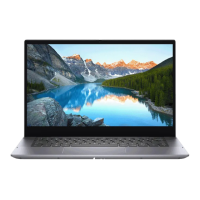
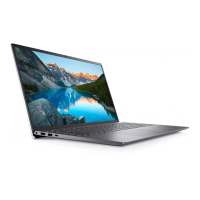
Inspiron 14 7435 2-in-1
Owner's Manual
Regulatory Model: P172G
Regulatory Type: P172G002
March 2023
Rev. A00

Table of Contents

Questions and Answers

  • S
    spierceAug 18, 2025
    What to do if my Dell P172G battery is swollen?
    • D
      Dan WoodsAug 18, 2025
      If the lithium-ion battery in your Dell Laptop is swollen, immediately discontinue using the laptop. Disconnect the AC adapter and allow the battery to fully drain. Replace the swollen battery and dispose of it properly. You may also contact Dell product support to explore options for replacing the battery under your warranty or service contract.
  • J
    Jeffrey PerryAug 20, 2025
    What to do if my Dell P172G Laptop has an amber blinking pattern with 2,3?
    • J
      Julie CoxAug 20, 2025
      If your Dell Laptop displays an amber blinking pattern of 2, 3, ensure the memory module is correctly installed. If the problem continues, replace the memory module.
  • K
    kellylopezAug 23, 2025
    What to do if my Dell P172G has an amber blinking pattern with 2,4?
    • D
      donald06Aug 23, 2025
      If your Dell Laptop shows an amber blinking pattern of 2, 4, try resetting and swapping the memory modules among the slots. If the issue persists, replace the memory module.
  • B
    Bob ChangAug 26, 2025
    What to do if my Dell P172G has an amber blinking pattern with 2,5?
    • C
      Christina GreerAug 26, 2025
      If your Dell Laptop shows an amber blinking pattern of 2, 5, try resetting and swapping the memory modules among the slots. If the issue persists, replace the memory module.
  • A
    Amber ComptonAug 28, 2025
    What to do if my Dell P172G has an amber blinking pattern with 3,3?
    • B
      Brett HensleyAug 28, 2025
      If your Dell Laptop displays an amber blinking pattern of 3, 3, flash the latest BIOS version. If the problem continues, replace the system board.
  • W
    westradaAug 30, 2025
    What to do if my Dell Laptop has an amber blinking pattern with 3,4?
    • D
      Darrell NavarroAug 30, 2025
      If your Dell Laptop displays an amber blinking pattern of 3, 4, flash the latest BIOS version. If the problem continues, replace the system board.
  • J
    Justin Medina IVSep 2, 2025
    What to do if my Dell Laptop has an amber blinking pattern with 2,1?
    • N
      Nancy LeSep 2, 2025
      If your Dell Laptop displays an amber blinking pattern of 2, 1, run the Dell Support Assist/Dell Diagnostics tool. If the problem persists, replace the system board.
  • M
    Mary WarrenSep 4, 2025
    What to do if my Dell Laptop has an amber blinking pattern with 1,2?
    • B
      Barbara RodriguezSep 4, 2025
      If your Dell Laptop displays an amber blinking pattern of 1, 2, the cause may be an unrecoverable SPI Flash Failure. Replace the system board.
  • A
    Amy MitchellSep 7, 2025
    What to do if my Dell Laptop has an amber blinking pattern with 3,2?
    • M
      Mary RussoSep 7, 2025
      If your Dell Laptop displays an amber blinking pattern of 3, 2, it indicates a PCI or Video card/chip failure. Replace the system board.
  • K
    Kelly NealSep 9, 2025
    What to do if my Dell P172G has an amber blinking pattern with 3,1?
    • P
      Patricia DanielsSep 10, 2025
      If your Dell Laptop displays an amber blinking pattern of 3, 1, reset the main battery connection. If the problem continues, replace the main battery.

Summary

Views of Inspiron 14 7435 2-in-1

Working Inside Your Computer

Safety Instructions for Internal Work

Provides essential safety guidelines for working inside the computer.

Pre-Work Preparation Steps

Steps to prepare the computer before internal servicing.

General Safety Precautions

General safety measures to follow before and during disassembly.

ESD Protection Measures

Details the importance and methods of ESD protection.

ESD Field Service Kit

Describes the components and use of an ESD service kit.

Post-Work Procedures

Steps to follow after completing internal computer work.

Major Internal Components Overview

Identifies the main internal hardware components of the laptop.

Removing and Installing Customer Replaceable Units (CRUs)

Base Cover Removal and Installation

Instructions for removing and installing the laptop's bottom cover.

Solid-State Drive (SSD) Procedures

Procedures for removing and installing M.2 SSDs.

Wireless Card Procedures

Steps for removing and installing the computer's wireless network card.

Cooling Fan Procedures

Instructions for removing and installing the system's cooling fan.

Removing and Installing Field Replaceable Units (FRUs)

Lithium-ion Battery Procedures

Safety precautions and procedures for removing/installing the main battery.

Heat Sink Procedures

Procedures for removing and installing the CPU heat sink assembly.

Touchpad Procedures

Steps for removing and installing the laptop's touchpad.

Display Assembly Procedures

Procedures for removing and installing the entire display unit.

System Board Procedures

Instructions for removing and installing the main system board.

Palm-Rest and Keyboard Assembly Procedures

Steps for removing and installing the palm-rest and keyboard.

BIOS Setup and Configuration

Updating the BIOS Firmware

Guides on how to update the system's BIOS firmware.

Troubleshooting Common Issues

Handling Swollen Lithium-ion Batteries

Safety advice and procedures for dealing with swollen batteries.

Dell SupportAssist Pre-boot Diagnostics

How to run hardware diagnostics before the OS loads.

Running System Performance Checks

Step-by-step guide to initiate hardware diagnostics.

LCD Built-in Self Test (BIST)

How to run the display's built-in self-test to check screen issues.

System Diagnostic Lights Explained

Explains power and battery status lights and error codes.

Recovering the Operating System

Steps for restoring the OS using Dell SupportAssist OS Recovery.

Drain Residual Flea Power (Hard Reset)

How to perform a hard reset to clear residual power.

Dell P172G Specifications

General IconGeneral
ModelDell P172G
CategoryLaptop
Operating SystemWindows 10 Pro
RAM16 GB
Storage512 GB SSD

Related product manuals