Views of Inspiron 15-7560
Topics:
• Front
•
Left
• Right
• Base
• Display
• Bottom
Front
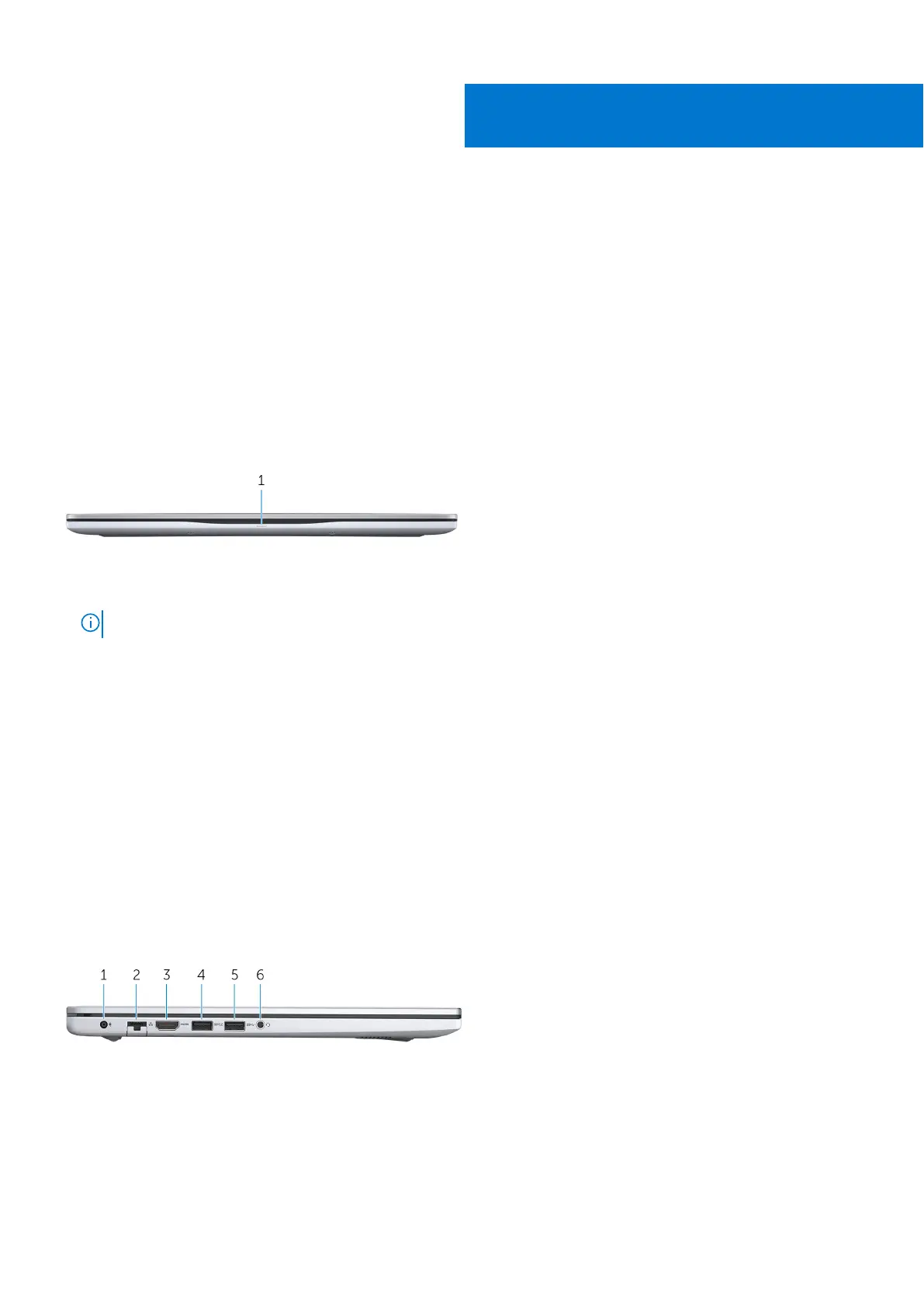
1. Power and battery-status light/hard-drive activity light
Indicates the battery-charge status or the hard-drive activity.
NOTE: Press Fn+H to toggle between the power and battery-status light, and hard-drive activity light.
Hard-drive activity light
Turns on when the computer reads from or writes to the hard drive.
Power and battery-status light
Indicates the power and battery-charge status.
Solid white — Power adapter is connected and the battery has more than 5% charge.
Amber — Computer is running on battery and the battery has less than 5% charge.
Off
● Power adapter is connected and the battery is fully charged.
● Computer is running on battery and the battery has more than 5% charge.
● Computer is in sleep state, hibernation, or turned off.
Left
1. Power-adapter port
Connect a power adapter to provide power to your computer and charge the battery.
2. Network port
Connect an Ethernet (RJ45) cable from a router or a broadband modem for network or Internet access.
3. HDMI port
2
6 Views of Inspiron 15-7560



 To Next Page