EasyManua.ls Logo

Dell P69G - User Manual

Dell P69G
84 pages
Print Icon
To Next Page IconTo Next Page
Loading...
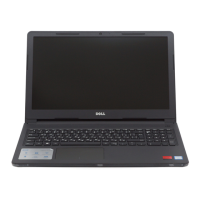
Dell Latitude 3390 2-in-1
Owner's Manual
Regulatory Model: P69G
Regulatory Type: P69G001
August 2020
Rev. A02

Table of Contents

Other manuals for Dell P69G

Questions and Answers

  • K
    Kimberly EstradaAug 12, 2025
    What to do if my Dell P69G Laptop won't turn on?
    • M
      michael83Aug 12, 2025
      First, check that the system has a power light. If not, ensure it's plugged into AC power. Then, remove the battery, making sure the power is off and the system is unplugged. After that, remove all CRUs from the system, reconnect the AC adapter, and try again. Finally, run the ePSA diagnostics.
  • H
    Haley LangAug 16, 2025
    What to do if Dell P69G displays error codes during diagnostic tests?
    • M
      Michelle AbbottAug 16, 2025
      If your Dell Laptop displays error codes during diagnostic tests, make a note of the error code and validation number. After that, contact Dell support for further assistance.
  • T
    Travis WallaceAug 19, 2025
    What to do if my Dell P69G screen has no video?
    • R
      Robert BlackAug 19, 2025
      If the LCD is not displaying video or the video is garbled, run the ePSA diagnostics. If the LCD is not displaying any video, connect an external monitor to eliminate a no-POST problem. Connect an external monitor, when possible, for all LCD-related problems to help eliminate a possible software or video card problem. If the LCD has dim video, adjust the brightness or connect an AC adapter to eliminate a power management conservation setting in the BIOS. If the LCD has lines on the screen, check the system during POST and system setup, to determine if the lines are present in all modes of operation. Run the ePSA diagnostics. If the LCD has color problems, run the ePSA diagnostics. If the LCD has burned-out pixels, verify that the LCD is still within LCD standard guidelines.
  • D
    diazhannahAug 23, 2025
    What to do if Dell Laptop touchpad and keyboard aren't working?
    • D
      Darryl FosterAug 25, 2025
      Attach an external mouse or keyboard to check for peripheral functionality. Also, run the ePSA diagnostics.
  • R
    rogersedwardAug 27, 2025
    How to fix BIOS issues on a Dell P69G Laptop?
    • T
      thomas89Aug 27, 2025
      Check the System Setup pages to verify the settings on each page. Try resetting BIOS to default settings by pressing Alt+F.
  • M
    Melinda WallAug 31, 2025
    How to charge Dell Laptop battery faster?
    • J
      josemartinAug 31, 2025
      The battery should be charged while the system is off for faster charge time.
  • C
    Cassandra MartinSep 4, 2025
    How to fix VGA connection issues on a Dell P69G Laptop?
    • F
      farnoldSep 4, 2025
      Check both ends of the cable for a secure connection to the laptop and the external monitor. Adjust the contrast and brightness on the external monitor. Ensure the notebook is not set to internal display only. Try swapping with a known good cable or a known good external monitor.
  • M
    Matthew OneillSep 7, 2025
    How to troubleshoot integrated NIC on a Dell Laptop?
    • P
      perezkeithSep 7, 2025
      First, make sure that the network driver has been installed and is working properly. Check System Setup to ensure that the NIC is enabled. Try reseating the cable or using a known good cable, if available. If a known good system is available, check if that system is connecting to the network. You may also run the ePSA diagnostics on the network port.

Summary

Working on Your Computer

Safety Instructions

Essential safety guidelines for protecting users and the computer during operation and maintenance.

Before and After Internal Servicing

Procedures for preparing and completing work inside the computer safely.

Removing and Installing Components

Base Cover and Battery

Instructions for removing and installing the base cover and internal battery.

Storage and Memory Components

Procedures for replacing HDD, SSD, and memory modules.

System Specifications and Setup

Software and Troubleshooting

Common Troubleshooting Issues

Solutions for problems related to battery, POST, video, BIOS, and peripherals.

Dell P69G Specifications

General IconGeneral
BrandDell
ModelP69G
CategoryLaptop
LanguageEnglish

Related product manuals