Stacking PowerConnect 10G Switches: M8024-k, 8024, 8024F
46
9. Click Close.
After a firmware file is copied from a TFTP server to the Master, it begins automatically distributing it
to all member units in the stack. This procedure usually takes a few minutes longer than updating a
single, non-stacked switch.
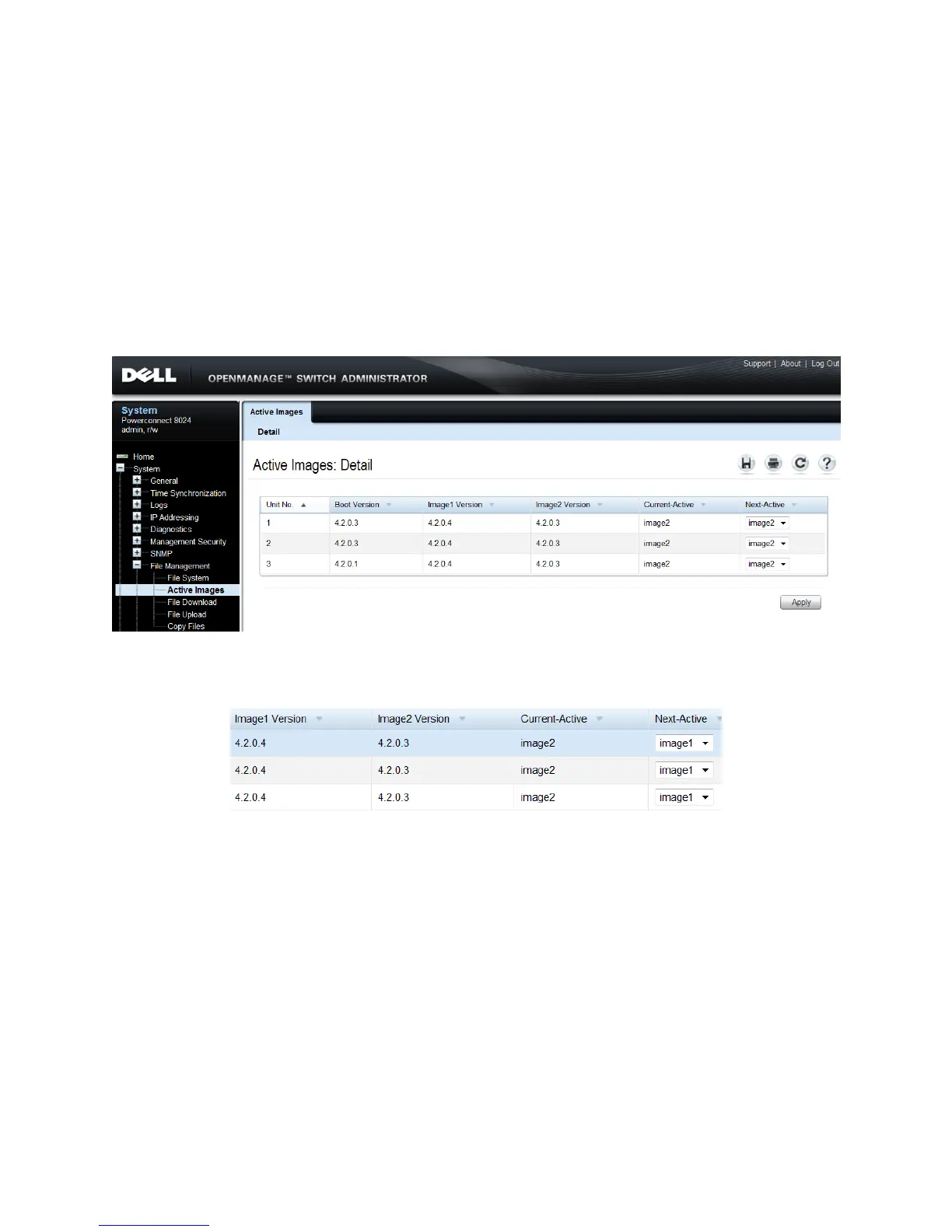
10. Select System > File Management > Active Images.
11. Notice the firmware (i.e. 4.2.0.4) was copied into the inactive image for each member.
12. Also notice all three switches still have the same Current-Active image as before.
13. Under the Next-Active column, select the new image (i.e. image1) for each switch as shown
below.
14. Click Apply.
The Current-Active column should now show the opposite values as what is in the Next-Active column.
A reload is required to active the firmware.
15. Select System > General > Reset. Choose All in the Switch ID menu.


 To Next Page