Troubleshooting Your Projector 39
If you experience problems with your projector, see the following
troubleshooting tips. If the problem persists, contact Dell (see Contacting
Dell on page 51).
4
Troubleshooting Your Projector
Problem Possible Solution
No image appears on the
screen
•
Ensure that you have chosen the correct
input source on the INPUT SOURCE
menu.
•
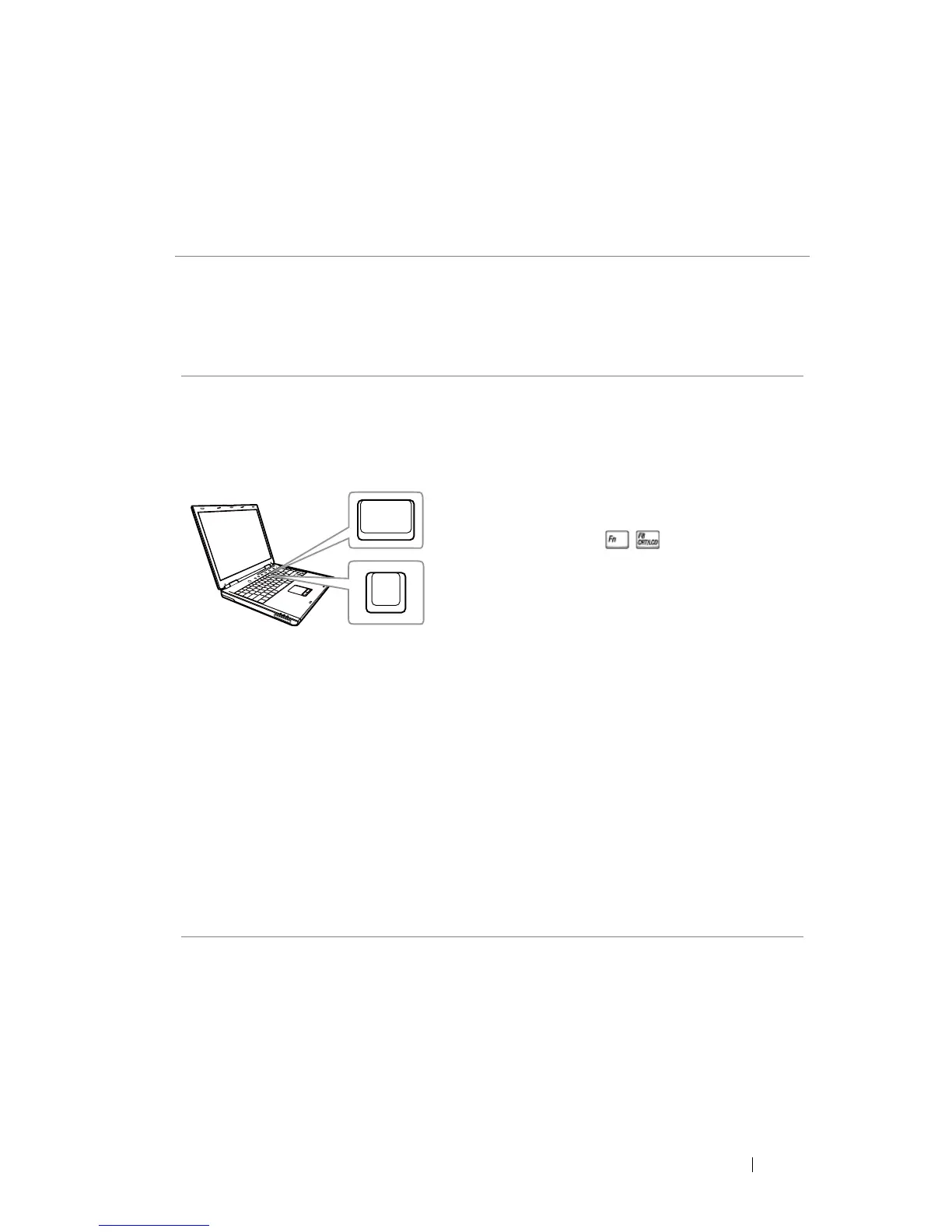
Ensure the external graphics port is
enabled. If you are using a Dell laptop
computer, press (Fn+F8). For
other computers, see your respective
documentation. If images are not
displayed properly, please upgrade the
video driver of your computer. For Dell
computers, see support.dell.com.
•
Ensure that all the cables are securely
connected. See "Setting Up Your
Projector" on page 8.
•
Ensure that the pins of the connectors
are not bent or broken.
•
Ensure that the lamp is securely installed
(see "Changing the Lamp" on page 44).
•
Use Test Pattern in the Projector Settings
of the Advanced Settings menu. Ensure
that the colors of the test pattern are
correct.


 To Next Page