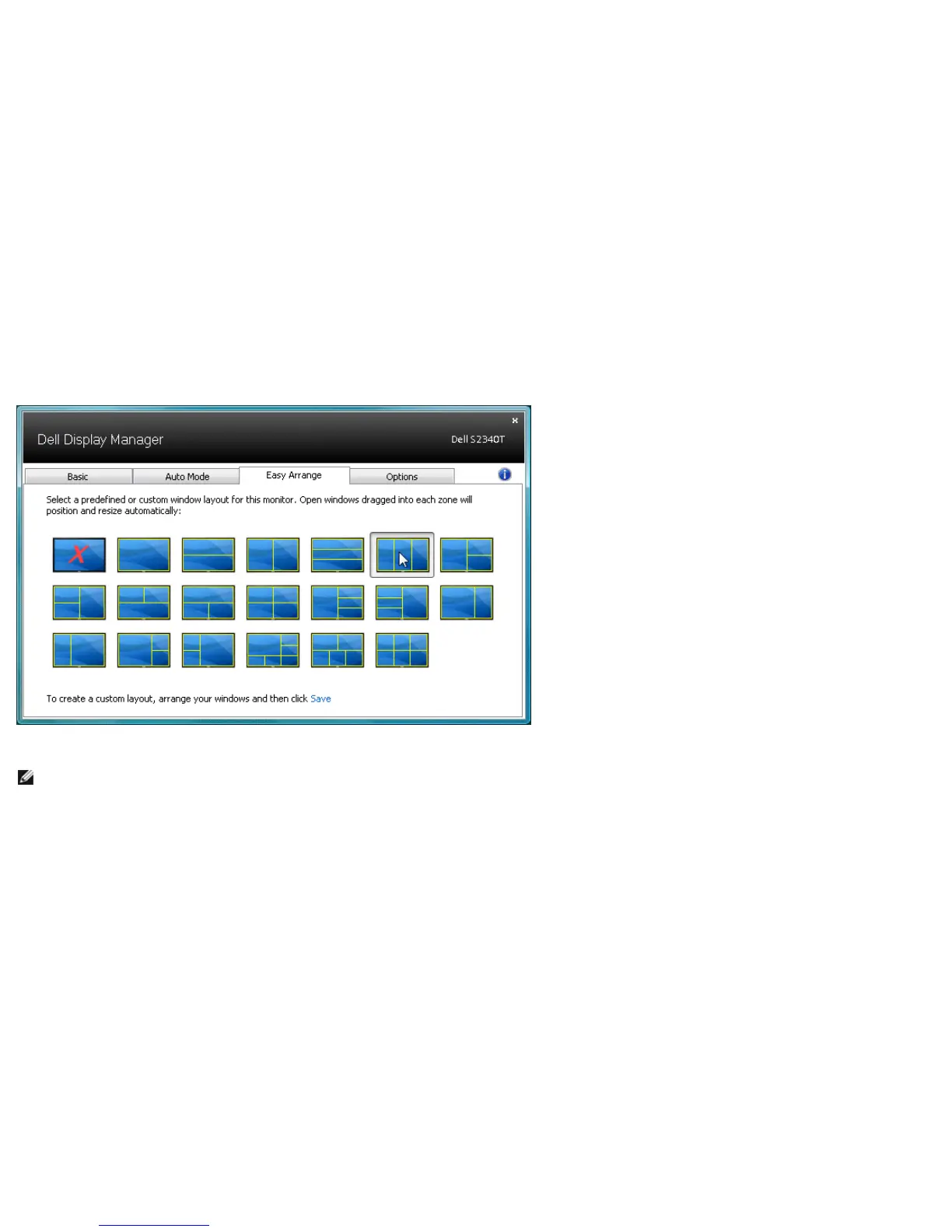
Some Dell models feature Easy Arrange, which allows the selected monitor's desktop to be organized into various predefined or custom window layouts. When Easy Arrange is
enabled, windows can easily be made to reposition and resize automatically to fill specific regions within a window layout.
To get started with Easy Arrange, choose a target monitor and select one of the predefined layouts. The regions for that layout will be displayed momentarily on the monitor.
Next, drag an open window across the monitor. While the window is being dragged, the current window layout will be displayed and an active region will be highlighted as the
window passes over it. At any time, drop the window into the active region and it will automatically resize and reposition to fill that region.
To create a custom window layout, first size and position up to 10 windows on the desktop and then click the Save link in Easy Arrange. The size and position of the windows is
saved as a custom layout and the custom layout icon is created.
NOTE: The application that owns each window is not saved in the custom layout. Only the size and position of the windows is saved.


 To Next Page