Setting up the monitor | 27
Rotating the Display
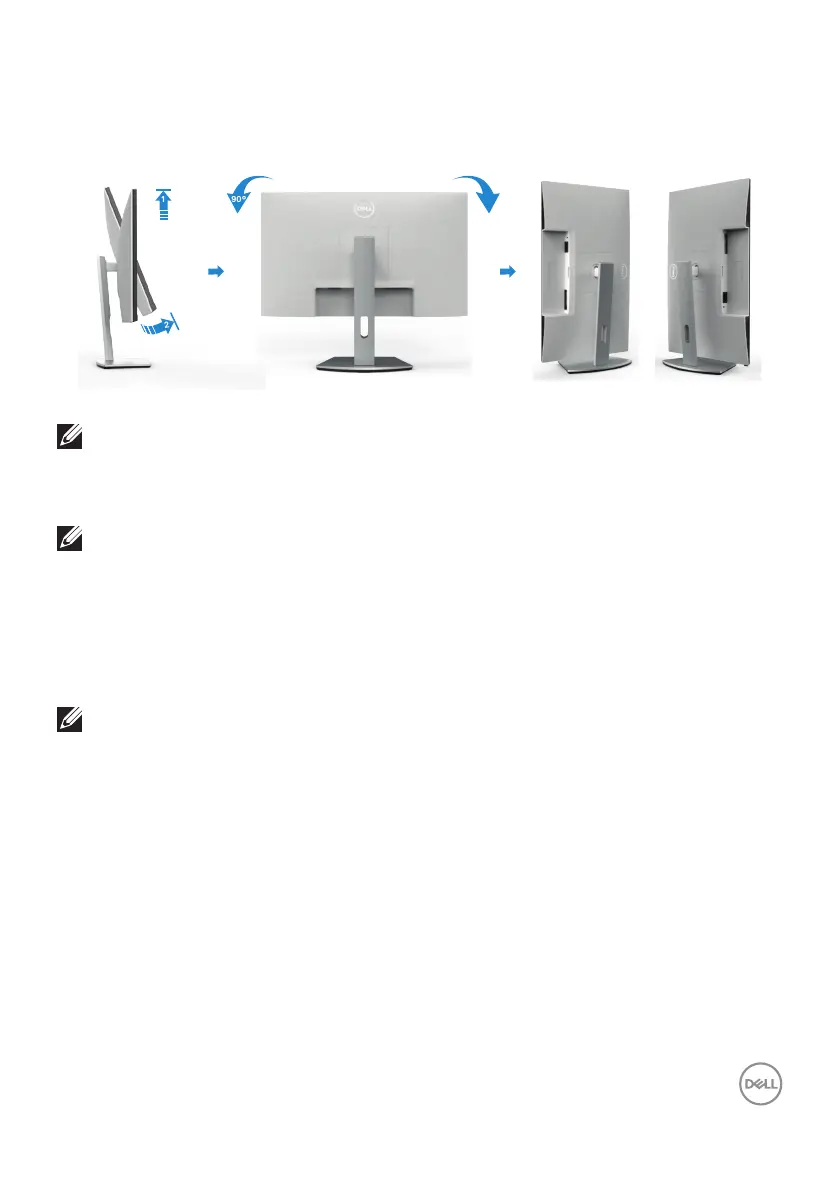
Before you rotate the display, extend the display vertically until the top of the stand
riser and then tilt the display backwards until the maximum to avoid hitting the bottom
edge of the display.
2
1
90°
90°
NOTE: To toggle the display setting on your Dell computer between
landscape and portrait when rotating the display, download and install the
latest graphics driver. To download, go to www.dell.com/support/drivers
and search for the appropriate driver.
NOTE: When the display is in portrait mode, you may experience
performance degradation when using graphic-intensive applications such
as 3D gaming.
Configuring the display settings on your computer after rotation
After you have rotated the display, complete the procedure given below to configure
the display settings on your computer.
NOTE: If you are using the monitor with a non-Dell computer, go to the
graphics card manufacturer’s website or your computer manufacturer
website for information on how to rotate the contents of your display.
To configure the Display Settings:
1. Right-click on the Desktop and click Properties.
2. Select the Settings tab and click Advanced.
3. If you have an AMD graphics card, select the Rotation tab and set the preferred
rotation.
4. If you have an nVidia graphics card, click the nVidia tab, in the left-hand column
select NVRotate, and then select the preferred rotation.
5. If you have an Intel® graphics card, select the Intel graphics tab, click Graphic
Properties, select the Rotation tab, and then set the preferred rotation.


 To Next Page